
A few days ago, I was working on a Power BI report where the client needed some special filters. They wanted to see sales above a certain number, show only active records, and apply more than one condition at the same time using DAX. The normal Power BI filters could not do this, so I had to use DAX formulas to filter the data based on different conditions exactly the way they wanted.
In this tutorial, I will show you how to filter data using DAX based on different conditions. I will cover:
- How to filter rows based on a condition in Power BI using DAX
- Apply multiple conditions in DAX for Power BI reports
- Using the OR condition inside DAX filters in Power BI
- Using the AND condition in DAX while building Power BI filters
Filter Rows Based on a Condition in Power BI using DAX
Here, I will show you how to filter rows based on a condition in Power BI using DAX.
For this example, I have a small dataset named SalesData with the following columns:

Now, I want to filter only the rows where Sales Amount is greater than 1000.
To do this, follow the steps below:
- Open Power BI Desktop and load the table above.
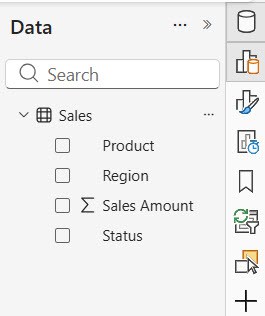
- Under the Modeling tab, click New Table.

- In the formula bar, enter the following DAX expression:
HighSales =
FILTER(
    Sales,
    Sales[Sales Amount] > 1000
)
Where:
- HighSales: Create a new table named HighSales.
- FILTER(): Use the FILTER function to choose specific rows.
- Sales: Look at the Sales table.
- Sales[Sales Amount] > 1000: Keep only the rows where Sales Amount is greater than 1000.

This will create a new table named HighSales, containing only the rows where SalesAmount > 1000.
- Go to the Table view and select the HighSales table.

This way, you can filter rows based on a condition in Power BI using DAX.
Apply multiple conditions in Power BI DAX
Here, I will show you how to apply multiple conditions in DAX when filtering our data in Power BI.
For this example, I have a SharePoint List called Employee Records with the following columns:
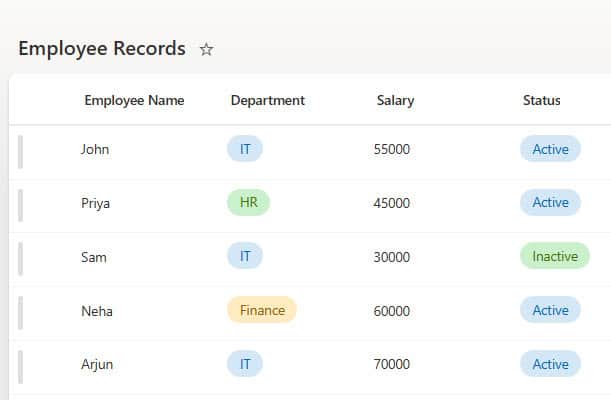
I want to filter employees in the IT department with salaries greater than 50,000.
To do this, follow the steps:
- Open the Power BI Desktop and load the above sharepoint list into Power BI.

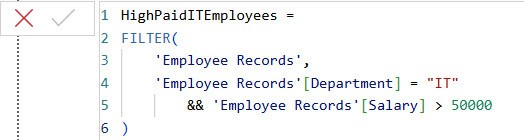
- Under the Modeling tab, click New Table. Then, in the formula bar, enter the following DAX expression:
HighPaidITEmployees =
FILTER(
    'Employee Records',
    'Employee Records'[Department] = "IT"
        && 'Employee Records'[Salary] > 50000
)
Where:
- HighPaidITEmployees: Create a new table called HighPaidITEmployees.
- FILTER(): The FILTER function to select specific rows.
- Employee Records: Take data from the Employee Records table.
- ‘Employee Records'[Department] = “IT”: Keep only the rows where the Department is IT.
- ‘Employee Records'[Salary] > 50000: Also keep only the rows where the Salary is more than 50,000.
To check the result, go to the Table view and select HighPaidITEmployees.
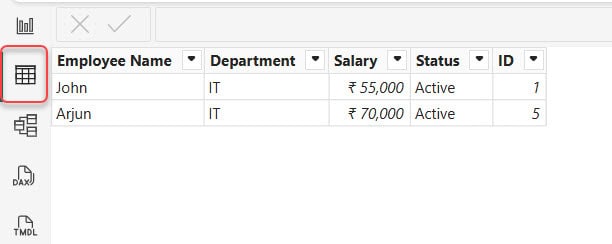
Here, I add two conditions, but you can add more conditions using Power BI DAX.
OR Condition inside DAX Filters in Power BI
Here, I will show you how to use an OR condition inside DAX filters in Power BI.
For this example, I am using the same Employee Records dataset from a SharePoint list.
Here, I want to count employees who work in the IT department, or have a salary greater than 60,000.
To do this, follow the steps below:
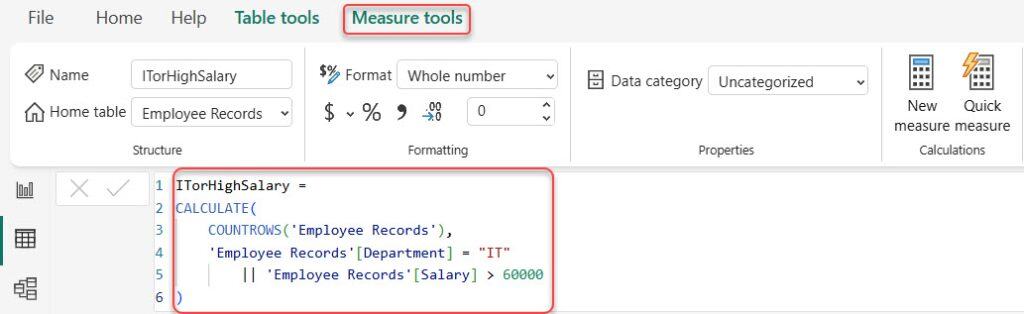
- Open Power BI Desktop and load the data. Then go to the table view, click the Table Tools tab, and then New Measure on the ribbon.

- Then write the below-mentioned DAX expression in the formula bar and click on the check icon:
ITorHighSalary =
CALCULATE(
    COUNTROWS('Employee Records'),
    'Employee Records'[Department] = "IT"
        || 'Employee Records'[Salary] > 60000
)
Where:
- ITorHighSalary: Create a new measure named ITorHighSalary.
- CALCULATE(): Change the way data is calculated using filters.
- COUNTROWS(‘Employee Records’): Count how many rows are in the Employee Records table after applying the filters.
- ‘Employee Records'[Department] = “IT”: Filter condition 1: keep rows where Department is IT.
- ||: OR (at least one condition must be true).
- ‘Employee Records'[Salary] > 60000: Filter condition 2: keep rows where Salary is more than 60,000.
- Then go to the report view, add an individual card, and drag the ITorHighSalary measure to it; you can then see the count.
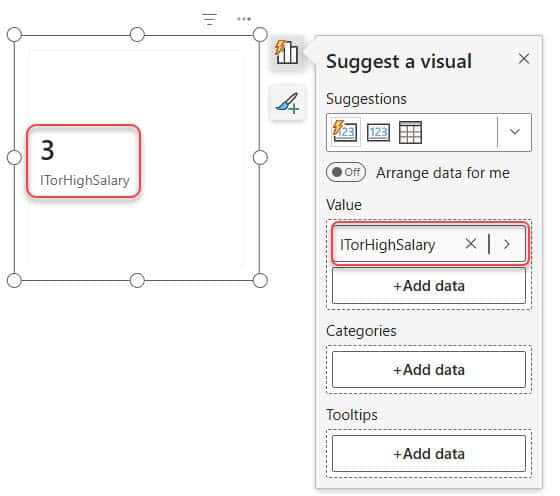
This is how to filter rows based on OR conditions using DAX in Power BI.
AND Condition in Power BI DAX
Here, I will show you how to use an AND condition in DAX by creating a calculated column in Power BI.
For this example, I am using the same Employee Records dataset.
Here, I want to create a new column that marks an employee as Eligible only if the employee works in the IT department AND has a Salary greater than 50,000.
Follow the steps below:
- Open Power BI Desktop and load the data. Then go to table view and select the Employee Records column.
- Next, click on the Table tools tab -> New Column from the ribbon.
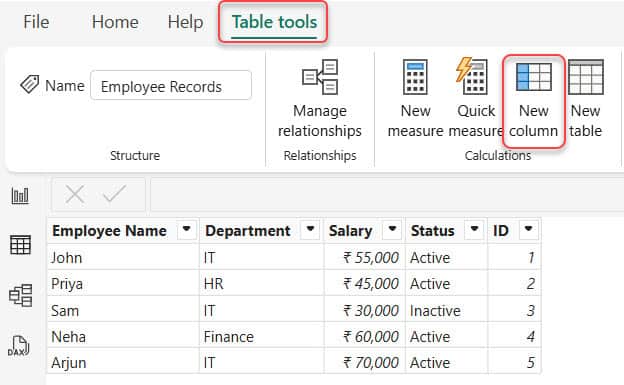
- Then write the below-mentioned DAX expression in the formula bar and click on the check icon:
EligibilityStatus =
IF(
    'Employee Records'[Department] = "IT"
        && 'Employee Records'[Salary] > 50000,
    "Eligible",
    "Not Eligible"
)
Where:
- EligibilityStatus: Create a new column called EligibilityStatus.
- IF(): IF statement to check a condition.
- ‘Employee Records'[Department] = “IT”: Condition part 1: The employee must be in the IT department.
- &&: AND (both conditions must be true).
- ‘Employee Records'[Salary] > 50000: Condition part 2: The employee’s salary must be more than 50,000.
- Eligible: If both conditions are TRUE, show “Eligible”.
- Not Eligible: If any condition is FALSE, show “Not Eligible”.
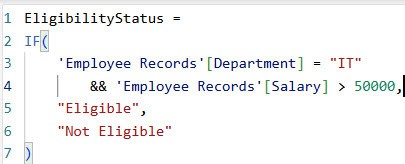
In the screenshot below, you can see that it filters the rows based on the condition and displays them in the new calculated column:
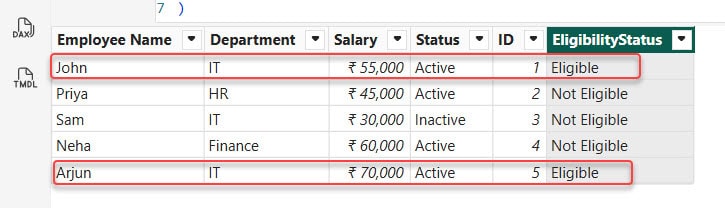
This is how to filter rows based on AND conditions using DAX in Power BI.
In this tutorial, I explained how to filter data in Power BI using DAX based on different conditions. I covered how to filter rows using a single condition, how to apply multiple conditions, how to use the OR condition in DAX, and how to use the AND condition when building filters.
Also, you may like the following Power BI Tutorials:
- Power BI DAX Min Filter
- Count Data With Multiple Filter Conditions in Power BI DAX
- DATEDIFF() in Power BI DAX
- Filter Distinct Date Using Power BI DAX
- Filter Current Year Data Using Power BI DAX

Hey! I’m Bijay Kumar, founder of SPGuides.com and a Microsoft Business Applications MVP (Power Automate, Power Apps). I launched this site in 2020 because I truly enjoy working with SharePoint, Power Platform, and SharePoint Framework (SPFx), and wanted to share that passion through step-by-step tutorials, guides, and training videos. My mission is to help you learn these technologies so you can utilize SharePoint, enhance productivity, and potentially build business solutions along the way.

