
One of the biggest gaps between a basic Power BI report and a truly professional one is interactivity. Any beginner can build a bar chart that shows total sales. But what separates a consultant-grade dashboard from a student project is the ability to make every measure, every KPI card, every visual respond intelligently to what the user selects.
That’s exactly what combining FILTER() and SELECTEDVALUE() lets you do.
I’ve built dozens of Power BI dashboards for business users, and the moment I show them a report where a KPI card dynamically recalculates based on their slicer selection — where even the title changes and the measure logic shifts — they stop treating it like a spreadsheet and start treating it like a real analytics tool.
In this tutorial, I’m going to walk you through everything you need to know about using FILTER() together with SELECTEDVALUE() in Power BI DAX. We’ll go from the basics to real-world advanced patterns, and by the end, you’ll be able to build measures that feel truly alive.
What Is SELECTEDVALUE() in Power BI DAX?
Before we combine it with FILTER(), let’s make sure you understand what SELECTEDVALUE() does on its own.
SELECTEDVALUE() is a DAX function that reads the current filter context and returns the single value of a column that is currently selected — most commonly from a slicer or a visual selection. If more than one value is selected (or no value at all), it returns a default value you define, or BLANK if you don’t specify one.
Here is the syntax:
SELECTEDVALUE(<columnName>, [<alternateResult>])
Parameters:
<columnName>— The column whose selected value you want to read<alternateResult>— Optional. What to return when zero or multiple values are selected. Defaults to BLANK()
Simple example:
Selected Region =
SELECTEDVALUE(Region[Region Name], "All Regions")
If the user picks “North” in a slicer connected to the Region table, this measure returns “North”. If they select multiple regions or nothing, it returns “All Regions”.

Think of SELECTEDVALUE() as your report’s way of asking: “Hey, what exactly did the user pick right now?”
What SELECTEDVALUE() Is Actually Doing Under the Hood in Power BI
This is important to understand, especially if you’ve been in DAX for a while. SELECTEDVALUE() is essentially a cleaner, modern shorthand for this older pattern:
-- Old pattern (still works, but verbose)
IF(
    HASONEVALUE(Region[Region Name]),
    VALUES(Region[Region Name]),
    "All Regions"
)
Microsoft introduced SELECTEDVALUE() precisely to replace this verbose construct. HASONEVALUE() checks if exactly one value is in context. VALUES() retrieves it. SELECTEDVALUE() does both in a single, readable function call.
One subtle but important thing to remember: SELECTEDVALUE() reads filter context, not row context. This means it works perfectly in measures (which always run in filter context), but you should not expect it to behave like a column reference inside an iterator like SUMX() or FILTER() without careful handling — which is exactly what we’ll cover next.
Why Power BI FILTER() + SELECTEDVALUE() Is Such a Powerful Combination
Here’s the core idea: FILTER() iterates rows, and SELECTEDVALUE() reads what the user picked. When you combine them, you can create measures that dynamically filter your data based on slicer selections, giving users a completely interactive analysis experience.
Without this combination, your measures are static; they always filter by hardcoded values. With FILTER() + SELECTEDVALUE(), your measures become dynamic; they adapt in real time based on user input.
This combination is used for:
- Dynamic KPI measures that respond to slicer selection
- What-if analysis where users pick a category or region
- Conditional calculations that change behavior based on a single selection
- Graceful handling of multi-select or no-select scenarios
Set Up the Example Data Model in Power BI
Throughout this tutorial, I’ll use a simple Sales data model. Let’s say you have:
Fact Table — Sales:
OrderID,CustomerID,ProductName,Category,Region,Revenue,Quantity,OrderDate
Dimension Table — Region:
RegionID,Region Name,Country
Dimension Table — Product:
ProductID,ProductName,Category,SubCategory
The Sales table has relationships to both the Region and Product tables. We also have a disconnected Parameter table for what-if scenarios. I’ll cover that pattern later.
Basic Pattern: Power BI FILTER + SELECTEDVALUE to Filter by Slicer Selection
Let’s say you add a slicer to your report page using the Region[Region Name] column. The user can pick a region, and you want a measure that shows sales only for that selected region.
Here’s the basic approach:
Sales for Selected Region =
VAR SelectedRegion = SELECTEDVALUE(Region[Region Name])
RETURN
CALCULATE(
    SUM(Sales[Revenue]),
    FILTER(Sales, Sales[Region] = SelectedRegion)
)

Breaking this down:
VAR SelectedRegioncaptures whatever region the user picked in the slicerFILTER(Sales, Sales[Region] = SelectedRegion)iterates through every row in Sales and keeps only rows matching the selectionCALCULATE(SUM(Sales[Revenue]), ...)sums revenue across those filtered rows
When the user selects “North,” the measure shows North sales. When they switch to “South,” it updates instantly.
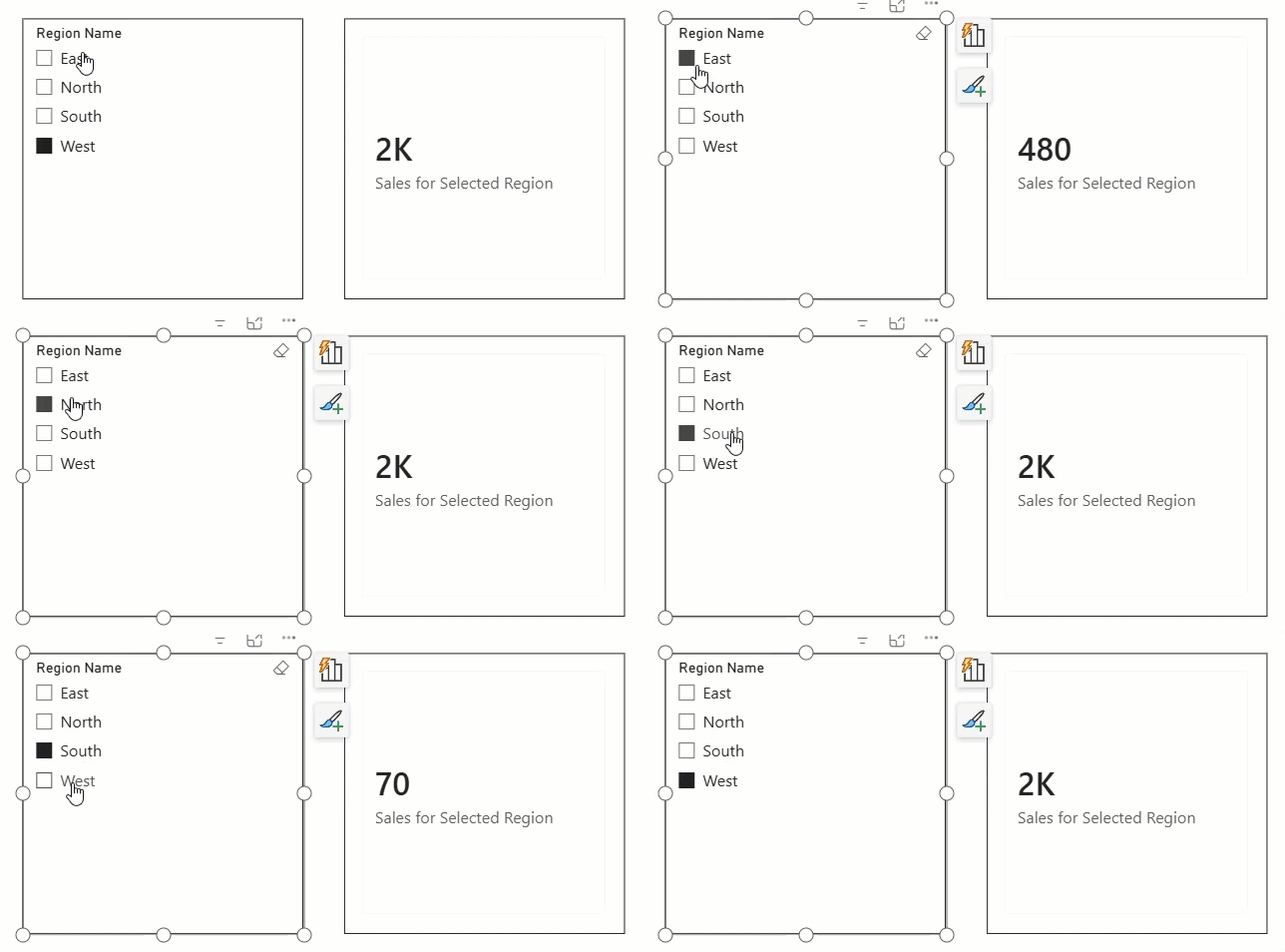
But wait — you might be thinking: “Doesn’t the slicer already filter the visual? Why do I need this?”
Great question. You’re right that a slicer on Region automatically filters visuals connected to the Region table. But this approach becomes essential when:
- Your slicer is on a disconnected table (not related to your fact table)
- You want the filter to behave differently from the slicer’s natural relationship
- You need to compare the selected value against another hardcoded value in the same measure
- You’re building what-if scenarios using parameter tables
Handling the “Nothing Selected” and “Multiple Selected” Cases
This is where beginners often create buggy measures. If the user selects nothing or selects multiple regions, SELECTEDVALUE() returns BLANK (or your alternate result). You need to handle this gracefully.
Sales for Selected Region =
VAR SelectedRegion = SELECTEDVALUE(Region[Region Name], "ALL")
RETURN
IF(
    SelectedRegion = "ALL",
    SUM(Sales[Revenue]),
    CALCULATE(
        SUM(Sales[Revenue]),
        FILTER(Sales, Sales[Region] = SelectedRegion)
    )
)

Now the behavior is:
- One region selected → shows revenue for that region only
- Multiple or no selection → shows total revenue across all regions
This makes your measures far more robust and professional. Business users don’t always use slicers the way developers expect — your measures need to handle every state gracefully.
Power BI DAX FILTER with SELECTEDVALUE: Real-World Examples
Example 1: Dynamic Product Category Sales in Power BI
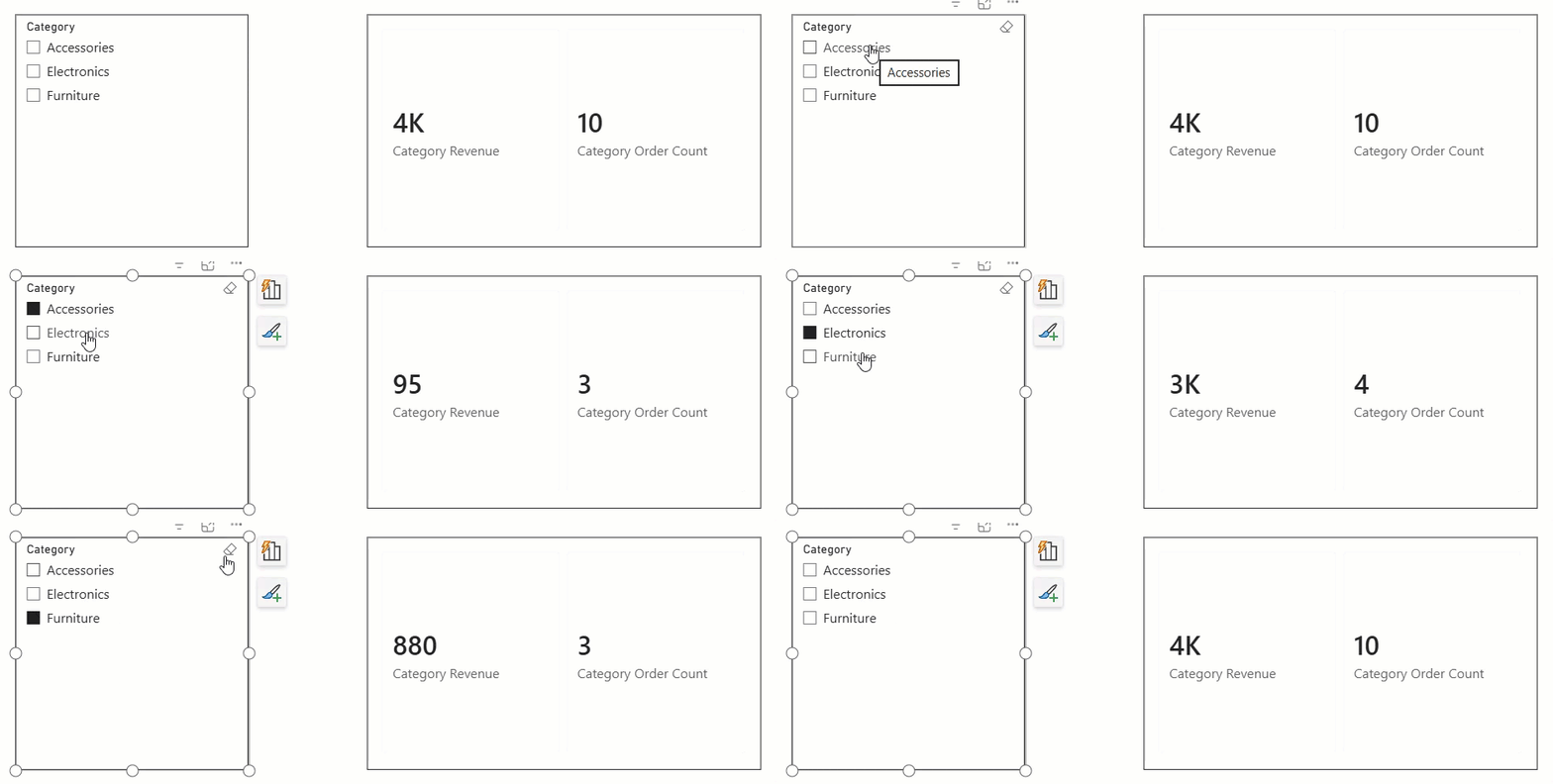
Business scenario: Your product manager wants a dashboard that lets them select a product category from a slicer and view the total revenue and number of orders for that category.
-- Step 1: Capture the selected category
Selected Category =
SELECTEDVALUE(Product[Category], "All Categories")

-- Step 2: Revenue for selected category
Category Revenue =
VAR SelectedCat = SELECTEDVALUE(Product[Category], "ALL")
RETURN
IF(
    SelectedCat = "ALL",
    SUM(Sales[Revenue]),
    CALCULATE(
        SUM(Sales[Revenue]),
        FILTER(Sales, Sales[Category] = SelectedCat)
    )
)

-- Step 3: Order count for selected category
Category Order Count =
VAR SelectedCat = SELECTEDVALUE(Product[Category], "ALL")
RETURN
IF(
    SelectedCat = "ALL",
    COUNTROWS(Sales),
    CALCULATE(
        COUNTROWS(Sales),
        FILTER(Sales, Sales[Category] = SelectedCat)
    )
)

Drop both measures into card visuals, add a slicer on Product[Category], and you now have a fully dynamic dashboard section that responds to every category selection.
Example 2: Disconnected Slicer Pattern in Power BI
This is one of the most powerful professional patterns in Power BI, and FILTER() + SELECTEDVALUE() is the engine that makes it work.
Business scenario: You want users to filter sales data by region, but you don’t want to use the actual Region dimension table for the slicer (perhaps because it would cross-filter other visuals in ways you don’t want). Instead, you create a standalone, disconnected lookup table.
Step 1: Create a disconnected Region Parameter table
In Power Query, create a new table:
RegionParameter = {"North", "South", "East", "West", "All"}
Make sure this table has no relationship to your Sales fact table.
Step 2: Create a slicer using this disconnected table
Place a slicer on the RegionParameter[Value] column. Because there’s no relationship, selecting “North” here does NOT automatically filter any visual.
Step 3: Write a measure that bridges the selection to your data
Sales by Selected Region (Disconnected) =
VAR PickedRegion = SELECTEDVALUE(RegionParameter[Value], "All")
RETURN
IF(
    PickedRegion = "All",
    SUM(Sales[Revenue]),
    CALCULATE(
        SUM(Sales[Revenue]),
        FILTER(Sales, Sales[Region] = PickedRegion)
    )
)

Now the slicer controls exactly this measure — and only this measure — without affecting other visuals on the page. This is incredibly useful when you have complex report layouts in which a single slicer should influence only specific visuals.
Example 3: Power BI Dynamic Title Using SELECTEDVALUE
This is a finishing touch that makes reports feel genuinely polished, and it’s surprisingly simple.
Business scenario: You want the title of a visual to dynamically show which region is currently selected.
Dynamic Report Title =
VAR SelectedRegion = SELECTEDVALUE(Region[Region Name])
RETURN
IF(
    ISBLANK(SelectedRegion),
    "Sales Performance — All Regions",
    "Sales Performance — " & SelectedRegion
)

To apply this:
- Click on a Text Box or the visual’s title
- In the Title section of the Format pane, toggle the title to be data-driven
- Use
fx(conditional formatting) and point it to this measure
Now, when a user selects “West,” the title reads “Sales Performance — West.” When nothing is selected, it reads “Sales Performance — All Regions.” This single touch transforms how professional your report feels.

Example 4: FILTER + SELECTEDVALUE Across a Date Dimension in Power BI
Business scenario: Your finance team wants a KPI showing how current-year sales compare to a selected prior year from a slicer.
Sales for Selected Year =
VAR SelectedYear = SELECTEDVALUE(DateTable[Year])
RETURN
IF(
    ISBLANK(SelectedYear),
    BLANK(),
    CALCULATE(
        SUM(Sales[Revenue]),
        FILTER(
            Sales,
            YEAR(Sales[OrderDate]) = SelectedYear
        )
    )
)
You can pair this with a standard [Current Year Sales] measure and create a variance card:
YoY Variance vs Selected Year =
[Current Year Sales] - [Sales for Selected Year]
This gives your finance users the power to pick any historical year and instantly see the variance — no need for complex report-level filters or page navigation.
Example 5: Power BI SWITCH + SELECTEDVALUE for Multi-Metric Selection
This is an advanced pattern that experienced Power BI developers use to let users switch between different metrics using a single slicer — instead of navigating between pages or toggling bookmarks.
Setup: Create a disconnected Metrics table:
| MetricID | Metric Name |
|---|---|
| 1 | Total Revenue |
| 2 | Total Orders |
| 3 | Average Order Value |
| 4 | Total Quantity |
The dynamic measure:
Dynamic KPI Measure =
VAR SelectedMetric = SELECTEDVALUE(Metrics[Metric Name], "Total Revenue")
RETURN
SWITCH(
    SelectedMetric,
    "Total Revenue", SUM(Sales[Revenue]),
    "Total Orders", COUNTROWS(Sales),
    "Average Order Value", AVERAGE(Sales[Revenue]),
    "Total Quantity", SUM(Sales[Quantity]),
    SUM(Sales[Revenue])  -- default fallback
)
Now, place a slicer on Metrics[Metric Name] and a card visual showing [Dynamic KPI Measure]. The user can flip between four completely different metrics using one slicer, and one card visual adapts to show the right number. This is a pattern I use in nearly every executive dashboard I build.
Combining FILTER + SELECTEDVALUE with Multiple Conditions
Sometimes you need to filter by more than one SELECTEDVALUE — for example, when you have both a Region slicer and a Category slicer and want a measure that responds to both.
Sales by Region and Category =
VAR PickedRegion = SELECTEDVALUE(Region[Region Name], "ALL")
VAR PickedCategory = SELECTEDVALUE(Product[Category], "ALL")
RETURN
CALCULATE(
    SUM(Sales[Revenue]),
    FILTER(
        Sales,
        (Sales[Region] = PickedRegion || PickedRegion = "ALL") &&
        (Sales[Category] = PickedCategory || PickedCategory = "ALL")
    )
)
This measure handles all four possible slicer states:
- Neither slicer selected → shows all sales
- Only Region selected → filters by region only
- Only Category selected → filters by category only
- Both selected → filters by both
The || PickedRegion = "ALL" pattern is the key: when no specific value is selected, the condition always returns TRUE, effectively removing that filter condition.

Common Mistakes When Using FILTER + SELECTEDVALUE in Power BI
Over time, I’ve seen these mistakes come up repeatedly — and some of them are genuinely hard to debug if you don’t know what to look for.
1. Forgetting to store SELECTEDVALUE in a VAR first
-- This can cause unexpected results
CALCULATE(
    SUM(Sales[Revenue]),
    FILTER(Sales, Sales[Region] = SELECTEDVALUE(Region[Region Name]))
)
When SELECTEDVALUE is evaluated inside FILTER(), it’s being evaluated in a row context, which may produce unexpected results. Always capture it in a VAR first, outside the FILTER() call:
-- This is the correct pattern
VAR PickedRegion = SELECTEDVALUE(Region[Region Name])
RETURN
CALCULATE(
    SUM(Sales[Revenue]),
    FILTER(Sales, Sales[Region] = PickedRegion)
)
2. Not handling BLANK when nothing is selected
If SELECTEDVALUE returns BLANK and you compare it with =, you’ll get unexpected empty results. Always define an alternate result or use an IF(ISBLANK(…)) guard.
3. Using SELECTEDVALUE on a column that has an active relationship filter
SELECTEDVALUE reads the filter context. If your slicer column has a relationship that already filters visuals, adding FILTER() + SELECTEDVALUE on top can create double-filtering or conflicts. Test carefully in these cases.
4. Expecting SELECTEDVALUE to work with multi-select slicers
If your slicer allows multi-selection and the user picks two regions, SELECTEDVALUE returns BLANK (or the alternate result). If your business logic requires multi-select support, consider using a different pattern — such as checking ISFILTERED() combined with VALUES() in a SUMX or AVERAGEX loop.
5. Hardcoding the alternate result string and forgetting to match it exactly
-- Bug: alternate result string doesn't match the IF check
VAR PickedRegion = SELECTEDVALUE(Region[Region Name], "all") -- lowercase
RETURN
IF(PickedRegion = "ALL", ...) -- uppercase — this will never match!
Be consistent with capitalization in your alternate result strings.
Best Practices for FILTER + SELECTEDVALUE in Production Reports
Here’s how I approach this combination when building dashboards that real business users depend on every day:
- Always use VAR to capture SELECTEDVALUE before passing the result into FILTER(). This ensures the value is evaluated in the correct filter context, not inside the row iteration.
- Always define an alternate result in SELECTEDVALUE(). Never rely on BLANK as the default when users might interact with the report in unexpected ways.
- Use disconnected parameter tables for slicers when you need precise control over which visuals a slicer affects. This is cleaner than using bidirectional relationships or complex cross-filter settings.
- Test every slicer state — single selection, multiple selection, and no selection. Each one produces a different filter context and your measures must handle all three.
- Combine with ISFILTERED() for richer user feedback. ISFILTERED() tells you whether a specific column is actively being filtered, which lets you build smarter messages and conditional formatting.
Context Indicator =
IF(
    ISFILTERED(Region[Region Name]),
    "Filtered by: " & SELECTEDVALUE(Region[Region Name], "Multiple Regions"),
    "Showing All Regions"
)
- Document your alternate result logic in comments. When another developer (or future-you) opens the PBIX file six months later, it’s not obvious why you chose a specific alternate result string. Add a DAX comment explaining the logic.
SELECTEDVALUE vs. VALUES vs. HASONEVALUE — Choosing the Right Tool in Power BI
You might come across these three functions used interchangeably in forums and tutorials. Here’s how they differ and when to use each:
| Function | Returns | Use When |
|---|---|---|
SELECTEDVALUE(col, alt) | Single value or alternate result | You want a clean, safe single-value read with a fallback |
VALUES(col) | A one-column table | You need to use the result as a table (e.g., in SUMX) |
HASONEVALUE(col) | TRUE or FALSE | You only want to check IF one value is selected, not retrieve it |
For the vast majority of FILTER() + slicer scenarios, SELECTEDVALUE() is the right choice. It’s the most readable, safest, and most modern approach.
Conclusion
Both FILTER() and SELECTEDVALUE() are two of the most practical and powerful techniques you can add to your Power BI toolkit. It’s the foundation of truly interactive, user-driven dashboards — where measures don’t just show numbers, they respond intelligently to what the user is doing.
The key things to remember: always capture SELECTEDVALUE() in a VAR before using it inside FILTER(), always handle the blank/multi-select scenario with an alternate result, and use disconnected parameter tables when you need precise control over slicer behavior. Master these patterns, and you’ll find that building dynamic, professional-grade Power BI reports becomes a natural, repeatable process.
You may also like:
- Add Column Using Power BI Power Query Editor
- Filter Blank Value in Power BI
- Select Multiple Values in Power BI Slicer
- Remove Leading Zeros in Power BI
- How to Change Data Type in Power BI

Hey! I’m Bijay Kumar, founder of SPGuides.com and a Microsoft Business Applications MVP (Power Automate, Power Apps). I launched this site in 2020 because I truly enjoy working with SharePoint, Power Platform, and SharePoint Framework (SPFx), and wanted to share that passion through step-by-step tutorials, guides, and training videos. My mission is to help you learn these technologies so you can utilize SharePoint, enhance productivity, and potentially build business solutions along the way.

