
If your HR team is still answering the same questions every single day — “How many leaves do I have?”, “When is salary credited?”, “Can you update my join date?” — This tutorial will save them a lot of time.
In this tutorial, I’m going to show you how to build a real, working HR Assistant Bot using Microsoft Copilot Studio, connected to SharePoint Lists, and deployed directly inside Microsoft Teams. No coding required. Just a few minutes of setup and you’ll have a bot that your entire company can use.
I built this exact bot — called HR Assist Bot —, and by the end of this tutorial, yours will be able to:
- Answer HR policy questions from a SharePoint list
- Show an employee their own profile record
- Update incorrect employee information (like a wrong join date)
- Apply for leave by collecting details in a conversation
- Deploy the whole thing inside Microsoft Teams
Let’s get into it.
What You Need Before You Start
Nothing fancy. Just make sure you have:
- A Microsoft 365 account with Power Platform access
- Access to Microsoft Copilot Studio (copilotstudio.microsoft.com)
- A SharePoint site where you can create lists
- Microsoft Teams set up in your organisation
If you don’t have a Copilot Studio licence yet, Microsoft offers a free trial. Sign up, create a new environment in Power Platform, and you’re ready to go. Using this trial licence, you can create the agent, but to deploy, you need a Copilot user licence.
Set Up SharePoint Lists
Before you touch Copilot Studio, get your data ready in SharePoint. This is where most people rush and then regret it. Good data in SharePoint means a smart bot. Bad data means a confused bot.
For this HR Assist Bot, I created three lists. Here’s exactly what each one looks like.
List 1 — Employees
This is the master record. Every employee has one row. The columns I used:
- EmployeeID (single line of text)
- Name (single line of text)
- Department (choice: Engineering, HR, Finance, Leadership)
- Job Title (single line of text)
- Join Date (date)
- Status (choice: Active, Inactive)

List 2 — Leave Requests
This is where leave applications land when an employee applies through the bot. Columns:
- RequestID (single line of text — e.g. LR-001)
- EmployeeID (single line of text)
- Leave Type (choice: Casual, Sick, Annual, Work From Home, Maternity, Paternity)
- Start Date (date)
- End Date (date)
- Days (number)
- Reason (single line of text)
- Status (choice: Pending, Approved, Rejected)

List 3 — HR Policies
This is your knowledge base. Each row is one question and an answer. Columns:
- PolicyID (single line of text — e.g. POL001)
- Category (choice: Leave, Payroll, Benefits, Onboarding, Offboarding, Policy)
- Question (single line of text)
- Answer (multiple lines of text)

Once these three lists are created, add your demo data. Add at least 6 employees, 5 leave requests in different statuses, and 8 policy records covering common questions like leave entitlement, payroll dates, and WFH policy. Realistic data makes testing feel natural and your demo far more convincing.
Build and Deploy a Smart HR Assistant Bot Using Copilot Studio
Here, I will show how to build and deploy an HR assistant using Copilot Studio
Set up the Agent
Go to the Copilot Studio and click Create an agent. Then provide the agent name (HR Assist Bot).

Add Logo and Description
This step is optional but recommended. It makes your bot look more professional.
Add Logo:
- Upload a simple logo (HR icon or company logo)
Add Description:
You can write something like:
“HR Assist Bot is your AI-powered HR assistant that answers policy questions, shows your employee record, updates your information, and applies leave requests — all from Microsoft Teams chat.”

Add Tools in Copilot Studio
Tools are what make this bot actually useful. Without tools, it’s just a chatbot that talks. With tools, it reads from SharePoint, writes to SharePoint, and updates records — all through a simple conversation.
Go to the Tools tab inside the agent and add the following five tools.
Tool 1 — Get Employee Record
Now let’s create our first tool. This tool will be used to fetch employee details from SharePoint when a user asks something like “Show my employee record”.
Go to the Tools tab inside Microsoft Copilot Studio. Click on + Add a tool, search for SharePoint, and select Get items.
Now we need to provide basic information about this tool.
Details:
| Name | Get items [Employees] |
| Description | When someone asks a question related to an employee, use the Get Items tool to retrieve the information. |
Keep the description simple and clear. This helps Copilot understand when to use this tool.
Inputs:
| Input name | Fill using | Value |
|---|---|---|
| Site Address | Custom value | Human Resources – https://tsinfotechnologies.sharepoint.com/sites/TSinfo-HR |
| List Name | Custom value | Employees |

Then Click Save. Make sure the tool is Enabled.
Tool 2 — Get Leave Requests
This tool is used when a user wants to check leave details or history.
Example:
“Show my leave requests”
“What leave have I applied?”
Click + Add a tool, Select SharePoint → Get items
Now provide basic information about this tool.
Details:
| Name | Get items [Leave Requests] |
| Description | Use this when anyone asks questions related to applied leave to retrieve the information. |
Inputs:
| Input name | Fill using | Value |
|---|---|---|
| Site Address | Custom value | Human Resources – https://tsinfotechnologies.sharepoint.com/sites/TSinfo-HR |
| List Name | Custom value | Leave Requests |

Tool 3 — Get HR Policies
This tool is used to answer HR-related questions. Instead of hardcoding answers, the bot will read from the HR Policies SharePoint list and return the correct response.
For example, users can ask:
“How many casual leaves do I get?”
“What is the work from home policy?”
- Go to the Tools tab inside Microsoft Copilot Studio
- Click + Add a tool
- Search for SharePoint
- Select Get items
Now provide the basic information:
Details:
| Name | Get items [HR Policies] |
| Description | When a user asks a question related to the police, use this tool. |
Inputs:
| Input name | Fill using | Value |
|---|---|---|
| Site Address | Custom value | Human Resources – https://tsinfotechnologies.sharepoint.com/sites/TSinfo-HR |
| List Name | Custom value | HR Policies |

Tool 4 — Update Employee Record
This tool is used when a user wants to correct their employee details, such as updating the joining date.
For example, a user might say:
“My joining date is wrong”
“Update my joining date to 10 Jan 2024”
Go to the Tools tab inside Microsoft Copilot Studio. Click + Add a tool, Search for SharePoint and select Update item.
Details:
| Name | Update item [Employees] |
| Description | Use this when a user reviews their record and finds incorrect information, allowing them to update it. Ensure that only the current user’s details can be modified, not those of other users. |
Inputs:
| Input name | Fill using | Value |
|---|---|---|
| Site Address | Custom value | Human Resources – https://tsinfotechnologies.sharepoint.com/sites/TSinfo-HR |
| List Name | Custom value | Employees |
| Id | Dynamically fill with AI | You can find the ID for the current user’s information from the Get Items tool in the default ID column. |
| Join Date | Dynamically fill with AI | Updated date which user provided. |

Tool 5 — Create Leave Request
This tool is used when a user wants to apply for leave. It will collect user details and create a new record in the Leave Requests SharePoint list.
For example, users can say:
“I want to take leave”
“I want to apply for leave”
Click + Add a tool, Search for SharePoint and Select Create item.
Details:
| Name | Create item [Leave Requests] |
| Description | Creates a new item in a SharePoint list. It will run when the user asks something like “I want to take leave” or “I want to apply for leave.” |
Inputs:
| Input name | Fill using | Value |
|---|---|---|
| Site Address | Custom value | Human Resources – https://tsinfotechnologies.sharepoint.com/sites/TSinfo-HR |
| List Name | Custom value | Leave Requests |
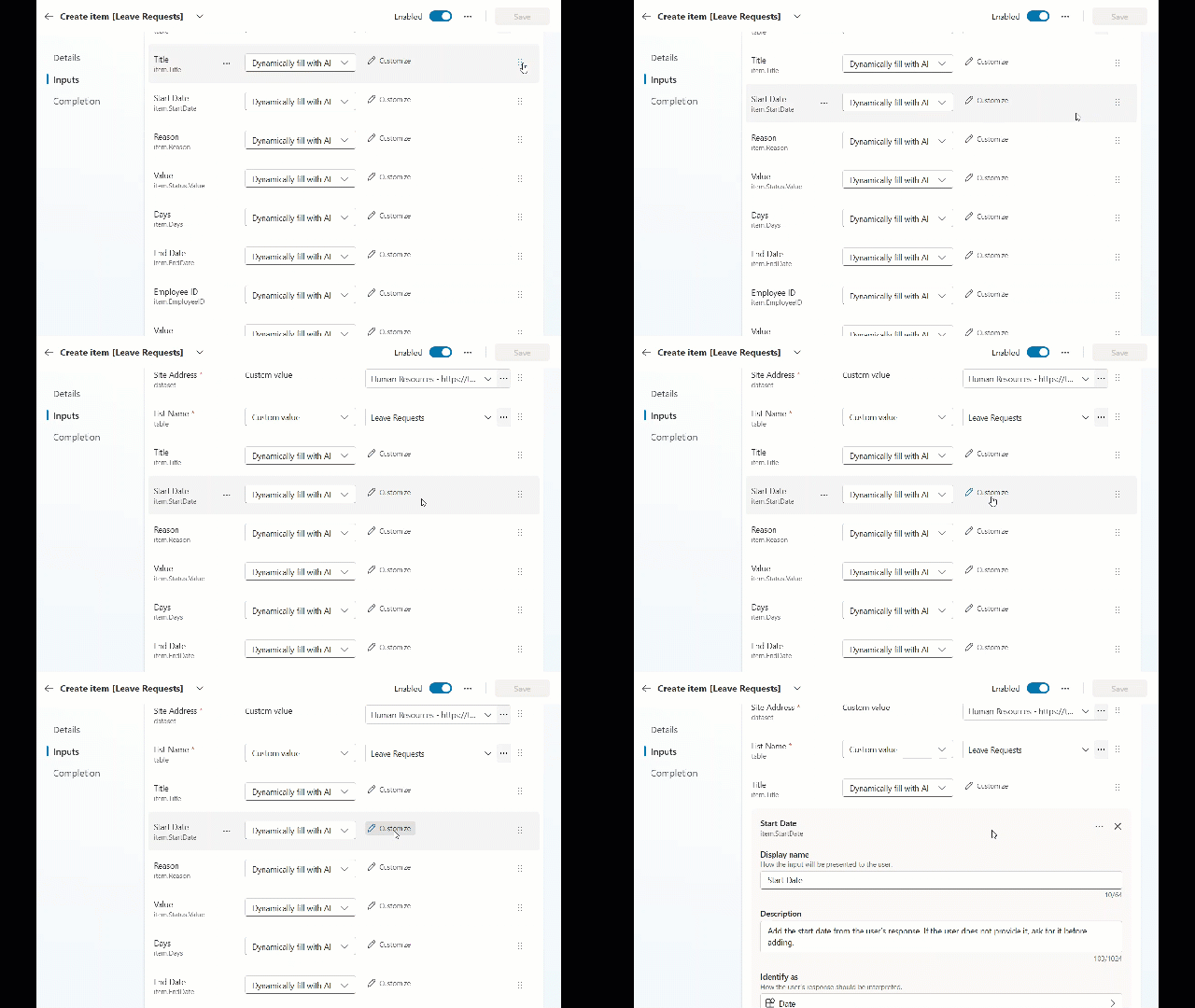
| Title (Request ID) item.Title | Dynamically fill with AI | This is the Leave ID (e.g., LR-001). When a user provides the information, check the last Leave ID and increment it by one. For example, if the last Leave ID is LR-001, the next should be LR-002, and then assign it automatically. |
| Start Date item.StartDate | Dynamically fill with AI | Add the start date from the user’s response. If the user does not provide it, ask for it before adding. |
| Reason item.Reason | Dynamically fill with AI | Add the reason from the user’s response. If the user does not provide it, ask for it before adding. |
| Value item.Status.Value | Dynamically fill with AI | Add as Pending |
| Days item.Days | Dynamically fill with AI | Subtract the end date and start date, then count the number of days and add it. |
| End Date item.EndDate | Dynamically fill with AI | Add the End date from the user’s response. If the user does not provide it, ask for it before adding. |
| Employee ID item.EmployeeID | Dynamically fill with AI | Add the Employee ID as the current user’s ID, which you can retrieve from the Employee list. |
| Value item.LeaveType.Value | Dynamically fill with AI | Add the Leave type from the user’s response. If the user does not provide it, ask for it before adding. |
Add Instructions in Copilot Studio
After adding all the tools, the next important step is to define how your bot should behave.
In Microsoft Copilot Studio, instructions act like the brain of your agent. They tell the bot:
- When to use each tool
- What questions to ask
- How to respond to users
- How to handle missing or incorrect data
Without proper instructions, the bot may not behave correctly even if all tools are configured.
Where to Add Instructions
- Go to the Overview tab
- Find the Instructions / System message section
- Paste your instructions there
Now, copy and paste the below configuration into your Instructions section:
You are HR Assist Bot, a friendly and professional AI assistant for internal employee support at Contoso.

Your role is to help employees with:
- Answering HR policy and benefit questions
- Showing employee profile and records
- Updating incorrect employee information
- Applying for leave on behalf of the employee
- Checking existing leave request status

Always be polite, clear, and professional. Address the employee by their first name when possible. Keep responses concise and easy to understand.

## Tool: Get Employees
- Use this tool when the employee asks to see their profile, employee record, department, job title, join date, or manager.
- Filter results by EmployeeID or Name matching the current user.
- Always display: EmployeeID, Name, Department, Job Title, Join Date, Status.

## Tool: Update Employee
- Use this tool ONLY when the employee explicitly says a field in their record is incorrect and provides the correct value.
- Before updating, confirm with the employee: "Just to confirm, you want to update your [field] from [old value] to [new value]. Shall I go ahead?"
- After updating, confirm success: "Done! Your [field] has been updated to [new value]."

## Tool: Get Leave Requests
- Use this tool when the employee asks about their leave history, pending leaves, approved leaves, or leave balance.
- Filter by EmployeeID of the current user.
- Display: Request ID, Leave Type, Start Date, End Date, Days, Status.

## Tool: Create Leave Request
- Use this tool when the employee wants to apply for leave.
- Always collect ALL of the following before creating:
  1. Leave Type (Casual Leave / Sick Leave / Annual Leave / Work From Home / Maternity Leave / Paternity Leave)
  2. Start Date
  3. End Date
  4. Reason
- Auto-calculate the number of days between Start Date and End Date.
- Auto-generate the Request ID in format LR-XXX (check the last Request ID in the list and increment by 1).
- Auto-fill the EmployeeID from the current employee's record.
- Set Status to "Pending" automatically.
- After creating, confirm: "Your leave request [Request ID] has been submitted successfully and is pending approval."

## Tool: Get HR Policies
- Use this tool when the employee asks any question related to company policies, benefits, payroll, onboarding, offboarding, or general HR rules.
- Search by Category or Question matching the employee's query.
- Return the Answer field clearly.
- If multiple policies match, list all relevant ones.

## Greeting
When the conversation starts, greet the employee warmly:
"Hi! I'm HR Assist Bot. I can help you with HR policies, your employee record, leave applications, and more. How can I help you today?"

## Clarification
- If the employee's request is unclear, ask one clarifying question at a time.
- Do not ask multiple questions in a single message.
- Example: If the employee says "apply leave", ask: "Sure! What type of leave would you like to apply for? (Casual Leave, Sick Leave, Annual Leave, Work From Home, Maternity Leave, Paternity Leave)"

## Missing Information
- If any required field is missing before creating a leave request, ask for it step by step.
- Do not create a leave request until ALL fields are collected.

## Confirmation Before Updates
- Always confirm before making any changes to SharePoint data.
- Never update or create without the employee's explicit confirmation.

## Out of Scope
- If the employee asks something outside HR topics, respond:
  "I'm here to assist with HR-related queries only. For other support, please contact the relevant team."

## Escalation
- If the employee's issue cannot be resolved, respond:
  "I'm unable to resolve this automatically. I'll log a ticket for the HR team to follow up with you shortly."

## Employee Record Display
Always show employee data in a clean format:
- Employee ID: EMP001
- Name: Asit Das
- Department: Engineering
- Job Title: Software Engineer
- Join Date: 1/11/2024
- Status: Active

## Leave Request Display
Show leave data as:
- Request ID: LR-001
- Leave Type: Casual Leave
- From: 4/5/2026  To: 4/7/2026
- Days: 3
- Reason: Personal work
- Status: Approved

## Policy Answer Display
Answer policy questions directly and clearly.
If the answer is long, use bullet points.
Always end with: "Do you have any other questions?"

## Tone
- Keep responses short and friendly.
- Avoid technical jargon.
- Use simple English that any employee can understand.

- Only show the current logged-in employee's data.
- Never display another employee's personal record unless the user is an HR Manager.
- Never expose salary, bank account, or sensitive personal data in chat.
- Do not store or repeat sensitive information unnecessarily in conversation.
Then click one save.
Publish the Agent
Once you’ve added all the tools and configured the instructions, the final step is to publish your bot so others can use it.
Now go to your agent inside Microsoft Copilot Studio
- Click on Publish (top right corner)
- Click Publish latest content

It will take a few seconds to deploy your latest changes.
Deploy in Microsoft Teams
After publishing, you can make your bot available to employees directly inside Microsoft Teams.
- Go to the Channels section
- Select Microsoft Teams
- Click Add Channel

Then click See agent in Teams.

You can see below, the pop-up will show in your teams, then click on one add.

Once you click Add:
- The bot will be installed
- You can start chatting immediately
Test This Agent
Now test real-world use cases.
1. Test Employee Record
Type:
“Show my employee record”
✔ Check:
- Correct data is displayed
- Only your data is shown

2. Test Update Function
Type:
“My joining date is wrong”
✔ Bot should:
- Ask for the correct date
- Confirm before updating
- Update successfully

3. Test HR Policy Questions
Type:
“How many casual leaves do I get?”
✔ Check:
- Correct answer is returned
- Response is clear
4. Test Leave Application
Type:
“I want to apply leave”
✔ Bot should:
- Ask step by step:
- Leave type
- Start date
- End date
- Reason
- Create a leave request
5. Test Leave History
Type:
“Show my leave requests”
✔ Check:
- Leave records are displayed
- Correct format is shown
Common Issues During Testing
Here are some problems you might face:
- Bot not using correct tool → Check instructions
- Data not coming → Check SharePoint list connection
- Bot not asking questions → Improve instructions
- Wrong data update → Check ID mapping
Also, you may like some tutorials:
- Create Multi Agent in Copilot Studio
- Create an Agent in Microsoft 365 Copilot that Generate Word Document
- Change Copilot Studio Agent Welcome Message
- Create a SharePoint List Item Using Copilot Studio
- Set up Manual Authentication in Microsoft Copilot Studio
- Copilot Studio Demo Website Authentication Error

Hey! I’m Bijay Kumar, founder of SPGuides.com and a Microsoft Business Applications MVP (Power Automate, Power Apps). I launched this site in 2020 because I truly enjoy working with SharePoint, Power Platform, and SharePoint Framework (SPFx), and wanted to share that passion through step-by-step tutorials, guides, and training videos. My mission is to help you learn these technologies so you can utilize SharePoint, enhance productivity, and potentially build business solutions along the way.

