
If you’ve ever needed to figure out what day of the week a date falls on inside Power Apps, the Weekday function is exactly what you’re looking for. I use it all the time for things like skipping weekends in date pickers, highlighting working days, or just showing the day name next to a date.
In this Power Apps tutorial, I’ll walk you through everything – from the basic syntax to real-world use cases where the Power Apps Weekday function actually works.
What Does The Power Apps Weekday Function Do?
Simply put, the Power Apps Weekday() takes a date and returns a number representing the day of the week. By default, 1 = Sunday and 7 = Saturday.
That’s it. It returns a number. But what you do with that number is where the logic starts.
Syntax
Weekday( DateTime [, WeekdayFirst] )
- DateTime — Required. This is the date you want to evaluate. Can be
Today(),Now(), a date from a DatePicker, or any Date/Time value. - WeekdayFirst — Optional. This tells Power Apps which day of the week your week starts on. If you leave it out, Sunday is treated as day 1.
Power Apps Weekday Function
This optional second parameter is what trips most people up. Power Apps gives you two ways to set it:
Option 1: Use The StartOfWeek Enumeration (Recommended)
This is the cleaner, more readable approach.
| Enumeration Value | Week Starts On | Range |
|---|---|---|
StartOfWeek.Sunday | Sunday | 1 (Sun) → 7 (Sat) |
StartOfWeek.Monday | Monday | 1 (Mon) → 7 (Sun) |
StartOfWeek.MondayZero | Monday | 0 (Mon) → 6 (Sun) |
StartOfWeek.Tuesday | Tuesday | 1 (Tue) → 7 (Mon) |
StartOfWeek.Wednesday | Wednesday | 1 (Wed) → 7 (Tue) |
StartOfWeek.Thursday | Thursday | 1 (Thu) → 7 (Wed) |
StartOfWeek.Friday | Friday | 1 (Fri) → 7 (Thu) |
StartOfWeek.Saturday | Saturday | 1 (Sat) → 7 (Fri) |
Option 2: Use Excel-style Numeric Codes
If you’re coming from an Excel background, you can pass in a number instead:
| Excel Code | Same As |
|---|---|
| 1 or 17 | StartOfWeek.Sunday |
| 2 or 11 | StartOfWeek.Monday |
| 3 | StartOfWeek.MondayZero |
| 12 | StartOfWeek.Tuesday |
| 13 | StartOfWeek.Wednesday |
| 14 | StartOfWeek.Thursday |
| 15 | StartOfWeek.Friday |
| 16 | StartOfWeek.Saturday |
I personally prefer the StartOfWeek enumeration — it’s easier to read in a formula six months later.
Power Apps Weekday Function Examples
Let’s say today is Thursday, April 9, 2015 (a date from Microsoft’s own docs, just so we have something concrete).
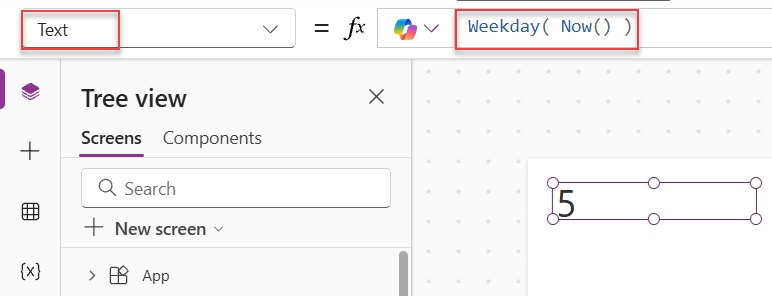
Weekday( Now() )
// Returns: 5
// Because Thursday is the 5th day when Sunday = 1
Weekday( Now(), StartOfWeek.Monday )
// Returns: 4
// Because Thursday is the 4th day when Monday = 1
Weekday( Now(), StartOfWeek.Wednesday )
// Returns: 2
// Because Thursday is the 2nd day when Wednesday = 1
Weekday( Now(), 14 )
// Returns: 1
// Using Excel code 14 (Thursday as start), Thursday itself = 1
These are simple checks. Now let’s get into the stuff you’ll actually build with.
Example 1: Show The Day Name From a Date in Power Apps
The Power Apps Weekday() function returns a number, not the day name. But you can convert it using a Switch statement. Put this in a Label’s Text property:
Switch(
    Weekday(DatePicker1.SelectedDate, StartOfWeek.Sunday),
    1, "Sunday",
    2, "Monday",
    3, "Tuesday",
    4, "Wednesday",
    5, "Thursday",
    6, "Friday",
    7, "Saturday"
)

This displays the full day name for whatever date the user picks. Clean and easy to read.
If you just want a short version like “Mon” or “Thu”, you can also use the Text() function with a format string:
Text(DatePicker1.SelectedDate, "ddd")   // "Thu"
Text(DatePicker1.SelectedDate, "dddd")  // "Thursday"
Both work. I tend to use Text() when all I need is the name, and Weekday() + Switch() when I need to make logical decisions based on the day.
Example 2: Check If a Date Falls On a Weekend In Power Apps
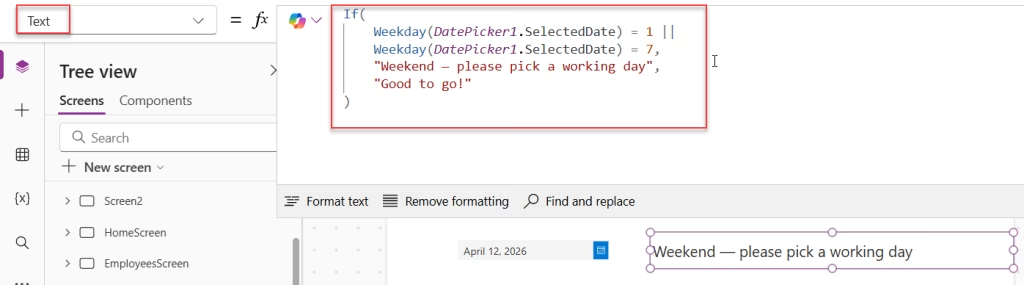
This is probably the most common use of Weekday() in real Power Apps apps. Say you want to warn a user if they’ve picked a Saturday or Sunday:
If(
    Weekday(DatePicker1.SelectedDate) = 1 ||
    Weekday(DatePicker1.SelectedDate) = 7,
    "Weekend — please pick a working day",
    "Good to go!"
)
Here, 1 = Sunday and 7 = Saturday (default Sunday-first week).
You can also hide or disable a button based on this logic. Put this in a button’s DisplayMode property:
If(
    Weekday(DatePicker1.SelectedDate) = 1 ||
    Weekday(DatePicker1.SelectedDate) = 7,
    DisplayMode.Disabled,
    DisplayMode.Edit
)
That way, users literally can’t submit on a weekend. Super useful for leave request forms or booking apps.
Example 3: Highlight Weekends in a Power Apps Calendar
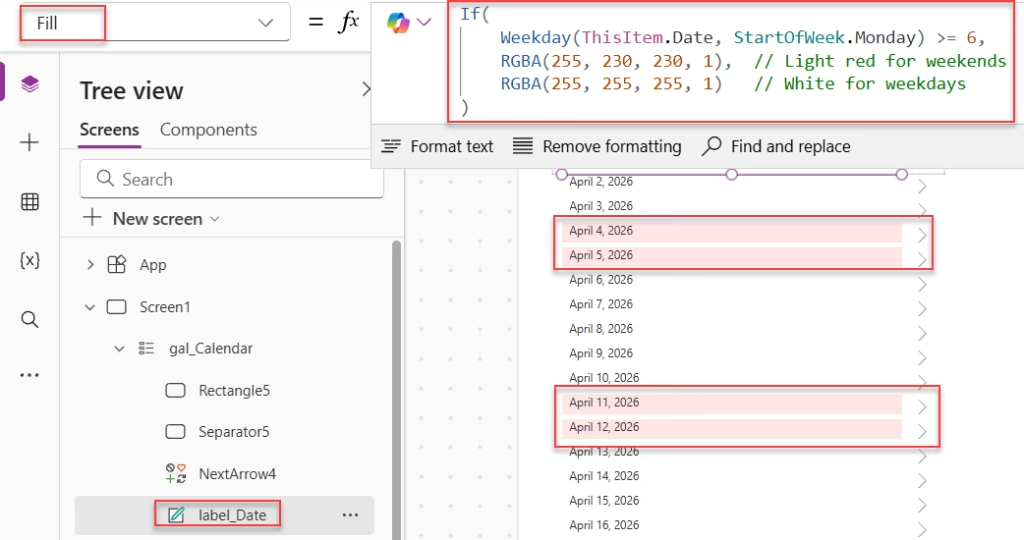
If you’re building a custom calendar gallery in Power Apps, you can use Weekday() to change the background color of weekend cells. Put this in the Fill property of your gallery item:
If(
    Weekday(ThisItem.Date, StartOfWeek.Monday) >= 6,
    RGBA(255, 230, 230, 1),  // Light red for weekends
    RGBA(255, 255, 255, 1)   // White for weekdays
)
With StartOfWeek.Monday, day 6 = Saturday and day 7 = Sunday — so >= 6 catches both.
Example 4: Find the Monday Of The Current Week in Power Apps
This is a classic need for Power Apps timesheet apps or weekly reports. You want to jump back to the Monday of whatever week the user is in.
DateAdd(
    Today(),
    -(Weekday(Today(), StartOfWeek.MondayZero)),
    TimeUnit.Days
)
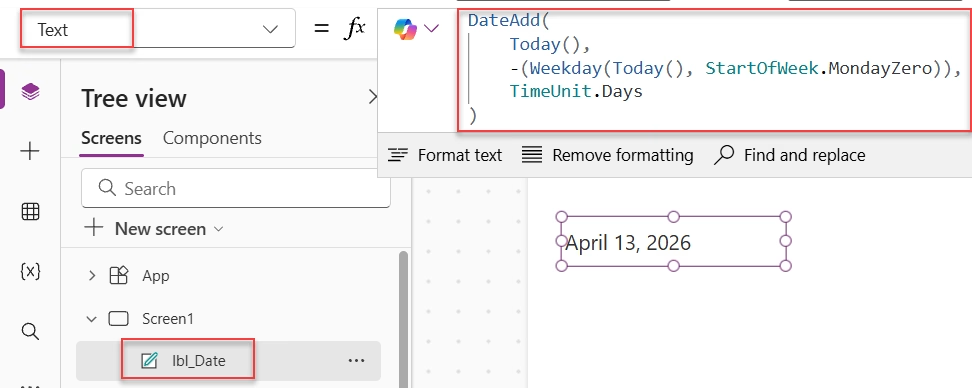
StartOfWeek.MondayZero returns 0 for Monday, 1 for Tuesday, and so on up to 6 for Sunday. So subtracting that number from today always lands you on the Monday of the current week.
And once you have Monday, you can get the rest of the week easily:
// Tuesday
DateAdd(Today(), -(Weekday(Today(), StartOfWeek.MondayZero)) + 1, TimeUnit.Days)

// Wednesday
DateAdd(Today(), -(Weekday(Today(), StartOfWeek.MondayZero)) + 2, TimeUnit.Days)

// Thursday
DateAdd(Today(), -(Weekday(Today(), StartOfWeek.MondayZero)) + 3, TimeUnit.Days)

// Friday
DateAdd(Today(), -(Weekday(Today(), StartOfWeek.MondayZero)) + 4, TimeUnit.Days)
This is exactly what you’d use to auto-fill date boxes in a weekly timesheet form.
Example 5: Filter Out Weekends From a Power Apps Date Collection
Sometimes you need to build a Power Apps Collection of only working days—for example, to populate a dropdown with the next 30 business days. Here’s how to do that using Weekday() inside a ForAll() + If() combo:
ClearCollect(
    colBusinessDays,
    ForAll(
        Sequence(30, 1, 1),
        If(
            !(Weekday(DateAdd(Today(), Value)) = 1 ||
              Weekday(DateAdd(Today(), Value)) = 7),
            {
                RowID: Value,
                Date: DateAdd(Today(), Value)
            }
        )
    )
)
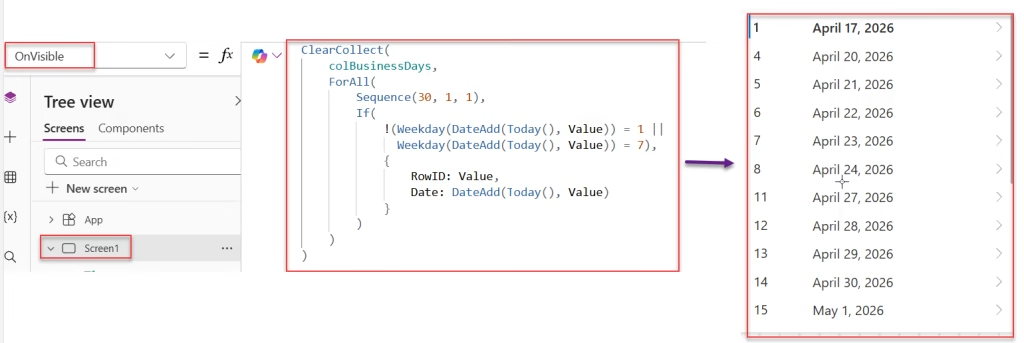
This loops through the next 30 days, checks each one, and only adds it to the collection if it’s NOT a Sunday (1) or Saturday (7). You’d fire this in the OnStart of your app or when the screen loads.
Once you have colBusinessDays, you can use it as the Items source in a dropdown or combo box — so users can only ever pick a working day.
Example 6: Calculate the Next Business Day In Power Apps
Need to auto-suggest the next available working day? This is useful for delivery date pickers or SLA calculators:
// Find next business day from today
If(
    Weekday(Today()) = 6,  // Friday
    DateAdd(Today(), 3),   // Skip to Monday
    If(
        Weekday(Today()) = 7,  // Saturday
        DateAdd(Today(), 2),   // Skip to Monday
        DateAdd(Today(), 1)    // Just add one day
    )
)
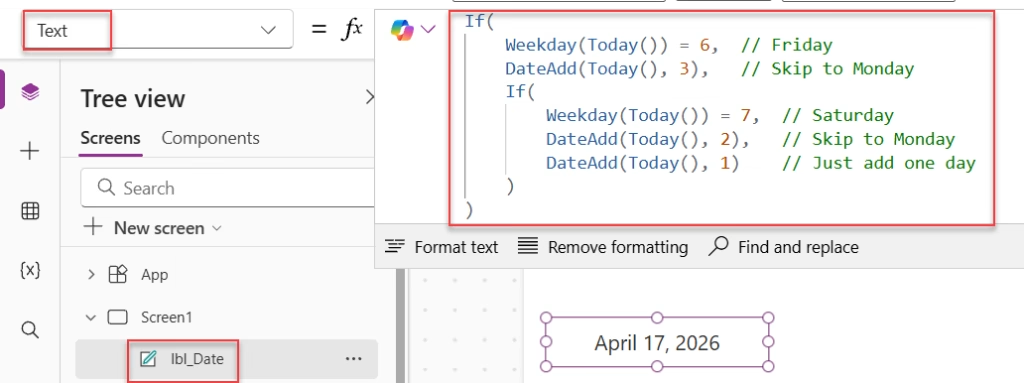
This handles Friday and Saturday edge cases, both skip forward to the next Monday. Any other day just adds one day.
Example 7: Count Business Days Between Two Dates in Power Apps
This one is a bit more involved but really useful. You can’t just subtract two dates and call it business days — you need to exclude weekends. Here’s how to do it:
CountIf(
    ForAll(
        Sequence(DateDiff(StartDate, EndDate, TimeUnit.Days), 0),
        {
            DayNum: Weekday(DateAdd(StartDate, Value, TimeUnit.Days))
        }
    ),
    DayNum <> 1 && DayNum <> 7
)
Replace StartDate and EndDate with your actual date values or DatePicker references. This creates a sequence of all days between the two dates, checks each one’s weekday number, and counts only those that aren’t Sunday or Saturday.
Power Apps Weekday() vs. Text() — Which Should You Use?
I get this question a lot. Here’s a quick way to think about it:
- Use
Weekday()When you need to make a decision based on the day, such as checking whether it’s a weekend, filtering a collection, or calculating offsets. - Use
Text()when you just want to display the name of the day — likeText(Today(), "dddd")showing “Monday”.
They solve different problems. In many real apps, you’ll end up using both.
Common Mistakes to Avoid
- Forgetting the default is Sunday = 1. If your app is for a Monday-to-Friday workforce, always pass
StartOfWeek.Mondayto avoid off-by-one errors. - Using the wrong Excel code. The numeric codes can be confusing. Stick to
StartOfWeekenumerations — they’re self-documenting. - Using
Weekday()directly in a dropdown Items property. It returns a number, not a list. Wrap your logic in a ForAll() or Switch() first. - Not handling the Friday/Sunday edge case when calculating the next business day. Always think about what happens on weekends.
Power Apps Weekday() & Text() Formulas Explanation
In the table below, I added a few Power Apps Weekday() and Text() formulas and their outputs. Have a look at it.
| Formula | What It Does |
|---|---|
Weekday(Today()) | Returns 1–7 (Sun=1) for today |
Weekday(Today(), StartOfWeek.Monday) | Returns 1–7 (Mon=1) for today |
Weekday(DatePicker1.SelectedDate) = 1 | True if selected date is Sunday |
Weekday(DatePicker1.SelectedDate) = 7 | True if selected date is Saturday |
Text(Today(), "dddd") | Returns full day name like “Monday” |
Text(Today(), "ddd") | Returns short day name like “Mon.” |
Conclusion
I hope you found this article helpful. In this guide, I explained how the Weekday function works in Power Apps. I also showed how to use the StartOfWeek option and different examples. These examples help you easily understand how to work with dates.
If you are building apps with date logic, this function will be very useful. You can use it for calendars, business day checks, and more. Try combining it with Switch, ForAll, and DateAdd for better results. With practice, working with dates will become simple.
Also, you may like:
- Power Apps Refresh Function – With Examples
- Create Tabs in Power Apps [Using Modern Tab List]
- 2 Best Ways to Create a Folder in SharePoint From Power Apps
- Get Current Screen Name in Power Apps

Hey! I’m Bijay Kumar, founder of SPGuides.com and a Microsoft Business Applications MVP (Power Automate, Power Apps). I launched this site in 2020 because I truly enjoy working with SharePoint, Power Platform, and SharePoint Framework (SPFx), and wanted to share that passion through step-by-step tutorials, guides, and training videos. My mission is to help you learn these technologies so you can utilize SharePoint, enhance productivity, and potentially build business solutions along the way.

