
If you’ve ever been on a Microsoft Teams call, and your dog starts barking in the background, or someone in your house decides to vacuum at the worst possible moment, you know exactly why the mute button exists.
Knowing how to mute yourself in Microsoft Teams is one of those basic things that makes a huge difference in meetings. But there’s more to it than just clicking a button. In this tutorial, I’m going to walk you through every way to mute yourself (and others) in Teams – from the obvious to the ones most people don’t know about.
Before You Even Join the Teams Meeting
This is something many people overlook. You can actually mute your mic before you enter a meeting, right on the pre-join screen.
When you click to join a meeting, Teams displays a preview screen where you can check your audio and video settings before joining. You’ll see a microphone toggle on that screen. Just click it to turn your mic off before joining.
Here’s what I like about this: Teams remembers your preference. So if you join muted once, you’ll be muted by default the next time. This is great if you’re usually joining large meetings where you mostly listen.
To join muted by default every time:
- Click the microphone icon on the pre-join screen to turn it off
- Join the meeting — Teams will remember this setting for future meetings
How to Mute Microsoft Teams
Let’s discuss 6 ways to mute Microsoft Teams.
Method 1: Click the Microphone Button During a Teams Meeting
This is the most straightforward way. Once you’re inside a meeting, look at the meeting control bar – it’s the toolbar that appears either at the top or in the center of your screen.
You’ll see a microphone icon there. Click it once to mute yourself. Click it again to unmute.

How do you know if you’re muted? The microphone icon will have a line through it (like a crossed-out mic). If it shows clean without a slash, your mic is live, and people can hear you.
A quick tip: If you start speaking while muted, Teams will show a small “You’re muted” notification. That’s your cue to unmute before saying anything important.
Method 2: Keyboard Shortcut — Ctrl + Shift + M (Fastest Way)
If you’re a keyboard person like me, this is the shortcut you’ll use every single day.
- Windows: Press Ctrl + Shift + M to toggle mute/unmute
- Mac: Press Command + Shift + M
This works while you’re inside the Teams window. Just make sure Teams is the active window on your screen – if you’re in a browser or another app, the shortcut won’t fire.
Why I love this method: It’s instant. You don’t have to move your mouse, find the toolbar, or click anything. One key combo and you’re muted or unmuted. For people who are in back-to-back meetings all day, this saves a surprising amount of time.
Method 3: The “Push to Talk” Trick — Ctrl + Spacebar
This one is a game-changer if you’re mostly in listening mode during a meeting.
Here’s how it works: you stay muted the entire time, and whenever you want to say something, you press and hold Ctrl + Spacebar (Windows) or Option + Spacebar (Mac). While you’re holding those keys, your mic is live. The moment you let go, you’re automatically back on mute.
It’s basically like a walkie-talkie button for Teams. You hold, you talk, you release.
How to set it up:
- In Microsoft Teams, click the three dots (…) at the top right → go to Settings
- Click on Privacy
- Toggle on “Keyboard shortcut to unmute”
After that, join a meeting, mute yourself, and use Ctrl + Spacebar to temporarily unmute whenever needed.

One thing to watch out for: This shortcut doesn’t work if your cursor is inside the chat box, or when apps like PowerPoint Live or Whiteboard are shared on the meeting stage.
Method 4: Mute from the Windows Taskbar
This is a Windows-only trick, and honestly, it’s underrated.
When you’re in a Teams meeting, you’ll notice a small microphone icon appearing in your Windows taskbar (the bar at the bottom of your screen). You can click that icon to mute or unmute yourself without switching back to the Teams window.
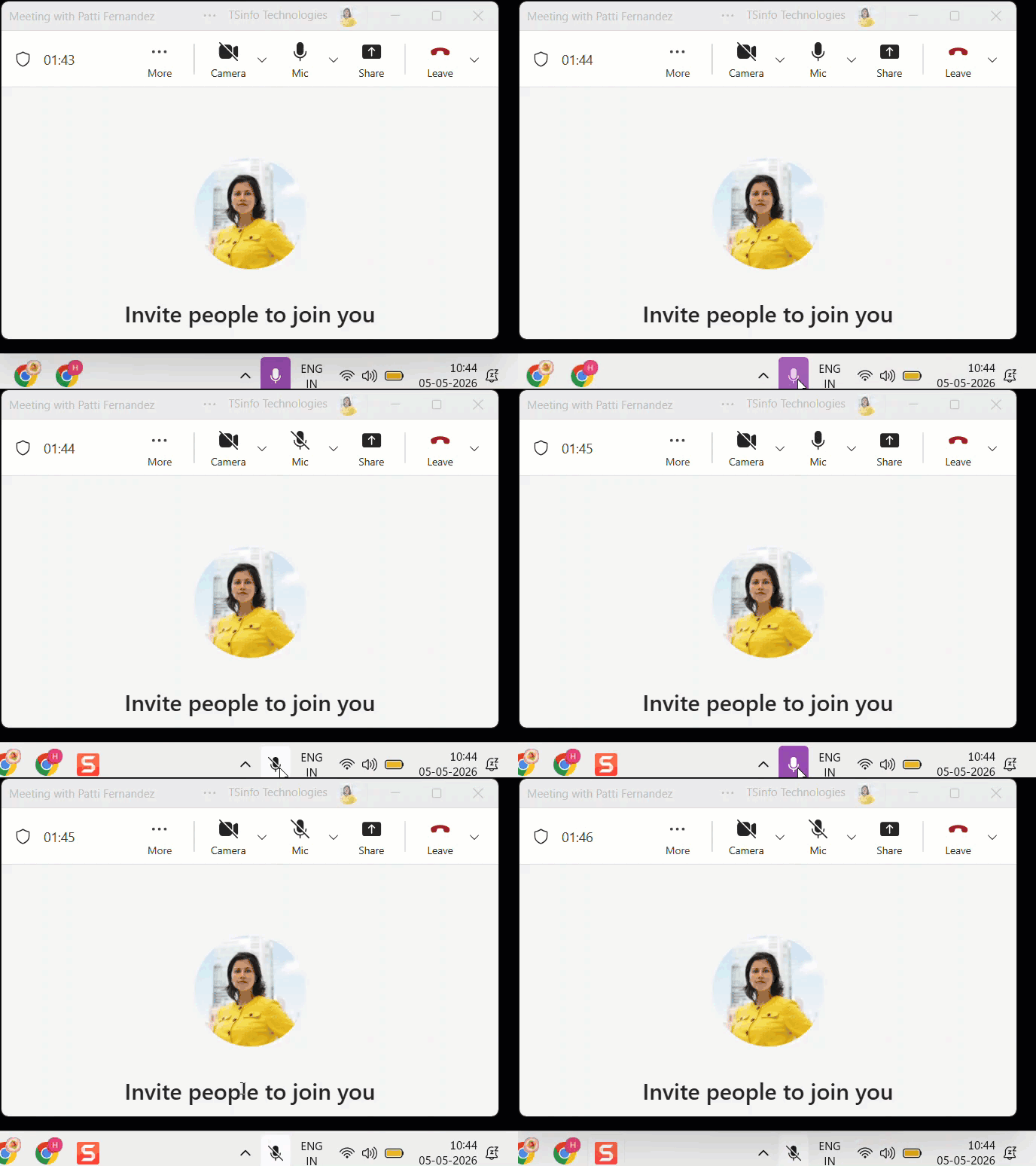
You can also use the keyboard shortcut Windows key + Alt + K to toggle your mic straight from the taskbar.
This is super useful when you’re sharing your screen or working in another application and don’t want to keep flipping back to Teams just to mute yourself.
Method 5: Mute Teams Automatically When Your Screen Locks
Here’s a setting I’d recommend turning on if you step away from your desk during meetings.
Teams has a feature that will automatically turn off your mic and camera whenever your screen locks. So if you press Windows + L to lock your PC, or your screen times out, Teams mutes you right away. No awkward background noise while you’re away from your desk.
To turn this on:
- Click the three dots (…) → Settings
- Go to Privacy
- Turn on “Turn off my camera and mic when my screen locks”
- Restart Teams for the setting to take effect
Once this is on, you don’t have to worry about forgetting to mute yourself when you walk away.

Method 6: Mute Other Participants in Teams Meeting [For Hosts and Organizers]
If you’re running a meeting, you can mute other people — individually or everyone at once. This is really helpful during large-team calls when background noise from one person disrupts the entire meeting.
To mute a specific person:
- Click People to open the Participants panel
- Hover over the name of the person you want to mute
- Click the three dots (…) next to their name
- Select Mute participant
To mute everyone at once:
- In the Participants panel, look for the Mute all option
- Click it — this will mute all participants at the same time

Important note: When you mute someone else, they can still unmute themselves. If you want to prevent participants from unmuting at all (like in a webinar or large presentation), you’ll need to use the audio permissions setting, which lets you disable microphones entirely for attendees. You’ll find this under the meeting options before the call starts.
Quick Recap: All the Ways to Mute in Microsoft Teams
| Method | Best For |
|---|---|
| Click the mic icon | Quick one-click muting during a meeting |
| Ctrl + Shift + M | Keyboard users who want a fast toggle |
| Ctrl + Spacebar (hold) | Push-to-talk style — stay muted, speak when needed |
| Windows taskbar icon | Muting without switching back to the Teams window |
| Auto-mute on screen lock | Forgetting to mute when stepping away |
| Mute participant / Mute all | Hosts managing noise in large meetings |
A Few Things People Often Get Confused About
I muted myself in Teams, but my mic is still on in other apps.
Teams mutes your mic only within Teams. It doesn’t mute your system microphone globally. So if you have Zoom or another app open, your mic there is still active.
My Ctrl + Shift + M shortcut isn’t working.
Make sure Teams is the active window on your screen. The shortcut only fires when you’re focused on Teams. Also, double-check that no conflicting shortcut is set in another app.
I muted someone, but they’re still talking.
When you mute a participant, they receive a notification and can unmute themselves. If you want hard control over audio, use meeting options to disable mics before the meeting starts.
Final Thoughts
I hope you found this article helpful. In this tutorial, I explained different ways to mute in Microsoft Teams. I also showed when to use each method. These options make it easier to manage your audio during meetings.
If you join meetings often, try using keyboard shortcuts and quick options. They can save time and make things easier. With practice, muting and unmuting will become quick and natural.
Also, you may like:
- 15 Best Practices For Microsoft Teams
- Create a Team in Microsoft Teams
- Microsoft Teams Default Profile Picture: How to Change It
- Create a Group in Microsoft Teams
- Send a Microsoft Teams Invite

Hey! I’m Bijay Kumar, founder of SPGuides.com and a Microsoft Business Applications MVP (Power Automate, Power Apps). I launched this site in 2020 because I truly enjoy working with SharePoint, Power Platform, and SharePoint Framework (SPFx), and wanted to share that passion through step-by-step tutorials, guides, and training videos. My mission is to help you learn these technologies so you can utilize SharePoint, enhance productivity, and potentially build business solutions along the way.

