
If you’ve ever built a Power Apps form and needed users to pick an employee from a dropdown, you know the pain. The list just shows “John,” but there are three Johns in your SharePoint list. Users have no idea which one to pick.
That’s exactly the problem this tutorial solves. I’ll walk you through every practical method to show multiple columns in a Power Apps dropdown or combo box — with real formulas, step-by-step instructions, and examples you can copy straight into your app.
Let’s get into it.
Why the Power Apps Dropdown Only Shows One Column (And Why That’s a Problem)
By default, Power Apps dropdown controls show a single column. You point it at a SharePoint list, pick a column, and that’s what users see. Clean and simple — until it isn’t.
Here’s when single-column dropdowns break down:
- Employee names — “Smith, John” appears three times, and users can’t tell which John they need
- Product codes — A code like “P-1042” means nothing without the product name next to it
- Task lists — A task title alone doesn’t tell you the assigned person or status
- Travel records — “Trip to London” could be any of six entries in your list
The fix is combining multiple columns so users see something like “John Smith – Engineering – EMP-1042” instead of just “John”. Let me show you exactly how to do that.
What You’re Working With: Dropdown vs. Combo Box
Before we dive into formulas, let me quickly explain the two controls involved here.
Power Apps Dropdown — The standard single-select control. You click the arrow, a list drops down, and you pick one item. Simple, but limited — it can only show one display value natively. To show multiple columns, you need to create a merged/concatenated column.
Power Apps Combo Box — The more powerful sibling. It supports search, multi-select, and — most importantly for us — it has a DisplayFields property that can show multiple columns side by side without any formula gymnastics.
If you want the cleanest multi-column experience, the combo box is your best friend. But if you’re stuck with a dropdown (maybe due to app design constraints), there’s a solid workaround using AddColumns and Concatenate. I’ll cover both.
Power Apps Dropdown Show Multiple Columns
Let’s discuss how to display multiple columns in the Power Apps Dropdown control, with real-world use case examples.
Method 1: Using Power Apps AddColumns + Concatenate in a Dropdown
This is the most popular approach and works whether your data source is a SharePoint list, Dataverse table, or a Power Apps collection.
The idea: The dropdown can only display one column, so we create a new “virtual” column that merges the values from multiple columns into one string. We never save this column anywhere; it only exists inside the dropdown.
Example Setup
Let’s say you have a SharePoint list called Employee Task List with these columns:
- Title (the task name)
- EmployeeName (who it’s assigned to)
- Status (a Choice column — Open, In Progress, Done)
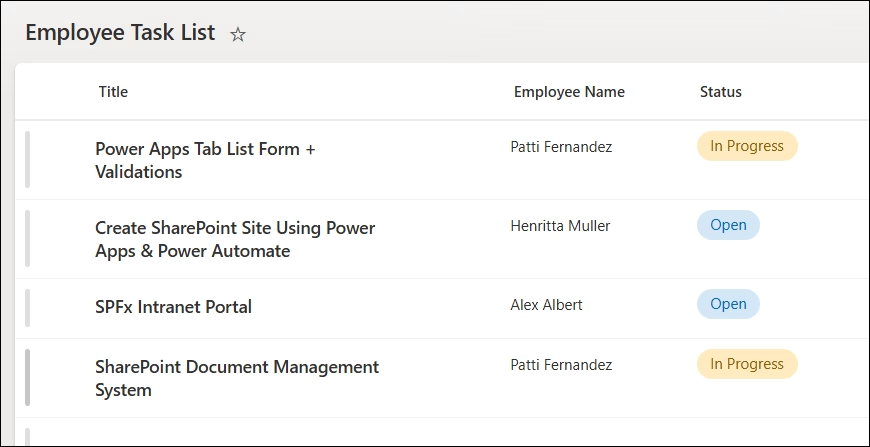
You want users to see: “Fix login bug – John Smith – In Progress”
Step-by-Step
Step 1: Open your Power Apps canvas app and connect it to your SharePoint list.
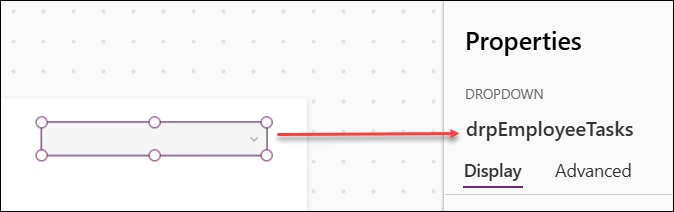
Step 2: Insert a Power Apps Dropdown control from the Insert menu. Give it a name like drpEmployeeTasks.
Step 3: Click on the dropdown and go to its Items property in the formula bar. Replace whatever’s there with this:
AddColumns(
    'Employee Task List',
    'TaskAndEmployee',
    Concatenate(
        Title,
        " – ",
        'Employee Name',
        " – ",
        Status.Value
    )
)
What this does:
AddColumns()takes your SharePoint list and adds a brand-new column to it — only in memory, not in SharePoint"TaskAndEmployee"is the name I’m giving this new virtual columnConcatenate()stitches together the Title, EmployeeName, and Status values with a dash separatorStatus.Value— the.Valuepart is needed because Status is a Choice field in SharePoint, so you have to extract the text value

Step 4: Now, click the Value property of the dropdown (in the Properties pane on the right). Change it from “Title” to "TaskAndEmployee" — the name of your new virtual column.
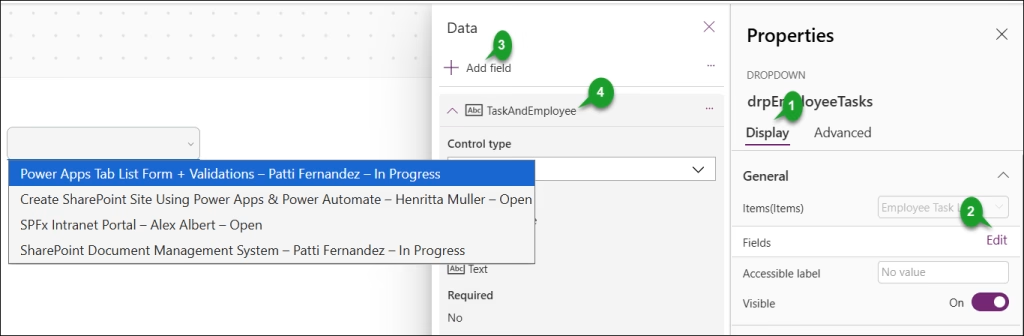
Step 5: Save and preview. Your dropdown will now display something like:
- SPFx Intranet Portal – Alex Albert – Open
- SharePoint Document Management System – Patti Fernandez – In Progress
Now users can distinguish between the person’s/employee’s name.
Working with Two Text Columns (Simpler Example)
If both columns are plain text fields (not choice or lookup), you can simplify slightly:
AddColumns(
    'Employee Task List',
    "FullDetail",
    EmployeeName & " – " & Title
)
Using & instead of Concatenate() is just a shorthand — both work the same way.
Reading the Selected Value Back
Here’s something people trip over. After the user picks an item, you want to read what they selected — maybe to save it to a form or display it elsewhere.
Because the dropdown is now showing a virtual concatenated column, the selected value is that merged string. That’s fine for display, but if you need the original field (like the actual Task Title or Employee Name), here’s how you get it:
drpEmployeeTasks.Selected.Title        // Gets the original Task Title
drpEmployeeTasks.Selected.EmployeeName // Gets the original Employee Name
drpEmployeeTasks.Selected.Status.Value // Gets the Status text
This works because AddColumns() doesn’t remove the original columns — it just adds a new one. So .Selected gives you the entire row, and you can dot-notation your way to any field you need.
Method 2: Using the Power Apps Combo Box with DisplayFields
If you have the option to use a Power Apps Combo Box instead of a plain dropdown, this method is far cleaner. No formula tricks needed.
The Combo Box has a built-in DisplayFields property that accepts a list of column names and shows them all — stacked in the dropdown list.
Step-by-Step
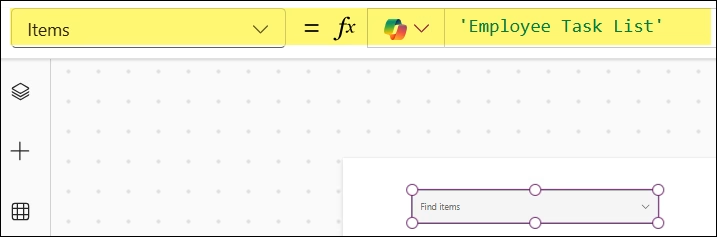
Step 1: Insert a Power Apps Combo Box control. Set its Items property to your data source:
'Employee Task List'
Step 2: In the Properties pane on the right, look for the Fields section. Click Edit.
Step 3: Under Primary text, pick your first column (e.g., Title). Under SearchField, you can add the column users will search by.
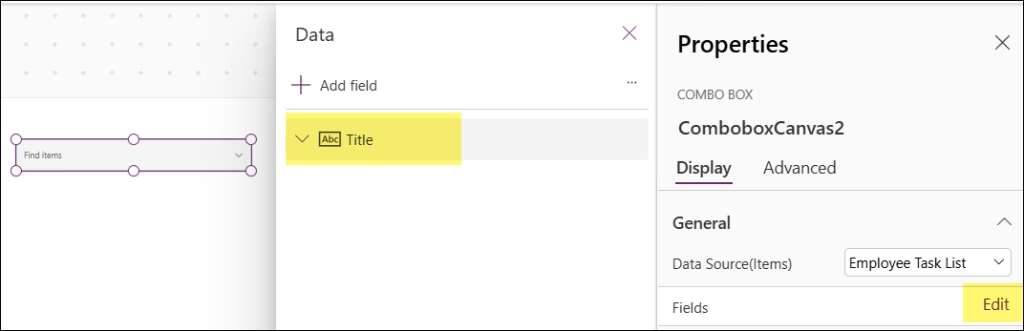
Step 4: To show multiple columns, go to the formula bar and set the DisplayFields property:
["Title", "EmployeeName"]
This tells the combo box to display both columns in each list item. The result looks like a two-line entry — the task name on top and the employee name below it.
Step 5: If you want to make it non-searchable (behave more like a dropdown), set:
IsSearchable = false
SelectMultiple = false
Now it acts almost exactly like a dropdown, but with richer display options.
When to Use the Power Apps Combo Box Over the Dropdown
| Situation | Use Dropdown | Use Combo Box |
|---|---|---|
| Simple list, one display value | ✅ | — |
| Need to show 2+ fields natively | — | ✅ |
| Users need to search/filter | — | ✅ |
| Multi-select needed | — | ✅ |
| Strict single-select, minimal UI | ✅ | — |
Method 3: Loading a Power Apps Collection at App Start
If your list has more than 500 records, delegation becomes a concern. One way around this (for smaller datasets under 2,000 rows) is to pre-load a collection at app start with the merged column already baked in.
In the App’s OnStart property:
ClearCollect(
    colTaskDetails,
    AddColumns(
        'Employee Task List',
        "TaskDetail",
        Title & " – " & EmployeeName & " – " & Status.Value
    )
)
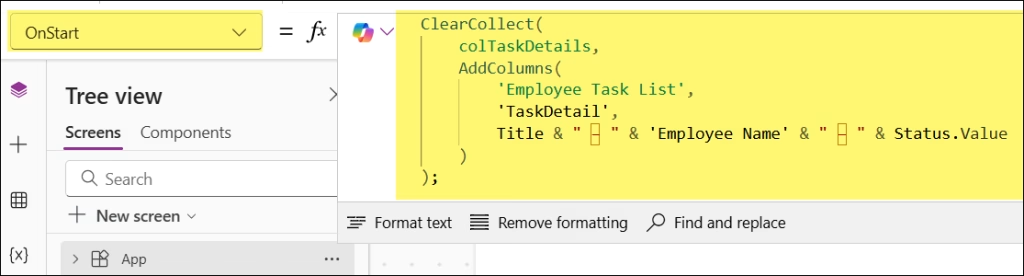
Then in Power Apps dropdown’s Items property:
colTaskDetails
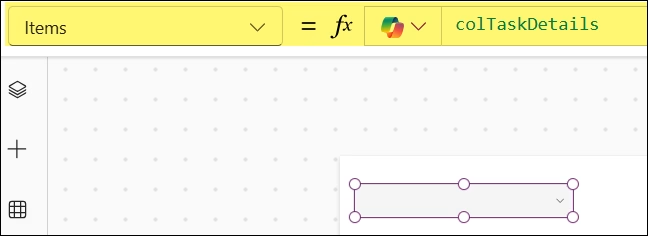
And set Value to: TaskDetail
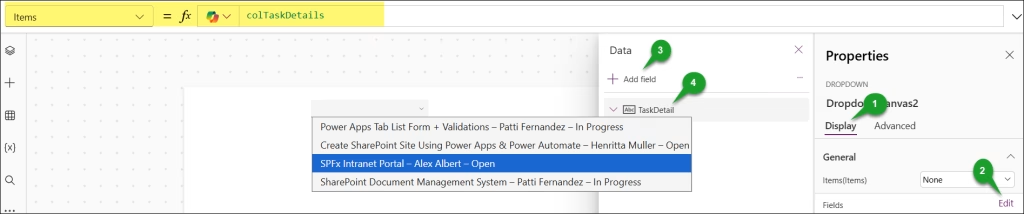
Why this matters:
- The collection loads once when the app starts
- All subsequent filtering or searching runs against the local collection, which is faster
- Works well for HR apps, project trackers, or anything under ~2,000 rows
To reset the collection when the app refreshes, you can call ClearCollect again from a refresh button.
Method 4: Three Columns from a Power Apps Collection
Let me give you a real-world example of a Power Apps Travel Request app. Say you have a collection colTravel with:
- TripTitle — name of the trip
- Destination — city/country
- Airline — carrier name
And you want all three to appear in one dropdown item.
Items property:
AddColumns(
    colTravel,
    "TripDetails",
    TripTitle & " – " & Destination & " – " & Airline
)
Set Value to: TripDetails
Your dropdown will display entries like:
- Annual Sales Summit – New York, USA – Delta
- Engineering Conference – London, UK – Emirates
- Client Visit – Sydney, Australia – Qantas
Users immediately know what each entry is — no guessing, no mistakes.
Common Mistakes to Avoid
Here are the things I see trip people up the most:
- Forgetting
.Valueon Choice columns — If your SharePoint field is a Choice type, you must useStatus.Value, not justStatus. Otherwise Power Apps throws an error or shows blank. - Not updating the Value property — After you write the
AddColumnsformula inItems, Don’t forget to change theValueproperty to match your new column name. The dropdown won’t know what to display otherwise. - Trying to save the virtual column — The column you create with
AddColumnsexists only in memory. You can’t patch it back to SharePoint. Always save the original field values, not the merged string. - Case sensitivity in column names — Power Apps is case-sensitive with column names in some formulas. If your column is
EmployeeName, but you writeemployeename, it won’t work. Match the exact casing. - Delegation warnings on large lists — If your SharePoint list has more than 500 items,
AddColumnsinsideItemsmay trigger delegation warnings. Pre-load a collection usingClearCollectonOnStartto sidestep this.
Conclusion
The native Power Apps dropdown is intentionally simple — one column, one value. But real-world data is almost never that clean. People have the same name, tasks overlap, product codes mean nothing in isolation.
The AddColumns + Concatenate approach is your go-to fix for the standard dropdown. It’s lightweight, doesn’t touch your actual data, and gives users the context they need to make the right selection.
If you have any flexibility over which control to use, the Combo Box with DisplayFields is even easier and looks cleaner — especially when you’re pulling from Dataverse or SharePoint Online.
Also, you may like some more Power Apps tutorials:
- Create a Power Apps Canvas App Dashboard using Charts
- Power Apps Sum() Function
- Filter Gallery in Power Apps
- Clear a Text Input in Power Apps
- Invalid operation: division by zero in Power Apps

Hey! I’m Bijay Kumar, founder of SPGuides.com and a Microsoft Business Applications MVP (Power Automate, Power Apps). I launched this site in 2020 because I truly enjoy working with SharePoint, Power Platform, and SharePoint Framework (SPFx), and wanted to share that passion through step-by-step tutorials, guides, and training videos. My mission is to help you learn these technologies so you can utilize SharePoint, enhance productivity, and potentially build business solutions along the way.

