
One of the most common things people ask about when building Power Apps is this: “Why does my dropdown always show the first item when the app loads? How do I make it start blank?”
Power Apps doesn’t give you an obvious “start blank” checkbox. But once you know the right approach, it’s pretty straightforward.
In this tutorial, I’ll walk you through multiple ways to set a dropdown default value to blank in Power Apps, whether you’re pulling data from a SharePoint list, using a hardcoded list, or working inside a form control. I’ll cover what works, what doesn’t, and when to use which method.
Why Power Apps Dropdowns Don’t Start Blank by Default
Power Apps dropdown controls are designed to always show a selected value. If you don’t set a Default property, it automatically shows the first item in your Items list. That’s the built-in behavior.
For many apps, this is actually fine — you want a pre-selected value. But there are plenty of real-world scenarios where you need it blank:
- A filter dropdown where blank means “show all records”
- A new form where the user must actively make a selection
- A reset scenario where you need to clear a previously selected value
Whatever your reason, here are the methods you can use.
Power Apps Set Dropdown Default Value to Blank
Let’s discuss 5 methods for setting the dropdown’s default value to blank in PowerApps.
Method 1: Use Power Apps Dropdown AllowEmptySelection Property (Quickest Fix)
This is by far the easiest method, and I wish I had known about it earlier when I started building apps.
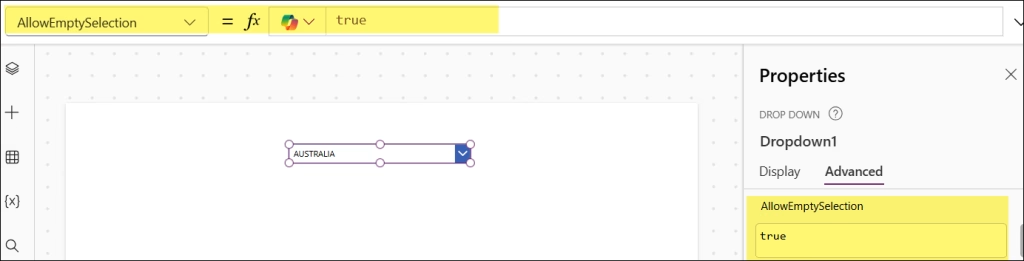
Every dropdown control in Power Apps has a property called AllowEmptySelection. By default, it’s set to false. When you flip it to true, the dropdown no longer forces a selection — it can start completely blank.
Here’s what to do:
- Select your Power Apps dropdown control on the canvas app
- In the right-hand properties panel (or the formula bar), find AllowEmptySelection and set it to
true(This property is only available in the classic Dropdown control)
- Then set the Dropdown’s Default property to
Blank().
Blank()
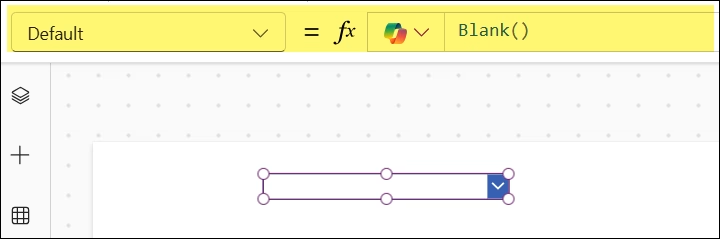
That’s it. When the app loads, the dropdown will show nothing — no pre-selected value. The user has to pick one themselves.
One thing to know about this approach: Even with AllowEmptySelection set to true, the blank option doesn’t appear as a visible item inside the dropdown list when the user opens it. The user can deselect a value by clicking it again, but they won’t see a visible blank row in the list. If you’re okay with that behavior, this method is perfect. If you want a visible blank row at the top of the list, keep reading.
Method 2: Power Apps Add a Blank Row Using Ungroup + Table
This method adds an actual blank row at the top of your dropdown list, so users can see it and explicitly select it. It’s a clean, no-collection approach that works really well.
Let’s say your Power Apps dropdown pulls data from a SharePoint list called IT Service Ticket, and you’re filtering it by a column called ITDepartment (Text column).
Set the Items property of your dropdown to this:
Ungroup(
    Table(
        {myMenuOptions: Table({DDValue: Blank()})},
        {
            myMenuOptions: Filter(
                'IT Service Ticket',
                'IT Department' = "IT"
            )
        }
    ),
    myMenuOptions
)
What this does:
- Creates a small table with two rows: one blank row and one set of rows from your SharePoint list
Ungroupflattens both into a single list- The blank row appears at the top, and all your real values follow it

If your dropdown is connected to a SharePoint choices column (using the Choices() function), here’s how you’d write it:
Ungroup(
    Table(
        {myOptions: Table({Value: Blank()})},
        {myOptions: Choices('IT Service Ticket'.Department)}
    ),
    myOptions
)
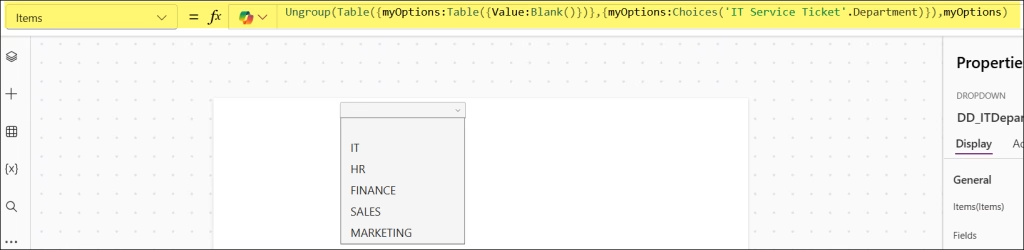
Just make sure the column name inside the nested Table() matches the column name returned by your data source. That’s the one thing that can trip you up here.
Method 3: Use Power Apps ClearCollect + Collect on App Start
This is an older approach that still works well, especially if you’re dealing with Power Apps cascading dropdowns (where selecting one dropdown filters another). It involves creating a Power Apps collection that includes a blank entry at the top.
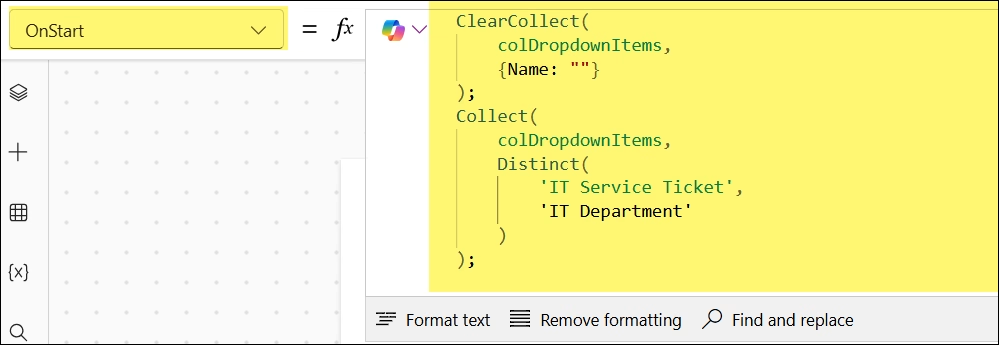
Step 1: Go to the Power Apps App object and select the OnStart property.
Add this formula:
ClearCollect(
    colDropdownItems,
    {Name: ""}
);
Collect(
    colDropdownItems,
    Distinct(
        'IT Service Ticket',
        'IT Department'
    )
);
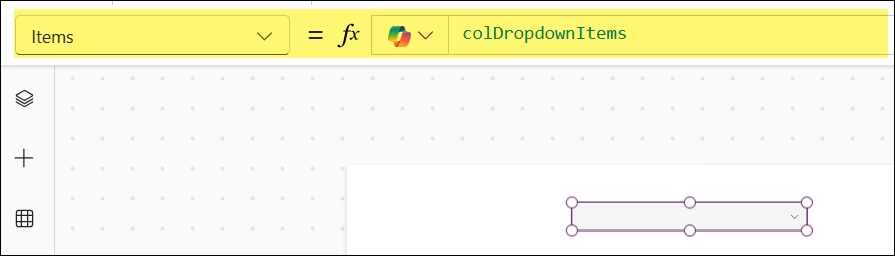
Step 2: Set the Items property of your dropdown to:
colDropdownItems
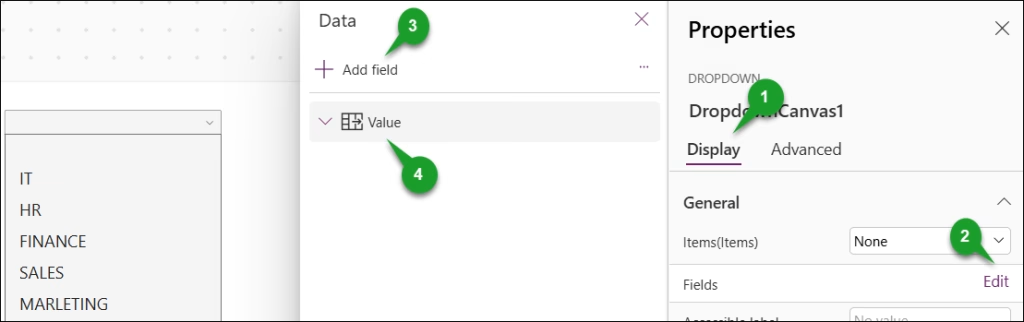
Step 3: Set the Dropdown’s Fields property to:
Value
What’s happening here:
- Power Apps ClearCollect wipes any old data and creates the
colDropdownItemscollection with a single blank row{Name: ""} Collectthen appends all the real values from your SharePoint list- The result is a list that starts with a blank entry, followed by your actual data
This approach is especially useful for cascading dropdowns. For example, if you have a “State” dropdown and a “District” dropdown where district depends on state, you’d use a similar pattern — but the second collection would be filtered based on the first dropdown’s selected value:
ClearCollect(
    colDistricts,
    {Name: ""}
);
Collect(
    colDistricts,
    Filter(YourList, State = StateDropdown.Selected.Name).District
);
Put this in the OnSelect property of your State dropdown, so the district list refreshes every time the user picks a state.
Method 4: Set Default to Blank in a Power Apps Form
If you’re using a Power Apps Edit form or New form connected to SharePoint, the dropdown inside a data card works a little differently.
By default, form data cards have a Default property set to Parent.Default. This pulls the value from the record, which means if you’re editing an existing record, it’ll show the saved value. For a new record, it might already show as blank.
But if you want to force a blank default on a new form:
- Unlock the data card (click the lock icon in the card’s properties)
- Select the dropdown control inside the card
- Set the Default property to:
Blank()
Also, make sure AllowEmptySelection on that dropdown is set to true.
If you want the dropdown to show “Please Select” as placeholder text instead of just being empty, you can use a slightly different trick — add a label that overlays the dropdown and use its visibility to show or hide based on whether a value is selected. But for most cases, blank + AllowEmptySelection is enough.
Method 5: Reset a Power Apps Dropdown to Blank Programmatically
Sometimes you don’t want the Power Apps dropdown to start blank — you want it to go blank after a button click, like a “Clear Filters” or “Reset Form” button.
There are two ways to do this:
Option A — Use the Reset() function:
Add a Power Apps button and put this in its OnSelect property:
Reset(DropdownCanvas1);
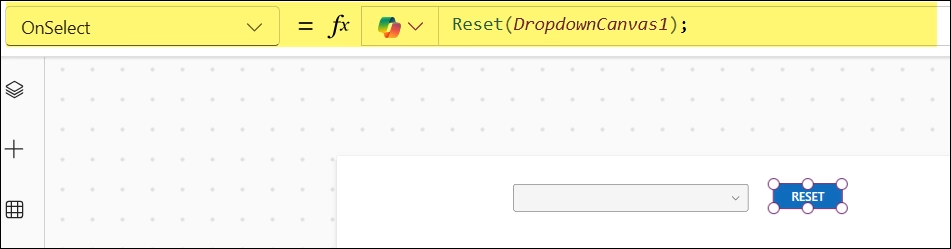
This resets the dropdown to whatever its Default property is. So if your Default is Blank(), this will make it go blank.
Option B — Use a variable:
Set a variable to true on button click and tie the dropdowns Reset property to it:
On the button’s OnSelect:
Set(varResetDropdown, true);
Set(varResetDropdown, false);
On the dropdown’s Reset property:
varResetDropdown
The toggle trick (true then immediately false) fires the reset and then turns it off so it doesn’t reset again on the next interaction.
Which Method Should You Use to Set the Power Apps Dropdown Default Value to Blank?
Here’s a quick summary to help you pick:
| Scenario | Best Method |
|---|---|
| Simple standalone dropdown, just needs to start blank | AllowEmptySelection + Default: Blank() |
| You want users to see a visible blank row in the list | Ungroup + Table approach |
| Cascading dropdowns (state → district) | ClearCollect + Collect on OnStart / OnSelect |
| Inside a Power Apps form | Unlock data card + Default: Blank() |
| Reset to blank via a button | Reset() function or variable toggle |
A Few Things Worth Knowing
- When you use
AllowEmptySelection = trueand the dropdown is blank, checking the dropdown’s value withIsBlank(Dropdown1.Selected.Value)returnstrue. This is useful if you want to show all records in a gallery when nothing is selected. - If you’re using the dropdown as a filter, a common pattern is:
If(
    IsBlank(Dropdown1.Selected.Value),
    YourDataSource,
    Filter(YourDataSource, Column = Dropdown1.Selected.Value)
)
This shows everything when blank, and filters when a value is selected.
- The
Ungroupmethod is newer and cleaner than theClearCollectapproach. If you’re starting fresh, go with that one. - Avoid hardcoding your blank value as
""(empty string) in your items list. UseBlank()instead. It’s more consistent with how Power Apps handles null values, especially when patching data back to SharePoint.
That’s all there is to it. Setting a dropdown default to blank in Power Apps isn’t obvious in the UI, but once you know these patterns, you’ll use them in every app you build. The AllowEmptySelection property covers most simple cases, and the Ungroup trick handles everything else cleanly without needing collections.
Additionally, you may like some more Power Apps tutorials:
- Set Combo Box Value On Button Click in Power Apps
- Clear a Text Input in Power Apps
- Set Default Value in Power Apps Modern Radio Button
- Set Combo Box Value On Button Click in Power Apps
- Add ID Value in Mirror ID Using Power Apps

Hey! I’m Bijay Kumar, founder of SPGuides.com and a Microsoft Business Applications MVP (Power Automate, Power Apps). I launched this site in 2020 because I truly enjoy working with SharePoint, Power Platform, and SharePoint Framework (SPFx), and wanted to share that passion through step-by-step tutorials, guides, and training videos. My mission is to help you learn these technologies so you can utilize SharePoint, enhance productivity, and potentially build business solutions along the way.

