
If you’ve ever built a Power Apps canvas app and wondered how to control what shows up in a combo box based on a button click, you’re in the right place. This is one of those things that trips a lot of people up because the combo box control behaves a little differently from other controls. Once you understand how it works, it all clicks into place.
In this tutorial, I’ll walk you through several practical methods to set a combo box value on button click in Power Apps — covering binding items, setting a default value, patching a SharePoint choice column, and clearing/resetting the selection.
Why the Power Apps Combo Box Is Different
Before we get into formulas, it’s worth understanding why the Power Apps combo box requires a slightly different approach than a text input or dropdown.
The combo box in Power Apps doesn’t have a simple Value property you can just set like a variable. Instead, it works with two key properties:
- Items — the list of options the combo box displays
- DefaultSelectedItems — the item(s) that are pre-selected when the control loads or resets
This distinction matters a lot when you’re trying to control the combo box from a Power Apps button. You can’t directly “write” a value into it mid-session like you would a text box. You work around this using collections and variables — which I’ll show you exactly how to do below.
Power Apps Set Combo Box Value On Button Click
Here, we will discuss the 5 best methods to set the Power Apps Combo Box value on button click step by step. So let’s get started!
Method 1: Bind Items to a Power Apps Combo Box on Button Click
This is the most common scenario — you want a Power Apps combo box to populate its choices only when a user clicks a button. Maybe you’re loading dynamic data from a SharePoint list, or you want to show options relevant to a previous selection.
Here’s what to do:
- In the Power Apps screen, insert a Combo Box control. Name it
cmb_Priority. - Insert a Button and rename it
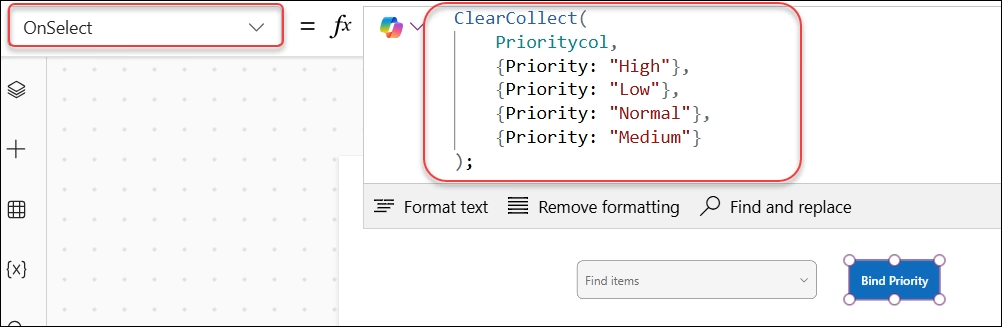
Bind Priority. - On the button’s OnSelect property, write this formula:
ClearCollect(
    Prioritycol,
    {Priority: "High"},
    {Priority: "Low"},
    {Priority: "Normal"},
    {Priority: "Medium"}
);
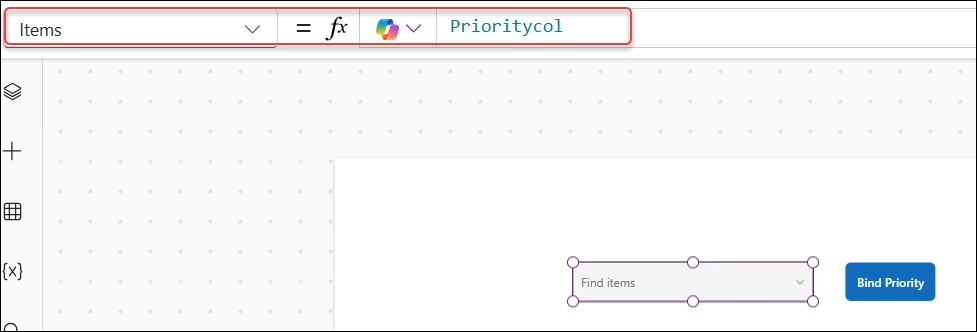
- Now select the combo box and set its Items property to:
Prioritycol
- Now preview the app and try clicking the Bind property button. Once you expand the combobox, you can see the items are coming as digits. To make all the priority values visible, add the Property field in the Combobox fields section.
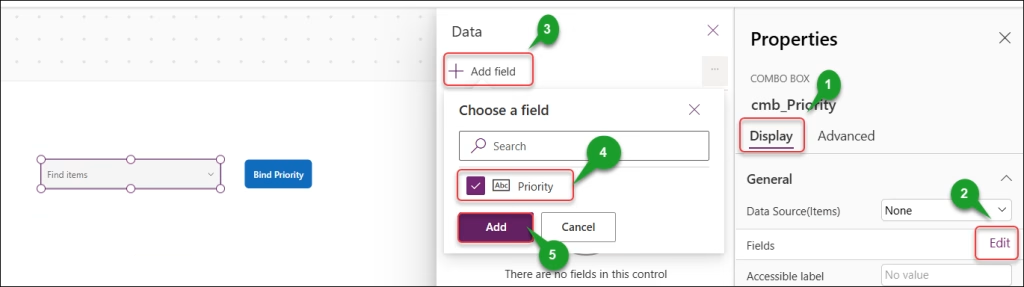
When the user clicks the button, the collection Prioritycol is created, and the combo box instantly shows those four options. Before that click, the combo box will appear empty — which is exactly the behaviour you want if you’re building a wizard-style app or filtering options based on a previous step.
Method 2: Set a Power Apps Combobox Default Selected Value on Button Click
Now let’s say your combo box already shows options, and you want a button to pre-select a specific value—for example, automatically selecting “Normal” as the default priority.
The property you need here is DefaultSelectedItems. This doesn’t accept a simple text string. It expects a table or a record that matches the shape of your data source. This is the part that confuses most people.
Here’s how to do it cleanly:
- In Power Apps, add a second button — label it
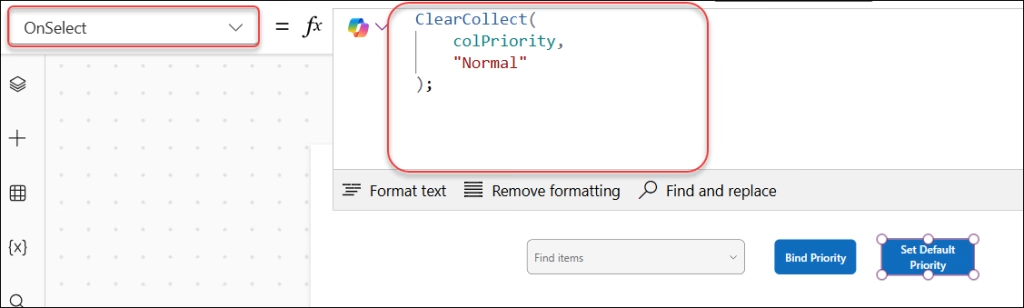
Set Default Priority. - On that button’s OnSelect property, write:
ClearCollect(
    colPriority,
    "Normal"
);
- Select the combo box (
cmb_Priority) and set its DefaultSelectedItems property to:
colPriority
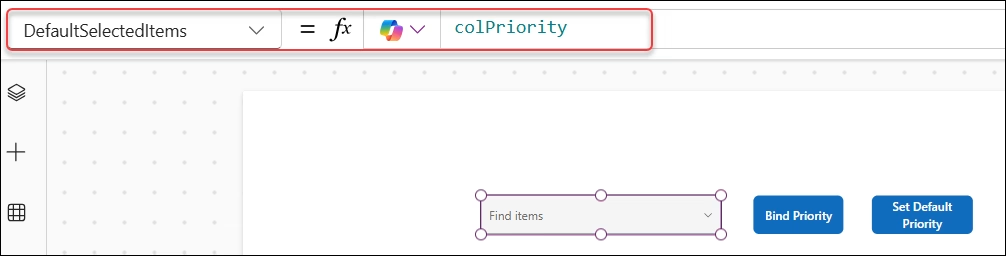
Also, put the same collection (colPriority) in the Combobox’s Items property.
That’s it. When the user clicks “Set Default Priority,” the collection colPriority gets populated with the value “Normal,” and since the combo box is watching colPriority for its default, it updates immediately.
One important note: This only applies when the combo box resets or loads fresh. If the user has already manually interacted with the combo box, DefaultSelectedItems won’t override their selection unless you also reset the control (more on that in Method 4).
Method 3: Set Power Apps Combo Box Value and Patch It to SharePoint
This is a real-world scenario I’ve personally used — building a Power Apps approval app where clicking an “Approve” or “Reject” button both updates the combo box display and saves the value back to a SharePoint list.
Let’s say your SharePoint list has:
Employee Name(Text column)Approve Status(Choice column with values: No Status Yet, Approved, Rejected)
Setup:
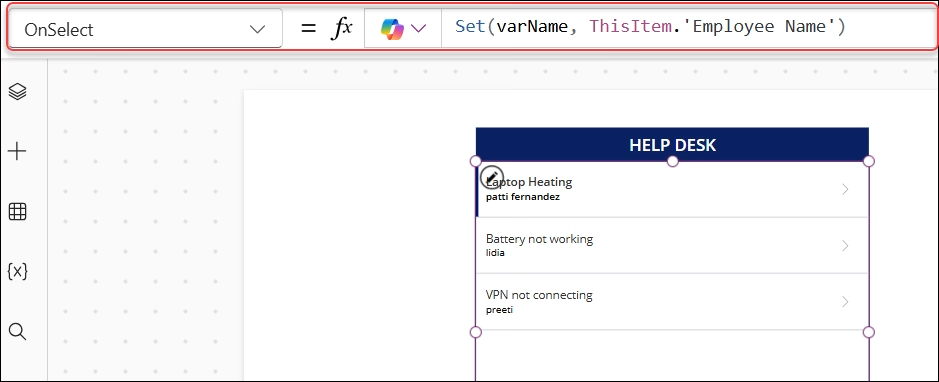
- Add a Gallery connected to your SharePoint list. In its OnSelect property, capture the selected item’s name:
Set(varName, ThisItem.EmployeeName)
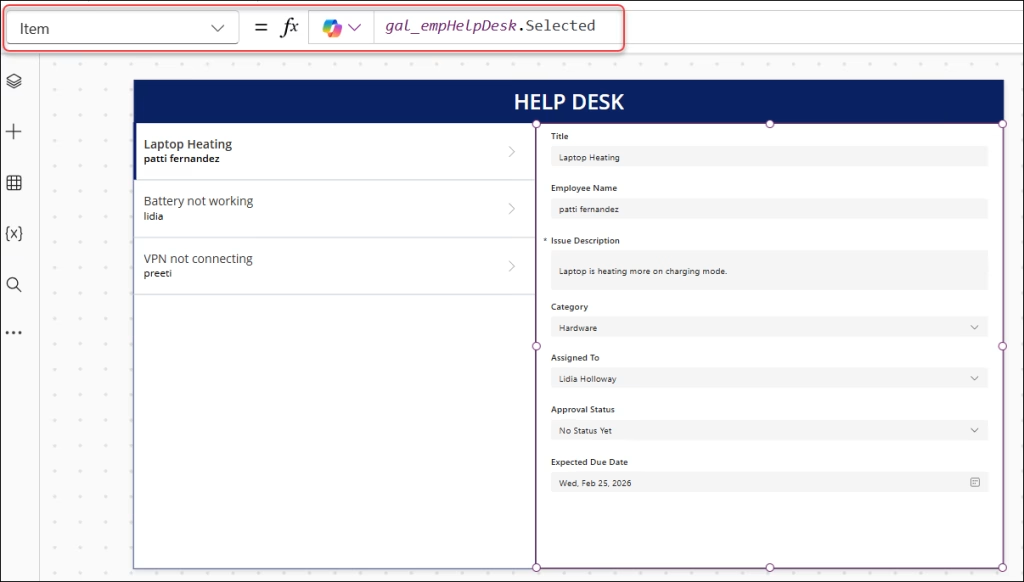
- Add an Edit Form connected to the same list. Set its Item property to:
gal_empHelpDesk.Selected
- Add two buttons — “Confirm Approval” and “Reject Approval.”
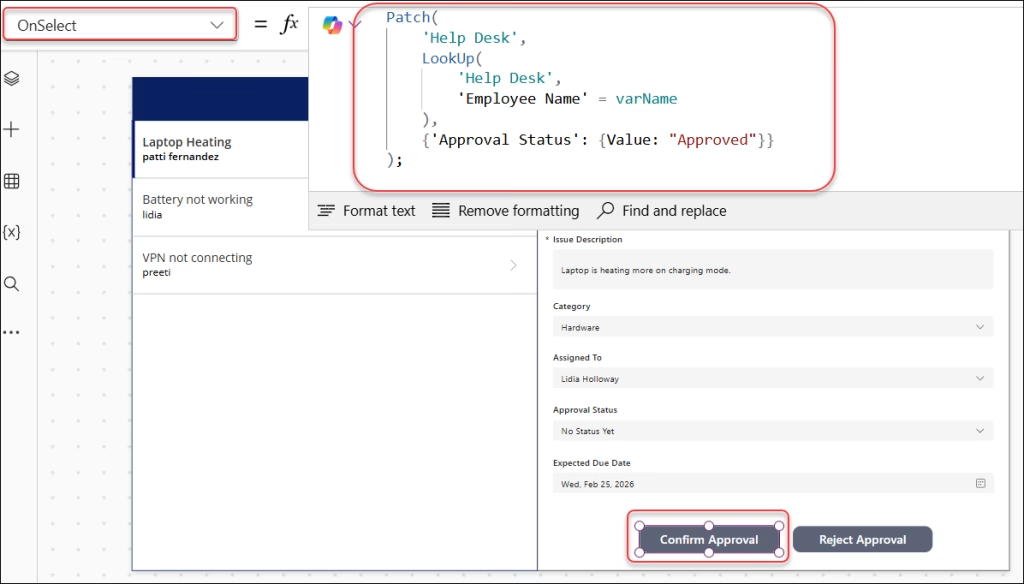
- On the Confirm Approval button’s OnSelect, write:
Patch(
    'Help Desk',
    LookUp(
        'Help Desk',
        'Employee Name' = varName
    ),
    {'Approval Status': {Value: "Approved"}}
);
- On the Reject Approval button’s OnSelect, write:
Patch(
    'Help Desk',
    LookUp(
        'Help Desk',
        'Employee Name' = varName
    ),
    {'Approval Status': {Value: "Rejected"}}
);
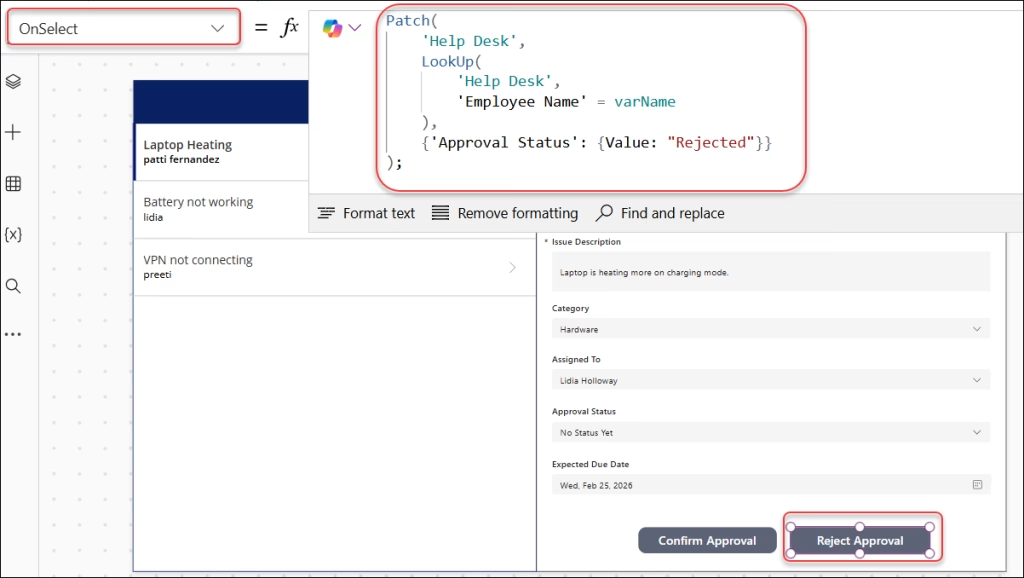
What’s happening here: when the user clicks either button, the Patch function finds the matching record in SharePoint (using the employee name stored in varName) and updates the choice column to the appropriate value. The form refreshes, and the combo box tied to that Approve Status field updates to reflect the new value.
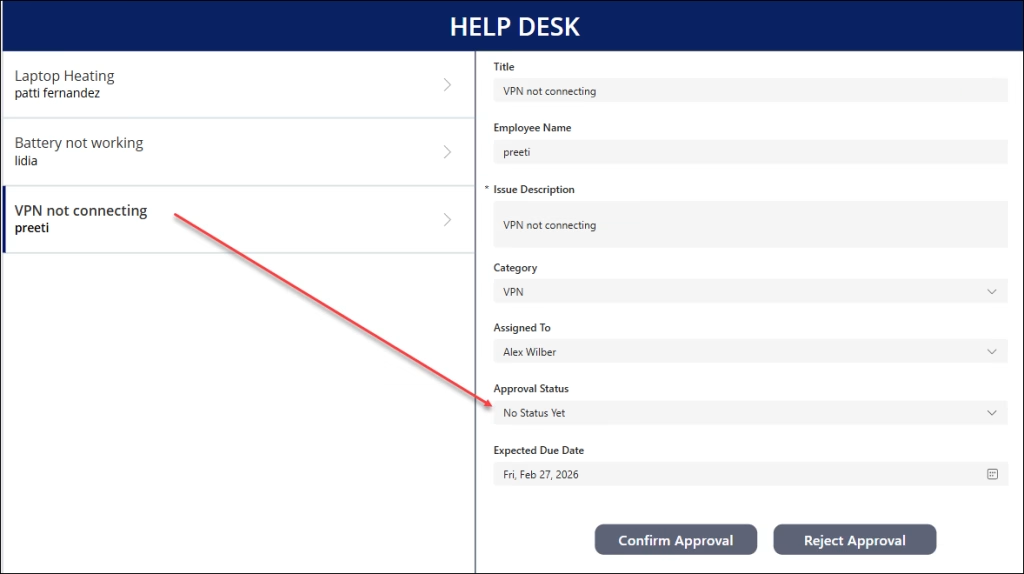
Now, I selected the 3rd record from the gallery whose Approval status is “No Status Yet”. Now I would like to change/update it to Approved using the Confirm Approval button.
Now, you can see the Approval status has been updated to Approved in the SharePoint list, as shown below.
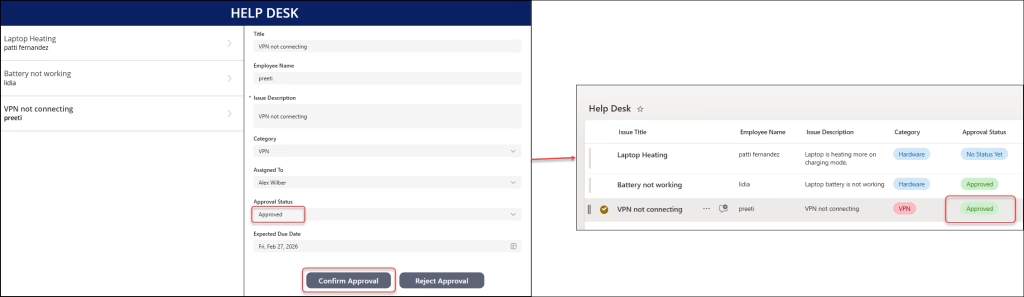
The {Value: "Approved"} syntax is specific to Choice columns in SharePoint — don’t forget the curly braces and the Value key, or Power Apps won’t recognize it.
Method 4: Power Apps Reset (Clear) Combo Box on Button Click
Clearing a combo box on button click is something you’ll need regularly — think form submissions where you want to wipe all fields after saving.
There are two ways to do this:
Option A — Use the Reset() function
This is the simplest approach. Add a “Clear” button and put this in its OnSelect:
Reset(cmb_Priority)
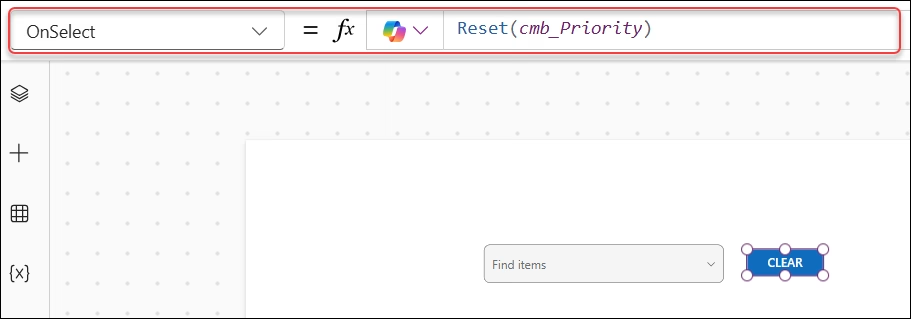
Where cmb_Priority is the name of your combo box. This snaps the control back to its DefaultSelectedItems value (or blank if no default is set).
Option B — Clear the underlying collections
If you want to fully wipe both the items list and the default selection, use:
Clear(Prioritycol);
Clear(colPriority);
This removes all items from the combo box (it goes empty) and also clears the default selection collection. Use this when you want a “start from scratch” experience.
Resetting multiple combo boxes at once
If you have several combo boxes to reset in one button click, just chain the Reset calls:
Reset(Cmb_JobLocation);
Reset(Cmb_WorkModel);
Reset(cmb_Priority);
Each semicolon tells Power Apps to run the next action in sequence.
Method 5: Set a Power Apps Combobox Default Value from a SharePoint List (LookUp)
This one comes up a lot when you’re working with edit forms connected to SharePoint. You want the combo box to pre-select a specific record from a list.
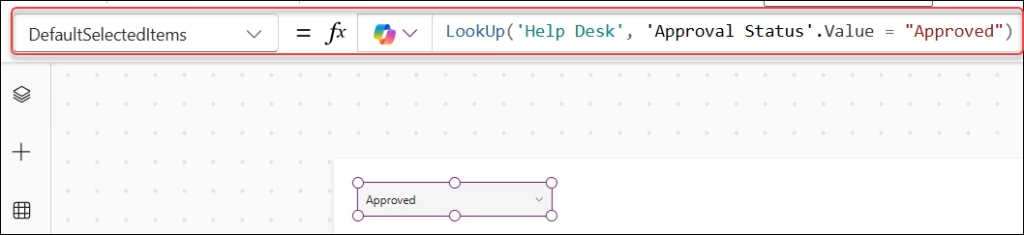
For example, you have a “Help Desk” list, and you want the combo box to default to “Approved”:
- Select the Power Apps combo box and set its DefaultSelectedItems property to:
LookUp('Job Openings', Title = "Power Apps Developer")
To make this dynamic — say, based on a button click — store the target value in a variable first:
// Button OnSelect:
Set(varDefaultJob, "Power Apps Developer");
Then in DefaultSelectedItems:
LookUp('Job Openings', Title = varDefaultJob)
Now every time the button is clicked, it updates varDefaultJob, and if you also call Reset(cmb_Jobs) after setting the variable, the combo box snaps to the new default immediately.
Quick Reference Table:
Follow the reference table below to determine where and when use the Power Apps Combo box with a button selection.
| What you want to do | Where to write it | Formula |
|---|---|---|
| Load items into combo box | Button OnSelect | ClearCollect(colName, {Field: "Value"}) |
| Bind items to combo box | Combo box Items | colName |
| Set a default selected value | Combo box DefaultSelectedItems | colDefault |
| Pre-select using LookUp | Combo box DefaultSelectedItems | LookUp(List, Title = "Value") |
| Reset/clear combo box | Button OnSelect | Reset(ComboBoxName) |
| Fully clear items + default | Button OnSelect | Clear(colItems); Clear(colDefault) |
| Patch choice column to SharePoint | Button OnSelect | Patch(List, LookUp(...), {Column: {Value: "..."}}) |
Additionally, you may like some more Power Apps tutorials:
- Get Choice Field Value in Power Apps
- Power Apps Set Dropdown Default Value to Blank
- Filter Power Apps Gallery By Dataverse Choice
- Create a SharePoint Site Using Power Apps
- Hide Power Apps Combo Box Choice Value Based On Text Input
Wrapping Up
Setting a combo box value on button click in Power Apps comes down to understanding that combo boxes are driven by collections and the DefaultSelectedItems property, not a simple value assignment. Once you’ve got that mental model, controlling it from a button is straightforward.
The patterns here — ClearCollect for items, ClearCollect + DefaultSelectedItems for pre-selection, Reset() for clearing, and Patch with {Value: "..."} for SharePoint — will cover the vast majority of real-world scenarios you’ll run into.

Hey! I’m Bijay Kumar, founder of SPGuides.com and a Microsoft Business Applications MVP (Power Automate, Power Apps). I launched this site in 2020 because I truly enjoy working with SharePoint, Power Platform, and SharePoint Framework (SPFx), and wanted to share that passion through step-by-step tutorials, guides, and training videos. My mission is to help you learn these technologies so you can utilize SharePoint, enhance productivity, and potentially build business solutions along the way.

