
As we know, in Power Apps, we cannot technically combine multiple global variables into a single ‘Set’ statement, which often results in a long, repetitive code list.
Let’s say, if you have been writing code like this in Power Apps:
Set(varName, "John");
Set(varAge, 30);
Set(varCity, "New York");
Set(varIsLoggedIn, true);
…there’s a better way. You can absolutely set multiple variables at once in Power Apps, and it makes your code cleaner and (in some cases) faster. Not sure whether Set or UpdateContext fits? Our Power Apps global vs context variables guide compares them.
In this tutorial, I’ll walk you through 3 methods for setting multiple variables at once in Power Apps: using “UpdateContext”, chaining “Set” functions, and using the “Concurrent” function. I’ll also tell you when to use which one, so you don’t have to guess.
Types of Variables in Power Apps
Before jumping into the methods, let me quickly clarify the two main Power Apps variable types you’ll work with:
- Global Variables — Created using
Set(). These are available across all screens in your app. - Context Variables — Created using
UpdateContext(). These are scoped to the current screen only.
Power Apps Set Multiple Variables at Once
The method you choose depends on which type you’re working with. Let’s get into it.
Method 1: Power Apps UpdateContext() to Set Multiple Context Variables at Once
This is probably the cleanest way to set multiple variables at once, and it’s also the one most people don’t use correctly.
Power Apps UpdateContext() accepts a record as its argument. That means you can pass in multiple name-value pairs in a single call, separated by commas inside curly braces.
Syntax
UpdateContext({variable1: value1, variable2: value2, variable3: value3})
Example
Say you have a Power Apps form that a user fills out, and when they click a submit button, you want to store their name, age, and login status, all at once:
UpdateContext({
    varUserName: "Sarah",
    varUserAge: 28,
    varIsLoggedIn: true
})

That single call sets all three variables in one shot. No need to write three separate UpdateContext() lines.
If you want to display any of these values later on the same screen, just reference the variable name directly. For example, set a label’s Text property to:
varUserName

Important Thing to Know
All values inside a single UpdateContext() calls are evaluated concurrently — meaning they all run at the same time. This is usually fine, but it becomes a problem when one variable depends on another variable you’re setting in the same call.
For example, this will not reliably work:
//Don't do this, varTotal depends on varPrice being set first
UpdateContext({
    varPrice: 100,
    varTotal: varPrice * 1.1
})
Because both lines run at the same time, varPrice may not have its new value yet when “varTotal” is being calculated. Instead, split them into two separate calls:
//Do this instead
UpdateContext({varPrice: 100});
UpdateContext({varTotal: varPrice * 1.1})
Method 2: Chain Multiple Power Apps Set() Functions (For Global Variables)
If you need global variables, ones that are accessible across all screens, you’ll use the “Set()” function. Unlike UpdateContext(), Set() can only set one variable per call. But you can chain multiple Set() calls together on a single Power Apps button or property using a semicolon.
Syntax
Set(variable1, value1);
Set(variable2, value2);
Set(variable3, value3)
Example
Let’s say you have a Power Apps login screen, and when the user presses the Login button, you want to store the user’s name, role, and the current date globally so any screen in the app can access them:
Set(gblUserName, User().FullName);
Set(gblUserRole, "Admin");
Set(gblLoginDate, Today())

Put this in the OnSelect property of your Login button. All three global variables get set when the button is tapped. Any screen can now use gblUserName, gblUserRole, or gblLoginDate directly.
Look at the image below. In another screen, I called those variables on the text label, and the values are displaying.

Semicolon vs. Double Semicolon
In Power Apps, the separator between chained formulas depends on your locale settings:
- In most English locales, use a single semicolon
;to separate formulas. - In some European locales (like Swedish, Dutch, or French), the list separator is already a semicolon, so Power Apps uses a double semicolon
;;instead.
If your chained formulas throw an error, try switching between ; and ;; — That’s almost always the fix.
Can I Mix Power Apps Set() with UpdateContext()?
Yes, absolutely. You can chain them together in the same property. For example, this formula in a button’s OnSelect sets one global variable and two context variables in a single button press:
Set(gblUserName, User().FullName);
UpdateContext({varIsFormVisible: true, varStep: 1})
Method 3: Power Apps Concurrent() to Set Multiple Variables Faster
This is the most advanced of the three methods, and it’s specifically useful when you’re initializing multiple global variables in the App OnStart property — especially if each variable involves a data call or a slow operation.
By default, chained Set() calls run one after the other. If you have five variables and each takes 500ms to load data, that’s 2.5 seconds just for initialization. The Power Apps Concurrent() function lets them all run at the same time, cutting that down significantly.
Syntax
Concurrent(
    Set(variable1, value1),
    Set(variable2, value2),
    Set(variable3, value3)
)
Example
Let’s say in App OnStart, you want to load data from a SharePoint list into a collection and set a few global variables at the same time:
Concurrent(
    ClearCollect(colEmployees, 'EmployeeDetails'),
    Set(gblCurrentUser, User().FullName),
    Set(gblAppVersion, "v2.1"),
    Set(gblIsAdmin, User().Email = "admin@company.com")
)

All four operations kick off at the same time. This is a real performance boost when your app loads data from SharePoint or Dataverse on startup.
When NOT to Use Power Apps Concurrent()
Just like with UpdateContext()If one variable’s value depends on another being set first, don’t put them inside the same Power Apps Concurrent() block. Here’s an example of what not to do:
//Risky — gblTax depends on gblPrice
Concurrent(
    Set(gblPrice, 500),
    Set(gblTax, gblPrice * 0.18)
)
Since both run simultaneously, gblPrice It might not be set yet when gblTax it tries to read it. Also displays an error message.

Handle dependent variables sequentially:
// Safer — sequential for dependent variables
Set(gblPrice, 500);
Set(gblTax, gblPrice * 0.18)
Practical Example: Resetting Multiple Power Apps Variables at Once
Let’s say you have created multiple variables in your Power Apps application to store user information, and now you want to reset all of them at once. Then, using a single UpdateContext(), we can set each variable to an empty value at once.
Look at the example below, the text label is showing the information of a user, such as:
- FirstName
- LastName
- Department
- IsActive
When I click the “Assign Details” button, the values are added, and when I click on the “Reset” button, the values are empty.
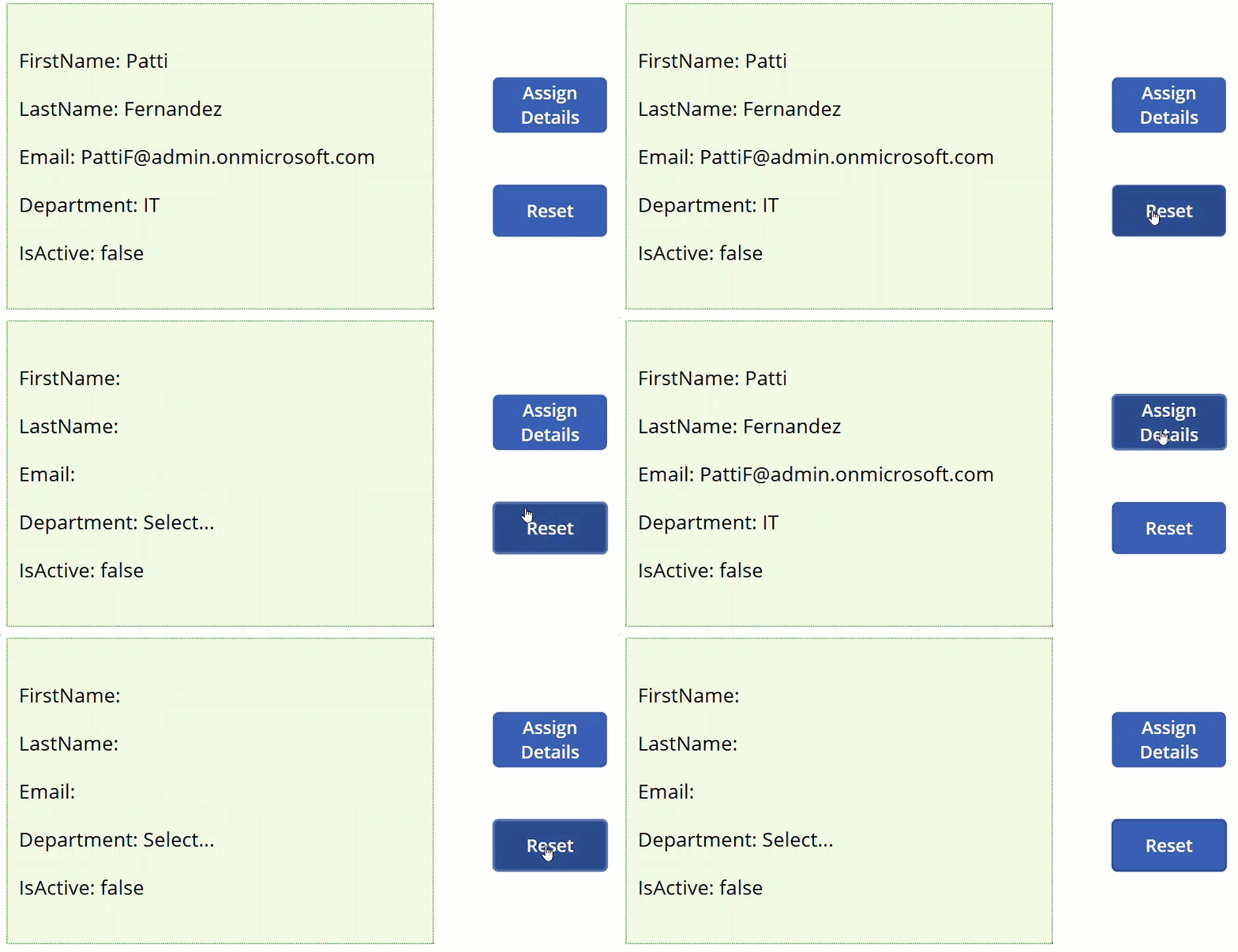
Here’s how you’d reset it on the Power Apps button’s OnSelect:
UpdateContext({
    varFirstName: Blank(),
    varLastName: Blank(),
    varEmail: Blank(),
    varDepartment: "Select...",
    varIsActive: false
})
All five variables reset the moment the button is clicked. Without this approach, you’d have five separate UpdateContext() calls, messier to read and maintain.
When to Use Which Method
| Scenario | Best Method |
|---|---|
| Set multiple local (screen-level) variables at once | UpdateContext({var1: val1, var2: val2}) |
| Set multiple global variables on a button click | Chained Set() calls with semicolons |
| Initialize multiple global variables on app start with data calls | Concurrent(Set(...), Set(...)) |
| Variables that depend on each other (sequential logic) | Separate sequential calls — never concurrent |
| Mix of global and local variables | Chain Set() and UpdateContext() together |
Tips for Naming Your Power Apps Variables
When you’re working with multiple variables, naming becomes really important. Here’s a simple convention I follow, and many Power Apps developers use:
- Prefix global variables with
gbl= For example, gblUserName, gblAppMode. - Prefix context variables with
varorloc= For example, varIsVisible, locSelectedItem. - Use camelCase after the prefix; names are easier to read at a glance.
- Avoid generic names like
var1ortemp= They make debugging painful later.
Good naming doesn’t just make your code readable; it also helps you quickly figure out whether a variable is global or local when you’re scanning through formulas weeks after you wrote them.
Common Mistakes to Avoid
- Using UpdateContext() across screens — Context variables only exist on the screen where they were created. If you navigate away and come back, they reset. Use
Set()for anything that needs to survive navigation. - Setting dependent variables inside Concurrent() — as covered above- leads to unpredictable results. Keep dependent variables sequential.
- Overloading App OnStart with Set() calls — The more you pack into OnStart, the slower your app loads. Use Power Apps
Concurrent()where possible, and consider moving static constants to Named Formulas (in App Formulas) rather than setting them as variables. - Forgetting the record syntax for UpdateContext() — A very common mistake is writing
UpdateContext(varName, value)instead ofUpdateContext({varName: value}). The curly braces and colon are required — without them, Power Apps will throw an error.
Conclusion
Setting multiple variables at once in Power Apps isn’t hard once you know the right way to do it.
- If you need several variables only for one screen, use UpdateContext() with a record.
- If you are working with global variables, you can use Set() and separate each one with a semicolon.
- When your app starts, and you want to set many variables quickly, Power Apps Concurrent() can help reduce loading time.
Just remember one simple rule:
- If the variables do not depend on each other, you can set them all at once.
- If one variable needs another value first, set them one by one, in order.
That’s it, choose the method that fits your situation, and your app will stay clean and easy to manage.
Also, you may like:
- Set Default Value in Power Apps Modern Radio Button Control? [Manual & SharePoint List]
- Power Apps Modern Button Control [Complete Tutorial]
- Set Combo Box Value On Button Click in Power Apps
- Power Apps Timer Control + Power Apps Start Timer On Button Click
- Power Apps Modern Information Button Control [Complete Guide]

Hey! I’m Bijay Kumar, founder of SPGuides.com and a Microsoft Business Applications MVP (Power Automate, Power Apps). I launched this site in 2020 because I truly enjoy working with SharePoint, Power Platform, and SharePoint Framework (SPFx), and wanted to share that passion through step-by-step tutorials, guides, and training videos. My mission is to help you learn these technologies so you can utilize SharePoint, enhance productivity, and potentially build business solutions along the way.