
When working with Power BI for my client, I need to filter rows based on the value in another column and create a separate table.
To do this, we need to use the Filter() function, then, based on a condition, create a table.
In this post, I will share how I filter data in Power BI using conditions from another column. Also, I will explain:
- Apply DAX Row Filter Based on Another Column in Power BI
- Text Conditions from Another Column to Filter Data in Power BI
- Filter Rows in Power BI Based on a Value From Another Table Column
Apply DAX Row Filter Based on Another Column in Power BI
Now, I need to filter rows in Power BI using DAX to compare two columns in the same table.
For this example, I have an Orders table with these columns:
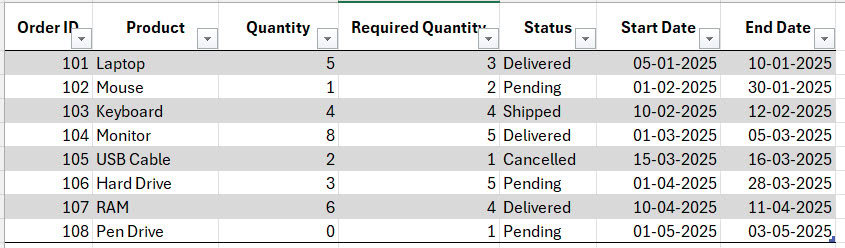
I want to display only the rows where the Quantity is greater than the Required Quantity. With DAX, I can create a new table or a measure that keeps only the rows that meet this condition.
To do this, follow the steps below:
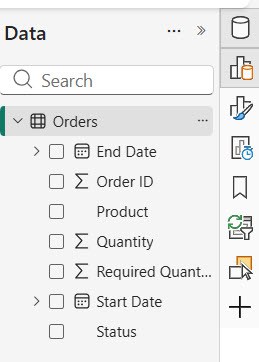
- Open Power BI Desktop and load your table.
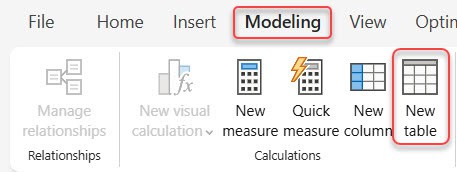
- Then go to the Modeling tab and click New Table.
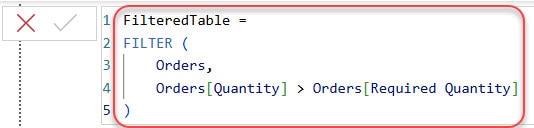
- Enter the DAX formula:
FilteredTable =
FILTER (
    Orders,
    Orders[Quantity] > Orders[Required Quantity]
)
This creates a new table containing only rows where Quantity is greater than the Required Quantity.
- To check this, go to the Table view and select the FilteredTable.

If you want to calculate something (like total quantity) based on this condition, you can create a measure:
TotalQtyAboveRequired =
CALCULATE (
    SUM ( Orders[Quantity] ),
    Orders[Quantity] > Orders[Required Quantity]
)
This measure returns the total Quantity only for rows where the Quantity is greater than the Required Quantity.
Text Conditions from Another Column to Filter Data in Power BI
Now, I need to filter rows in Power BI based on text values from another column.
For example, in my Orders table, I want to show only the rows where the Status column has the value “Delivered”.
To do this, I follow these steps:
- First, I open Power BI Desktop and make sure the table is loaded.
- Then I go to the Table view.
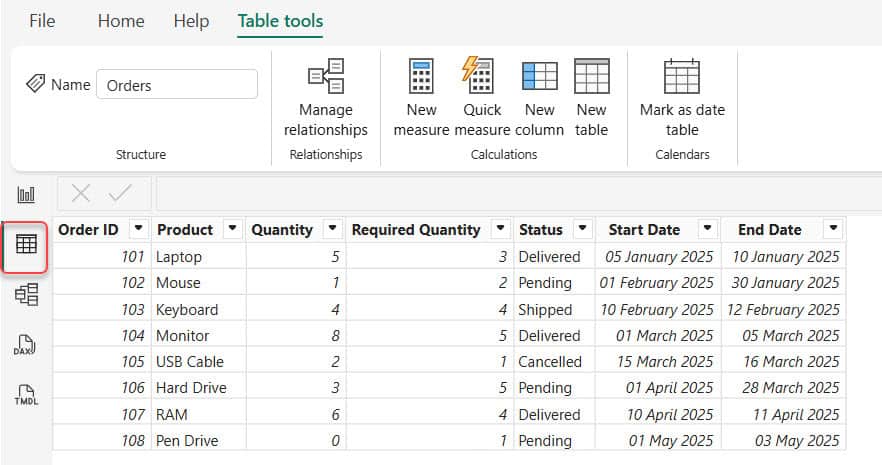
- Under the Table tools tab, click New Table. Then put the below DAX formula:
DeliveredOrders =
FILTER (
    Orders,
    Orders[Status] = "Delivered"
)
Then you can see the table that includes only the rows where the Status column is Delivered.

Filter Rows in Power BI Based on a Value From Another Table Column
Now I will tell you how to filter rows in Power BI based on a value from another table column.
For example, I have two tables:
Orders Table
- OrderID
- ProductID
- Quantity
- Status
Products Table
- ProductID
- ProductName
- Category
- Price
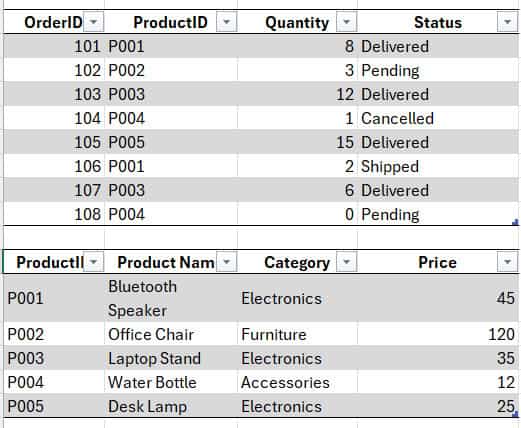
Here, I want to display only the rows from the Orders table where the Product belongs to the “Electronics” category in the Products table.
To do this, both tables must have a relationship based on ProductID.
- Open the Power BI desktop and load the two tables, then go to the Model View.
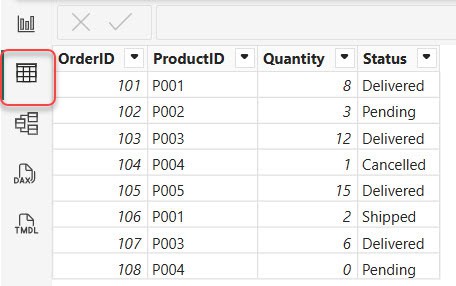
- Click Manage Relationships in the top ribbon. Click New to add a new relationship.

- In the “Create Relationship” window:
- From table: OrdersTable
- To table: ProductsTable
- ProductID: Select ProductID from both tables.
- Cardinality: Many-to-one
- Cross filter direction: Both
- Activate relationship: Checked
- Then click on Save.

Now both tables are connected.
- Go to the table view in the Table tools tab and click New Table.
- Add the below DAX formula:
ElectronicsOrders =
FILTER (
    Orders,
    RELATED(Products[Category]) = "Electronics"
)
Where:
- RELATED() gets the Category value from ProductsTable into the row context of OrdersTable.
- FILTER() keeps only the rows where Category = “Electronics”.

- In Table View, Select ElectronicsOrders from the Fields panel.

Now this table shows only the rows where the product category is Electronics.
In this tutorial, I explained how I filter rows in Power BI in three ways. First, I filtered rows by comparing two columns in the same table. Then I filtered rows using text values from another column. Also, I covered how to filter rows using a column from another table by creating a relationship in Power BI.
Also, you may like:
- Add Data to Existing Table in Power BI
- Append Columns in Power BI using Power Query Editor
- Compare Two Columns in Different Tables in Power BI
- Create a table in ower BI using Power Query Editor

Hey! I’m Bijay Kumar, founder of SPGuides.com and a Microsoft Business Applications MVP (Power Automate, Power Apps). I launched this site in 2020 because I truly enjoy working with SharePoint, Power Platform, and SharePoint Framework (SPFx), and wanted to share that passion through step-by-step tutorials, guides, and training videos. My mission is to help you learn these technologies so you can utilize SharePoint, enhance productivity, and potentially build business solutions along the way.

