
A few weeks before, I was working with a client on the SharePoint Online document management system. In this setup, guest users can also read, edit, and download files from the document library.
Here, the client was required to track guest users who download any file from the document library by sending an email to the authorised person notifying them that someone had downloaded the file.
But in the SharePoint library command bar, the “Download” option doesn’t automatically include the option to send emails and notifications. So, after researching, we found a way to customise the default “Download” button using the SPFx list view command set extension.
In this article, I will explain how to customize SharePoint list command bar download button to send an email using SharePoint Framework (SPFx).
Customize SharePoint List Download Button to Send Emails Using SPFx Extension
In the SharePoint framework, with the list view command set extension, we can customize the SharePoint list command bars and context menu buttons by adding custom buttons based on our requirements.
But here, we need to modify the existing [Download] button functionality, such as sending an email to an authorised person to notify them that the file has been downloaded by this person.
Get Unique Identifier for SharePoint List Command Bar Buttons
To do this, we first need to find the unique identifier of that “Download” button. Follow the steps below to identify the unique identifier.
- Open the SharePoint document library -> Select one or two files, and then in the command bar, or in the context menu, you’ll see the “Download” button.
- Then, click on the [Ctrl + Shift + I] keys at the same time on the keyboard. Otherwise, right-click and a pop-up will come; click on the inspect option.
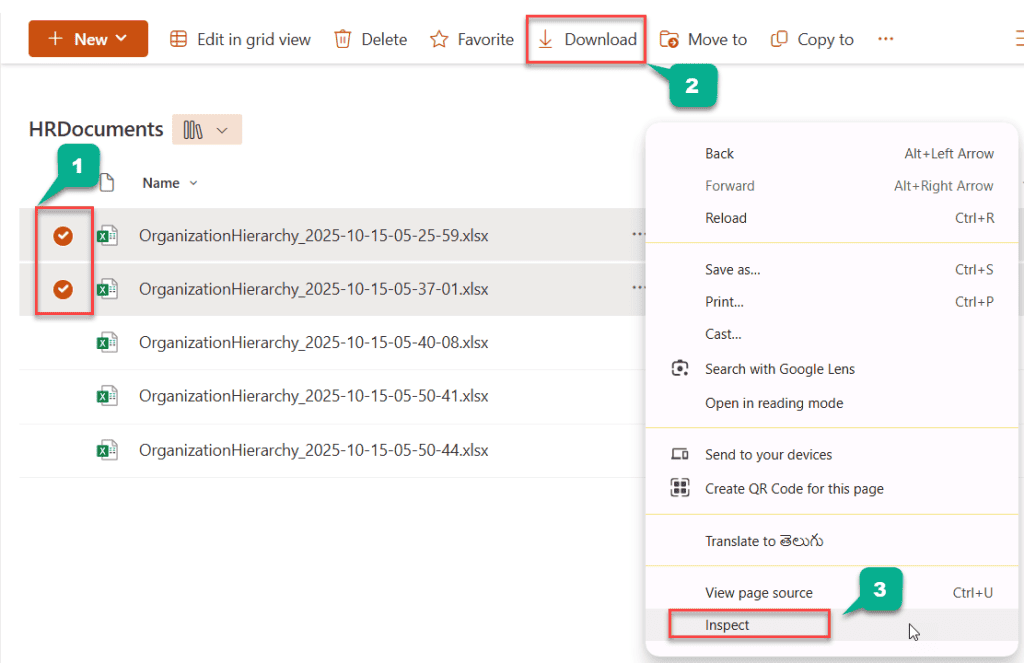
- Then, it will open the inspection page and click the 1st icon in the top toolbar on the right side pane. Then, keep your cursor on the “Download” button and click on it. You will find the button code on the right side. Now you can see the “downloadCommand” as the ID for that button, and copy it.
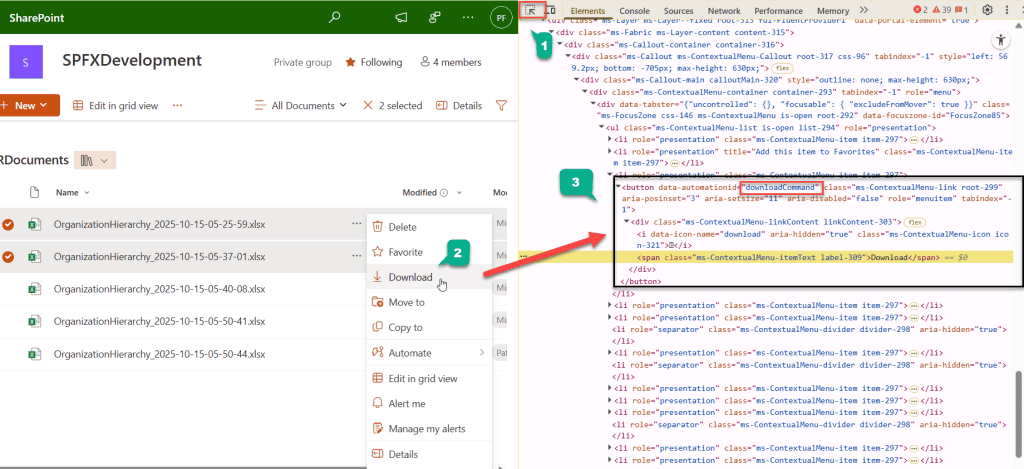
Now, we need to implement the functionality to send emails when we click this button. Let’s see how to do that in the section below!
Create SPFx List View Command Set Extension
Follow the steps below to create a SharePoint framework list view command set extension. This extension is using the Microsoft Graph to send emails. With MSGraph, we can send emails to both internal and external users.
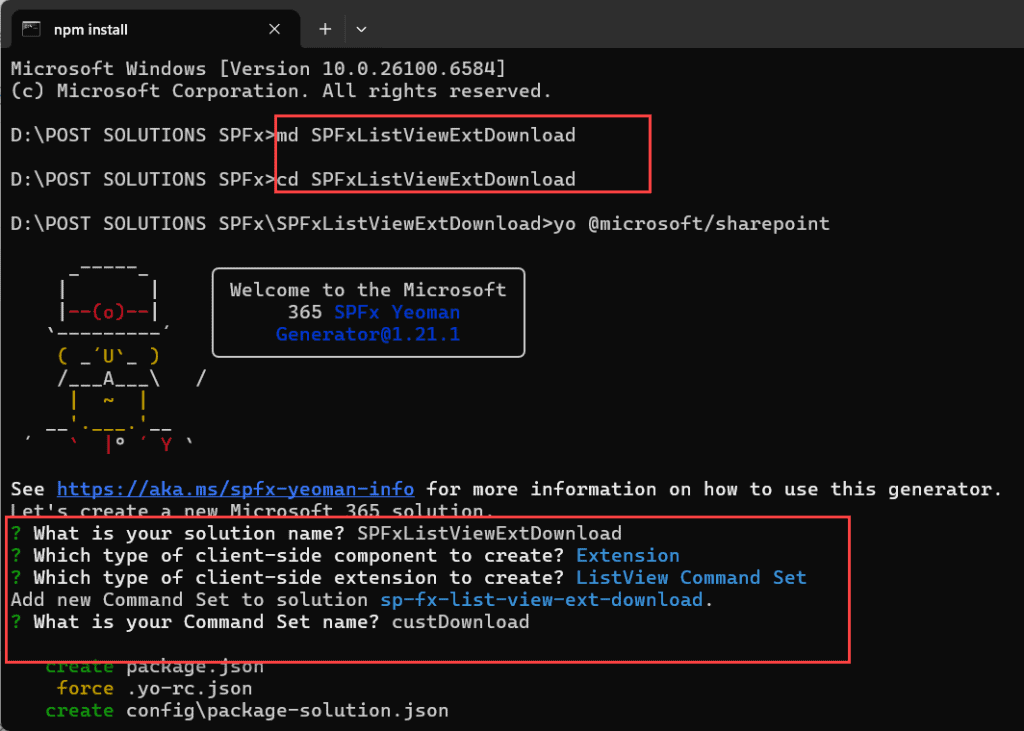
- Open the command prompt and run the commands below to create a solution.
md SPFxListViewExtDownload

cd SPFxListViewExtDownload- Then run the command below to scaffold our spfx solution.
yo @microsoft/sharepoint- This will prompt you with the following questions. Answer them as I gave below.
- What is your solution name? SPFxListViewExtDownload
- Which type of client-side component to create? Extension
- Which type of client-side extension to create? ListView Command Set
- Add new Command Set to solution sp-fx-list-view-ext-download.
- What is your Command Set name? custDownload
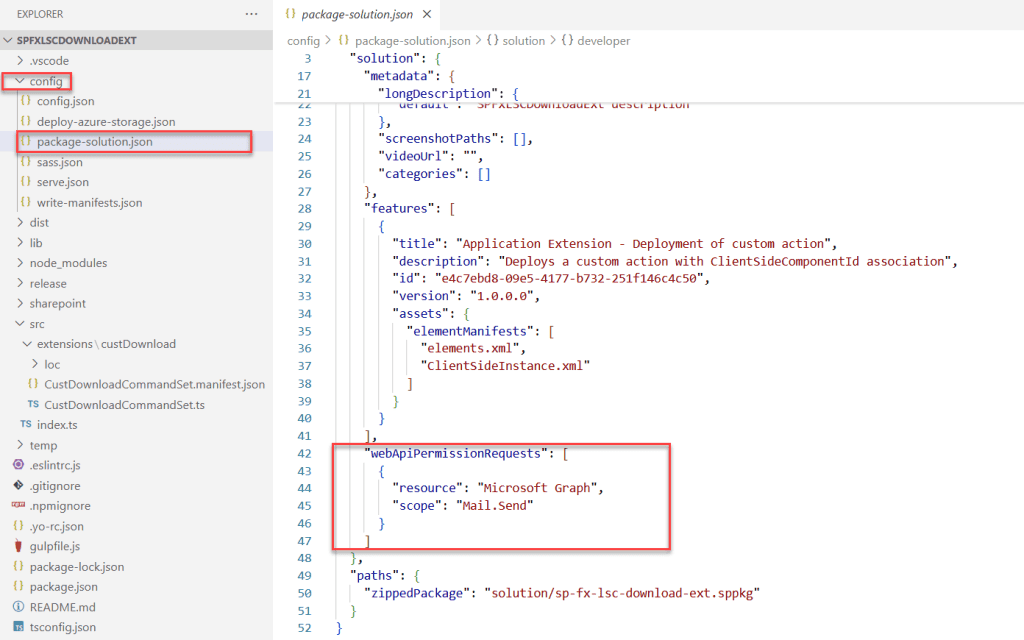
- Once the solution is created successfully, open the “package-solution.json” located in the config folder. Then add the code below as shown.
"webApiPermissionRequests": [
      {
        "resource": "Microsoft Graph",
        "scope": "Mail.Send"
      }
    ]
In this code, we are adding permission to send emails, so we need to get approval for this permission from the admin team in the “SharePoint Admin Centre” under “API access”. Otherwise, the email won’t be sent to the user mentioned in the code.
- Then open the “CustDownloadCommandSet.ts” file in the src folder and replace the default code with the code below.
import { Log } from '@microsoft/sp-core-library';
import {
  BaseListViewCommandSet,
  type Command,
  type IListViewCommandSetExecuteEventParameters,
  type ListViewStateChangedEventArgs
} from '@microsoft/sp-listview-extensibility';
import { MSGraphClientV3 } from '@microsoft/sp-http';

export interface ICustDownloadCommandSetProperties {
  // This is an example; replace with your own properties
  sampleTextOne: string;
  sampleTextTwo: string;
}

const LOG_SOURCE: string = 'CustDownloadCommandSet';
const EMAIL_RECIPIENT: string = 'Provie your email address';

export default class CustDownloadCommandSet extends BaseListViewCommandSet<ICustDownloadCommandSetProperties> {

  public onInit(): Promise<void> {
    Log.info(LOG_SOURCE, 'Initialized CustDownloadCommandSet');

    // initial state of the command's visibility
    const compareOneCommand: Command = this.tryGetCommand('COMMAND_1');
    compareOneCommand.visible = false;
    this.context.listView.listViewStateChangedEvent.add(this, this._onListViewStateChanged);

    this._attachDownloadClickHandler();
    return Promise.resolve();
  }

  public onExecute(event: IListViewCommandSetExecuteEventParameters): void {
    switch (event.itemId) {
      case 'COMMAND_1':
        break;
      case 'COMMAND_2':
        break;
      default:
        throw new Error('Unknown command');
    }
  }

  private _onListViewStateChanged = (args: ListViewStateChangedEventArgs): void => {
    Log.info(LOG_SOURCE, 'List view state changed');

    const compareOneCommand: Command = this.tryGetCommand('COMMAND_1');
    const comparetwoCommand: Command = this.tryGetCommand('COMMAND_2');
    if (compareOneCommand) {
      // This command should be hidden unless exactly one row is selected.
      compareOneCommand.visible = this.context.listView.selectedRows?.length === 1;
    }
    if (comparetwoCommand) {
      comparetwoCommand.visible = false;
    }
    // TODO: Add your logic here

    // You should call this.raiseOnChage() to update the command bar
    this.raiseOnChange();
  }

  //Attaches a click listener to the existing default "Download"button.

private _attachDownloadClickHandler(): void {
  const attachHandler = () => {
    const downloadButton = document.querySelector('button[data-automationid="downloadCommand"]') as HTMLElement;
    if (downloadButton && !downloadButton.getAttribute('listener-attached')) {
      downloadButton.setAttribute('listener-attached', 'true');
      downloadButton.addEventListener('click', this._onDownloadClicked.bind(this));
      console.log('%cDownload button listener attached (current instance)', 'color: green');
    }
  };

  // Initial attempt
  attachHandler();

  // Watch for DOM changes in the toolbar or context menu area
  const observer = new MutationObserver(() => {
    attachHandler(); // reattach when DOM changes
  });

  observer.observe(document.body, {
    childList: true,
    subtree: true
  });

  console.log('%cWatching for Download button re-render...', 'color: orange');
}
//Executes when the built-in Download button is clicked.
private _onDownloadClicked(): void {
    try {
      const selectedRows = this.context.listView.selectedRows;
      if (selectedRows && selectedRows.length > 0) {
        const fileNames = selectedRows.map((r: any) => r.getValueByName('FileLeafRef'));
        const user = this.context.pageContext.user.displayName;

        alert(`${user} downloaded: ${fileNames.join(', ')}`);

        this._sendDownloadEmail(fileNames, user);
      }
    } catch (err) {
      console.error("Error handling Download click:", err);
    }
  }
    //Sends an email notification via MS Graph when files are downloaded.
private _sendDownloadEmail(fileNames: string[], user: string): void {
  console.log('Preparing to send email through MSGraphClientV3...');
  this.context.msGraphClientFactory
    .getClient('3')
    .then((client: MSGraphClientV3) => {
      const siteUrl = this.context.pageContext.web.absoluteUrl;
      const siteName = this.context.pageContext.web.title;
      const emailBody = `
        <div style="font-family:Segoe UI, Arial, sans-serif; font-size:14px; color:#333;">
          <p>Hi <strong>Bijay</strong>,</p>

          <p>This is to inform you that <strong>${user}</strong> has downloaded the following file(s) from the SharePoint site
          <a href="${siteUrl}" style="color:#0078D4; text-decoration:none;">${siteName}</a>:</p>

          <ul style="margin-top:8px; margin-bottom:8px;">
            ${fileNames.map(f => `<li>${f}</li>`).join('')}
          </ul>

          <p style="margin-top:16px;">Best regards,<br>
          <strong>SharePoint System</strong></p>
        </div>
      `;

      const email = {
        message: {
          subject: `File Download Notification - ${user}`,
          body: {
            contentType: 'HTML',
            content: emailBody
          },
          toRecipients: [
            {
              emailAddress: { address: EMAIL_RECIPIENT }
            }
          ]
        },
        saveToSentItems: false
      };

      client.api('/me/sendMail').post(email)
        .then(() => console.log('Email sent successfully to', EMAIL_RECIPIENT))
        .catch(err => console.error('Error sending email:', err));
    })
    .catch(err => console.error('Error initializing MSGraphClientV3:', err));
}
}- At the start, we imported the MSGraphClientV3 from the @microsoft/sp-http to send emails.
- const EMAIL_RECIPIENT: string = ‘Provie your email address’ = This variable holds the user email adrress.
- this._attachDownloadClickHandler(); = We called the function in the OnInit method, which attaches the handler to the default “Download” button.
- onExecute() = This is the default code that runs when a custom button is clicked, but since we are not adding any custom buttons, no action will be performed.
- _onListViewStateChanged() = The default function that runs when changes occur in the SharePoint list or document library. Here, we are adding the visibility logic for the custom buttons. Since we are not using the custom buttons, I set both to a false value, so they won’t be visible when something happens in the list view.
- _attachDownloadClickHandler() = This function will perform the following actions:
- Detect the default “Download” button rendered by SharePoint using the code below:
- const downloadButton = document.querySelector(‘button[data-automationid=”downloadCommand”]‘) as HTMLElement;
- Attach a custom event handler to it without modifying the page directly.
- And keep reattaching it whenever SharePoint re-renders the toolbar.
- _onDownloadClicked() = This method is a custom event handler that runs when the default SharePoint “Download” button is clicked, the one attached using the previous function.
- It will detect which files the user is downloading and then run custom logic, such as showing an alert and sending an email.
- _sendDownloadEmail(fileNames: string[], user: string) = In this function we called the _onDownloadClicked() after detecing a file downloaded.
- This function takes the downloaded file names and the user name who downloaded them as input and does not return anything.
- this.context.msGraphClientFactory.getClient(‘3’).then((client: MSGraphClientV3) => {..} allows us to connect to Microsoft Graph to access APIs such as Outlook, Users, Groups, and more.
- We are using the vGraph client version 3.
- Then we fetched the siteUrl and siteName from the context and prepared the email body.
- Sent email using the MSGraph ‘/me/sendMail’ API.
- To test this extension locally, open the serve.json file located in the config folder. There, you can see the “pageUrl” as given below.
https://{tenantDomain}/SitePages/myPage.aspxUpdate that with your SharePoint library URL, like below.
"https://szg52.sharepoint.com/sites/SPFXDevelopment/HRDocuments/Forms/AllItems.aspx"- Once it’s over, run the below command either in the command prompt or in the Terminal pane.
gulp serve- Now, as shown below, click Load debug scripts, select the files in the library, and click the “Download” button. You’ll see an alert, and then you’ll receive an email.
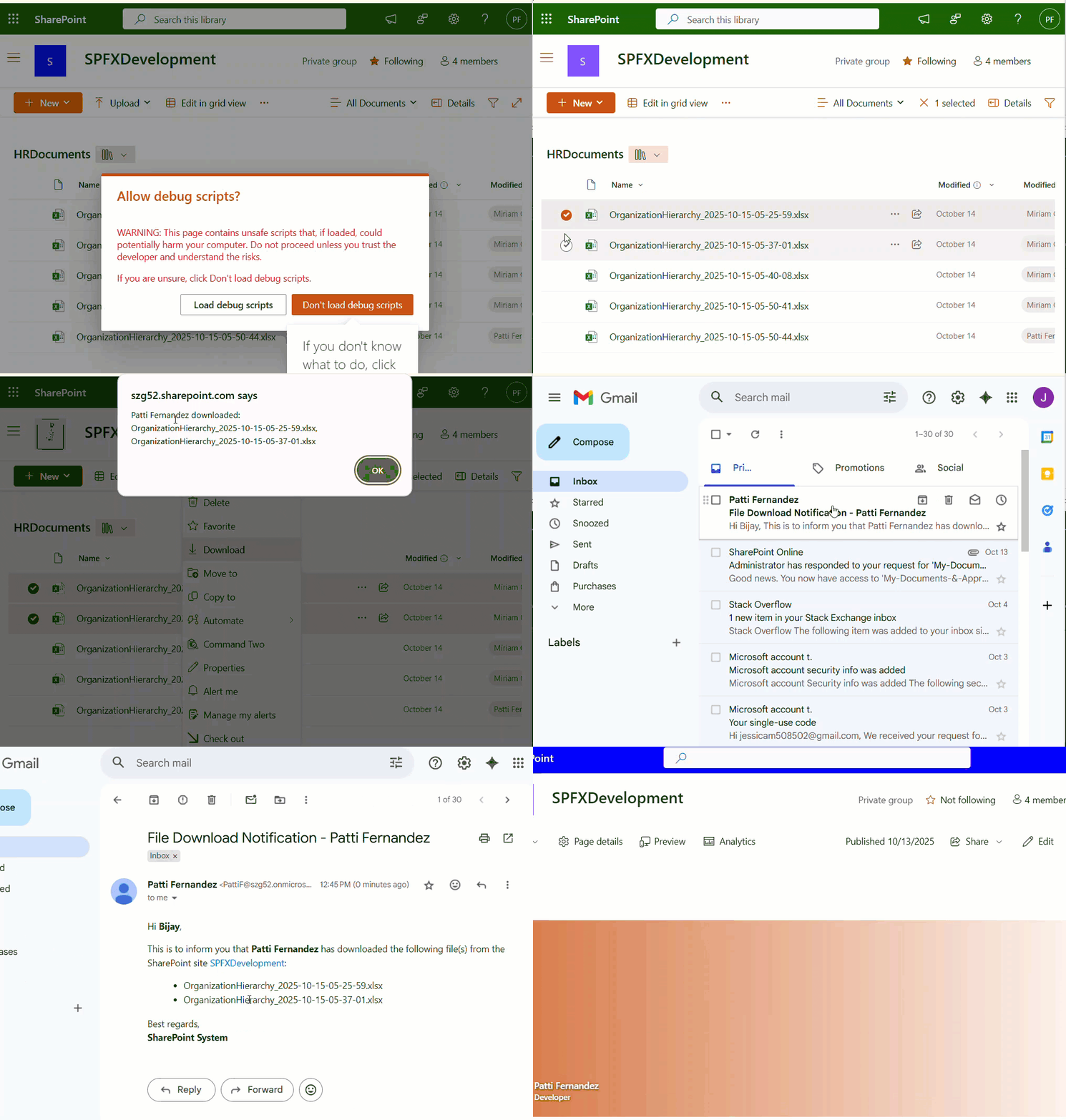
That’s it, this way we can easily customise the existing command buttons in the SharePoint list or library using the SPFx list view command set extension.
I hope you found this article helpful!, Here, I have explained how to access the default buttons in a SharePoint list or library command bar, context menu, and customize them using the SharePoint framework list view command set extension.
I will recomended, download this solution and try it once. In the comments, let me know if you run into any issues and share your feedback on this tutorial.
You may also like the following SPFx tutorials:
- SharePoint Framework User Profile Web Part [Using MS Graph API]
- Get Current SharePoint Site Information in SPFx using MS Graph API
- Create a SharePoint List using SharePoint Framework [Including Adding Columns]
- Create Folders and Subfolders in SharePoint document library using SPFx
- SPFx Application Customizer Example

Hey! I’m Bijay Kumar, founder of SPGuides.com and a Microsoft Business Applications MVP (Power Automate, Power Apps). I launched this site in 2020 because I truly enjoy working with SharePoint, Power Platform, and SharePoint Framework (SPFx), and wanted to share that passion through step-by-step tutorials, guides, and training videos. My mission is to help you learn these technologies so you can utilize SharePoint, enhance productivity, and potentially build business solutions along the way.