
This Power Apps tutorial will guide you on working with Power Apps Filter Gallery By Year using various scenarios.
Also, we will discuss how to filter Power Apps Gallery by Last Year, how to filter Power Apps Gallery by Last N Years, and many more like:
- Power Apps Filter Gallery By Current Year
- Power Apps Filter Gallery By Next Year
- Power Apps Filter Gallery By Next N Years
Check out: Power Apps Gallery Control Examples Download [20 Various Real Scenarios]
Set up a SharePoint List
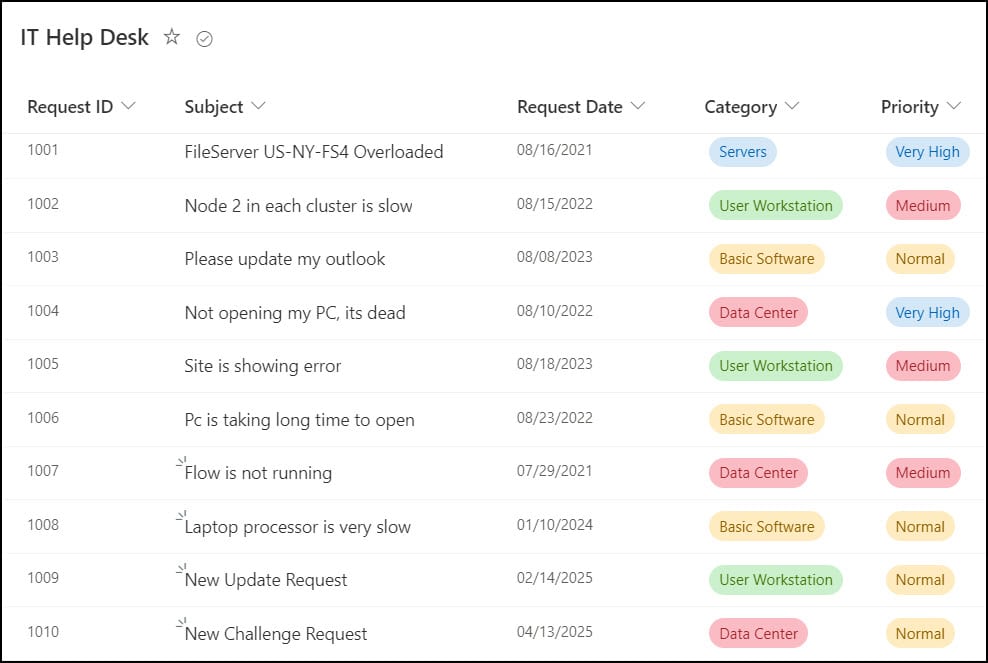
I have used a SharePoint list IT Help Desk for all the above examples. This list has these many columns (with different data types):
| Columns | Data types |
|---|---|
| Request ID | Number |
| Subject | Single line of text (This is a Title column, I just renamed it to Subject) |
| Request Date | Date and time |
| Category | Choice [Servers, User Workstation, Basic Software, Data Center, None] |
| Priority | Choice [Very High, High, Normal, Medium, Low, Very Low] |
Also, this list has some records, as shown in the below screenshot:
Now we will explore all the examples one by one.
Power Apps Filter Gallery By Year
In the first example, we will see how to work with Power Apps Filter Gallery By Year.
- The image below represents a Power Apps Gallery Control and a Dropdown Control. When a user selects any particular year from the dropdown menu, the gallery will filter and display only those specific dropdown-selected year records.
- For example, if I chose the year 2022, the gallery filtered and displayed all of the records for that year.

- First, we must retrieve all the years from the SharePoint list Date column to a Power Apps Dropdown control.
- Insert a Dropdown control and set its Items property as:
Items = Distinct(
    'IT Help Desk',
    Year('Request Date')
)
Where,
- ‘IT Help Desk‘ = SharePoint List Name
- ‘Request Date‘ = SharePoint Date Column
NOTE:
However, I would advise against filtering your sharepoint list directly as you would get delegation problems after 2000 rows of data.
To overcome this, apply the code below on Screen’s OnVisible property:
OnVisible = ClearCollect(ColYear, 'IT Help Desk')Then, select the Dropdown control and set its Items property as:
The above codes will avoid the Power Apps delegation issues.Items = Distinct(ColYear, Year('Request Date'))

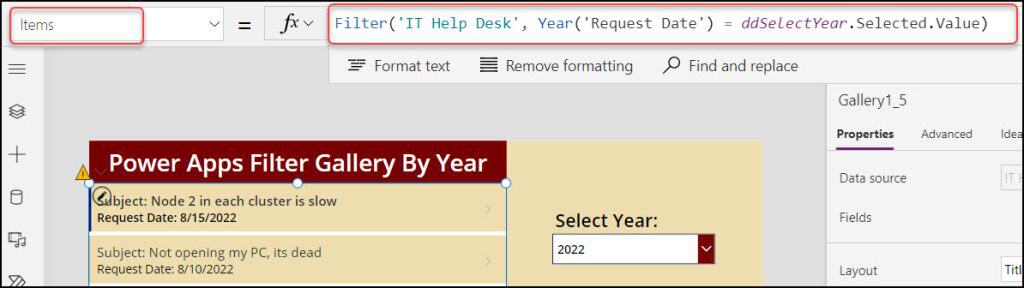
- Next, select the gallery and apply the code below on its Items property as:
Items = Filter(
    'IT Help Desk',
    Year('Request Date') = ddSelectYear.Selected.Value
)
Where,
ddSelectYear = Dropdown Control Name
- Save, Publish, and Close the app. Play the app again and select a year from the dropdown menu. You will see the gallery will appear with only that specific year-filtered records.
This is how to work with Power Apps Filter Gallery By Year.
Power Apps Filter Gallery By Last Year
Next, we will see how to filter Power Apps Gallery by last/previous year.
- Since my current date is “8/22/2023,” the Power Apps Gallery below shows all the data from the previous year, or 2022.

- To work around this, select the gallery and apply the formula below on its Items property:
Items = Filter(
    'IT Help Desk',
    'Request Date' >= Date(
        Year(Today()) - 1,
        1,
        1
    ),
    'Request Date' <= Date(
        Year(Today()) - 1,
        12,
        31
    )
)

OR

Items = With(
    {
        FirstDate: Date(
            Year(Today()) - 1,
            1,
            1
        ),
        LastDate: Date(
            Year(Today()) - 1,
            12,
            31
        )
    },
    Filter(
        'IT Help Desk',
        'Request Date' >= FirstDate,
        'Request Date' <= LastDate
    )
)
We can use any of the above formulas.
Where,
- ‘IT Help Desk‘ = SharePoint List Name
- ‘Request Date‘ = SharePoint Date Column
- FirstDate, LastDate = Scope variable names
Refer to the below screenshot.

This is how to filter Power Apps Gallery by last year.
Power Apps Filter Gallery By Last N Years
Suppose you want to filter the Power Apps Gallery by the last N Years. Then follow the example below.