Recently, I was working on a Voter Application Forms app for an organization using a Model-Driven App in Dataverse. As part of the requirement, I needed to create a flow that sends an email to the manager (or any authorized person) whenever a new entry is added to the Dataverse table. The email must also include the details of the person who created the record.
In this tutorial, I will show you how to retrieve the Created By information from Dataverse using Power Automate.
Get Dataverse Created by in Power Automate
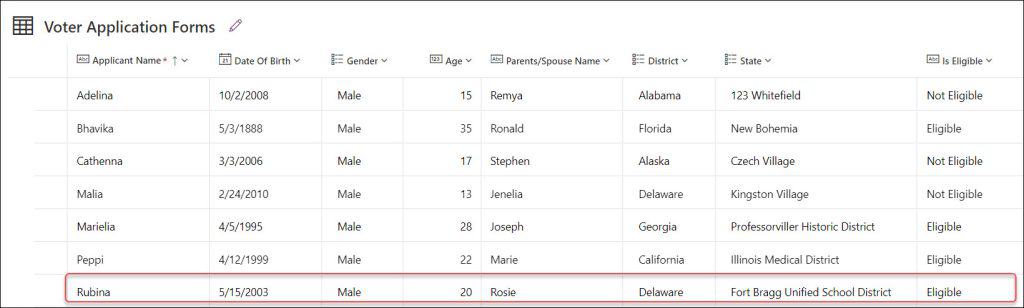
For this example, I created a Dataverse table called Voter Application Forms, which includes the following columns with different data types:
Applicant Name: Primary column (Single line of text)
Date of Birth: Date data type
Gender: Choice column with options like Male, Female, Others
Age: Number data type
Patient/Spouse Name: Single line of text
District: Choice column with values such as Alabama, Alaska, Florida, etc.
State: Choice column with values like 123 Whitefield, New Bohemia, Czech Village, etc.
Is Eligible: Single line of text
Follow the steps below:
Open Power Automate. In the left navigation, go to My flows -> click + New flow -> under Build your own from blank, select Automated cloud flow.
In the Nextscreen, it will ask for the flow name and the flow trigger:
Flow name: I have given the flow name as Get Dataverse Created by Using Flow.
Choose your flow’s trigger = Search or select the trigger from the list below to create a flow. In my case, it’s ‘When a row is added, modified or deleted (Dataverse)’.
Click on Create.
Once the flow has been created, the trigger will appear as shown in the screenshot below. Now we need to fill in the details below:
Table name: Provide the Dataverse table name (Voter Application Forms).
Scope: Choose Organization from the dropdown.
Next, add Get a row by ID in the search bar -> Select Microsoft Dataverse -> Click on Get a row by ID [PREMIUM] as shown below.
Expand the action (Get a row by ID) and provide the details below:
Table name: Select the Dataverse Users table (this table includes all the details of a user, like Full name, First name, Job title, etc.)
Row ID: From the When a row is added, modified or deleted trigger, open the Dynamic content panel and select Created By (Value).
NOTE:
The Dataverse User table shown above is a list of all the users in an organisation and comprises details such full name, job title, manager, city, etc.
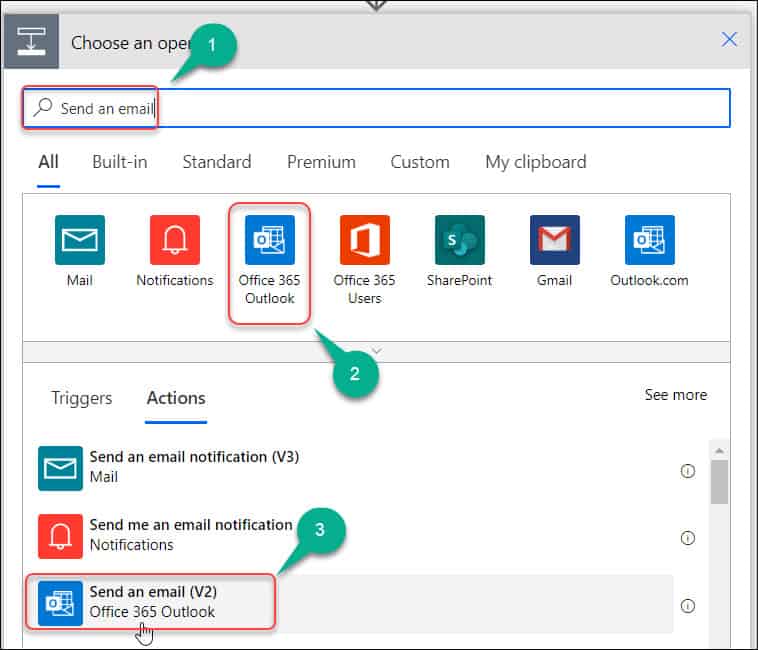
After the Get a row by ID action, add a Send an email (V2) action under the Office 365 Outlook section.
Expand the Send an email (V2) action and enter all the required parameters:
To: Provide the email address of the manager or higher authority.
Subject: Enter the subject line for the mail.
Body: Provide all the details of the user (you can select all the user information under the Get a row by ID section)
To include the First Name, open Dynamic content, type “First Name” in the search bar, and select First Name under the Get a row by ID section.
Repeat the same process for other details such as Last Name, Email ID, and any additional fields you want to include in the email body.
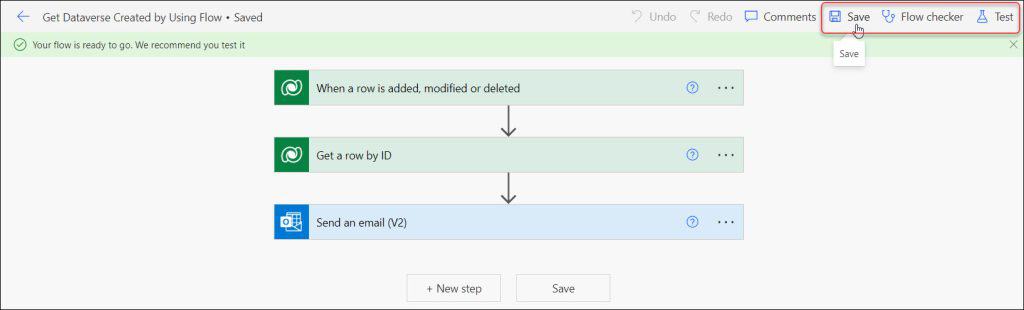
Finally, save your flow. Use the Flow Checker to identify and fix any issues. Once everything looks good, test your flow by clicking the Test button.
Next, open the existing Dataverse table (Voter Application Forms) and add a new record to it. This will trigger the flow we just created.
After the flow runs successfully, an email notification will be sent to the provided manager or higher authority. Once you open the email, you can see all the User Created by details as shown below.
In this tutorial, I explained how to retrieve the Created By information from a Dataverse table in Power Automate. I also showed how to automatically email this information to a manager or authorized user whenever a new record is added.
Additionally, you may like some more of the following Dataverse tutorials:
Hey! I’m Bijay Kumar, founder of SPGuides.com and a Microsoft Business Applications MVP (Power Automate, Power Apps). I launched this site in 2020 because I truly enjoy working with SharePoint, Power Platform, and SharePoint Framework (SPFx), and wanted to share that passion through step-by-step tutorials, guides, and training videos. My mission is to help you learn these technologies so you can utilize SharePoint, enhance productivity, and potentially build business solutions along the way.
30 Power Apps Functions
This free guide walks you through the 30 most-used Power Apps functions with real business examples, exact syntax, and results you can see.
Live Webinar
Create a SharePoint List & Columns from Excel Using Power Automate
Learn how to automatically create a SharePoint Online list and all its columns from an Excel file using Power Automate—without using any Premium connectors..