
A few days ago, a client had a request. They have a Power Apps form with several fields. We used a SharePoint list containing certain users’ email addresses. Only those users can edit all the fields, while others can edit only some.
In this Power Apps tutorial, I will explain role-based security in Power Apps and how to work with it. We will also see how to implement role-based security in Power Apps based on SharePoint groups.
Role Based Security in Power Apps Using SharePoint List
So let’s get started.
Here, I have two SharePoint Lists named:
- SharePoint Project Expenses
- User Email
1. SharePoint Project Expenses:
This list contains the columns below with various data types.
| Column | Data type |
|---|---|
| Project Name | By default, this is a Title column with a Single line of text, just renamed it |
| Number of User | Number |
| Typical Software Costs | Currency |
| User Licenses | Currency |
| Project Created Date | Date time |
Refer to the screenshot below:

2. User Email:
This list has only two columns:
| Column | Data type |
|---|---|
| Title | Single line of text (By default) |
| Email Address | Single line of text |
Refer to the screenshot below: (you can add multiple user emails into the Email Address field)
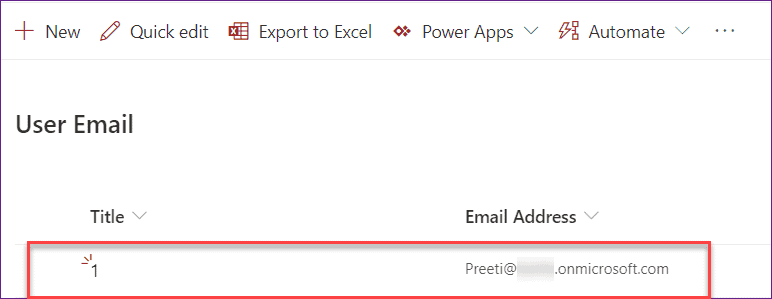
You can add the users who can edit all the fields to the SharePoint list by adding their email addresses. If there are 10 users in the list, these 10 will act as admins and can change all the fields in the form. Other users can only edit some of the fields in the Power Apps form.
Role Based Security in Power Apps Form
In Power Apps, we have a Power Apps Edit form where all the fields are retrieved from the SharePoint list (SharePoint Project Expenses). Look at the image below:
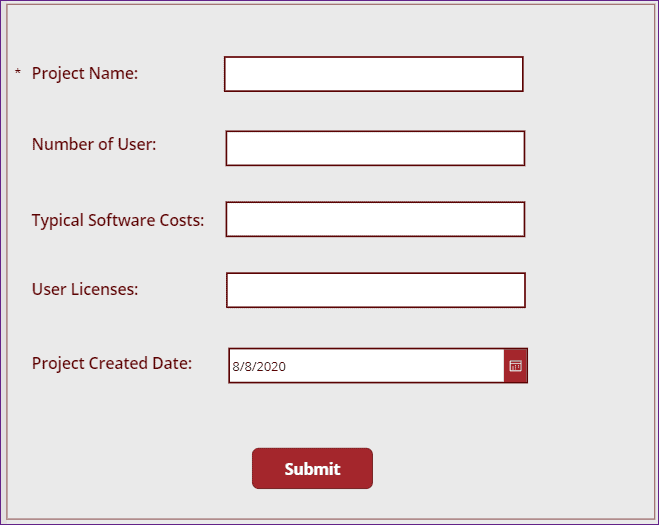
I want to set up role-based security in this Power Apps Edit form. Admins (users in the SharePoint list) can edit all the fields, while non-admins or regular users can only edit two or three fields in the form. Let’s follow the steps:
1. Connect the SharePoint List Data source (User Email) where you are maintaining all the Admin User names.

2. Suppose I am the Admin in the above form so that I can edit all the fields, but a non-Admin user (Users not present in the above SharePoint List) can not. I want to make the below field non-editable (i.e., View mode) for a non-Admin or an End-user.
- Typical Software Costs
3. To do so, select the Typical Software Costs and apply this formula below to its DisplayMode property:
DisplayMode = If(User().Email in 'User Email'.'Email Address',DisplayMode.Edit,DisplayMode.View)Where,
- User().Email = This function returns the email addresses of the current user
- ‘User Email’ = SharePoint List Name
- ‘Email Address’ = SharePoint column that contains the Email address of the Admin User
- DisplayMode.Edit = This helps to make the field in Edit mode
- DisplayMode.View = This helps to make the field in View mode
The above code specifies that if the current user’s email equals the SharePoint field email address, the specific input field will be in Edit mode; otherwise, it will be in View mode.

4. Preview (F5) the app. As I am the Admin, in the below screenshot, you can see that the field (Typical Software Costs) is editable for me as:
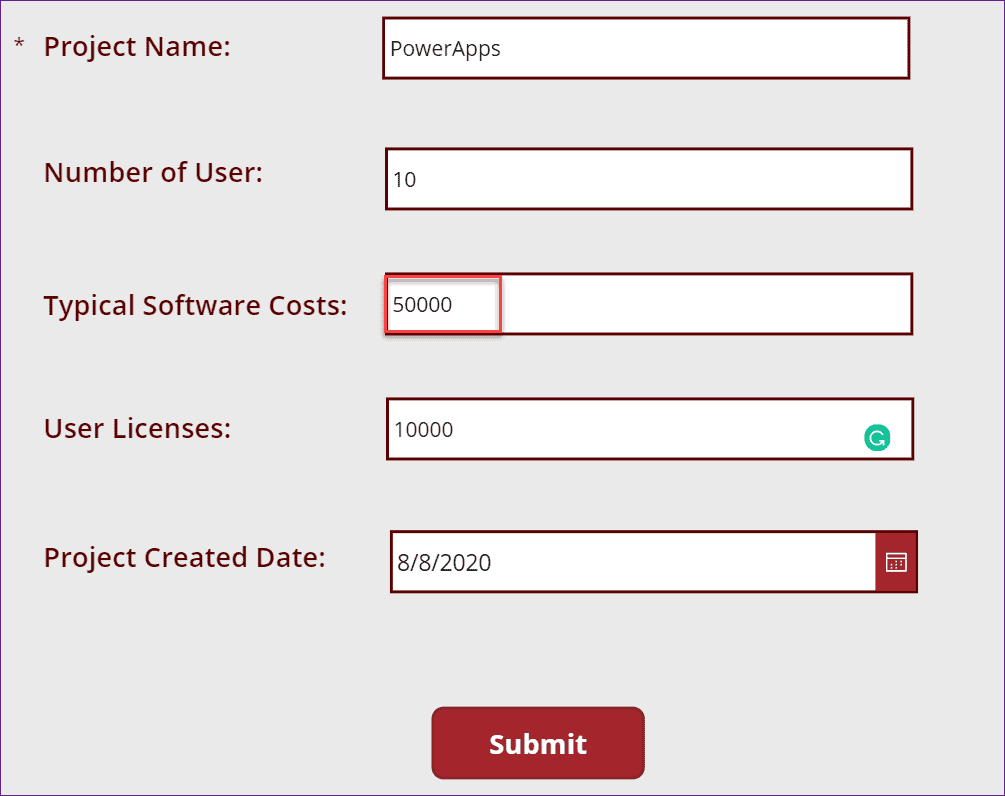
5. When a user is not presented in the SharePoint Email address field, then he/she can not edit that specific field (Typical Software Costs). He/she can only view the field as shown below:

Like the above field, you can edit or view multiple fields in the Power Apps form. In the same way, you will select the input field and apply the above Power Apps formula on its DisplayMode property.
Role Based Security in Power Apps Using SharePoint Groups
Let’s learn how to assign SharePoint group permissions to specific Power Apps form fields and implement role-based security in Power Apps using SharePoint Groups.
Within Microsoft Office 365 Groups, I created a SharePoint Group called PowerAppsMembers. This group includes two members, as shown in the screenshot below:
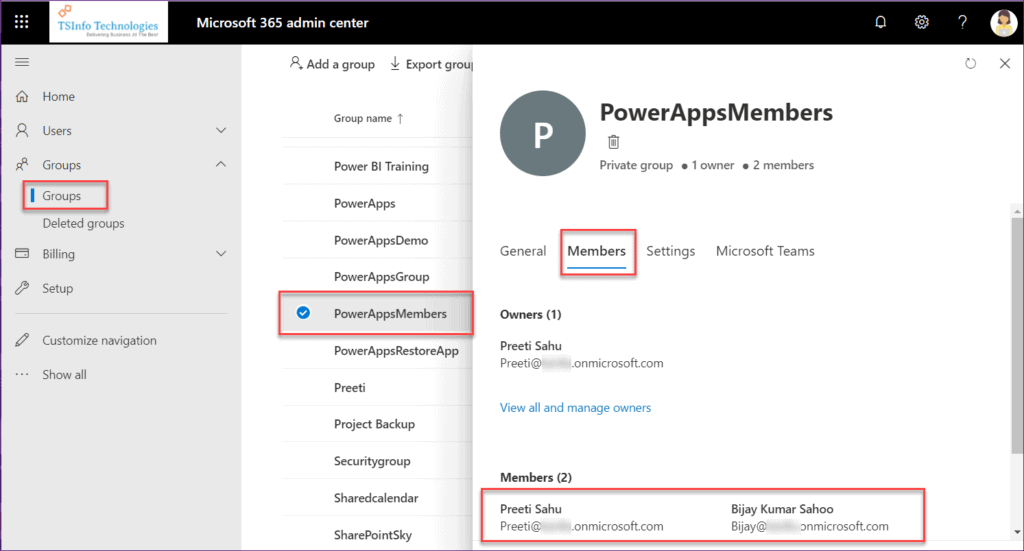
Only users in the SharePoint Group (PowerAppsMembers) can edit the Power Apps form fields. Others can only view the fields but cannot edit them. We use the Power Apps Office 365 Groups connector to manage these permissions.
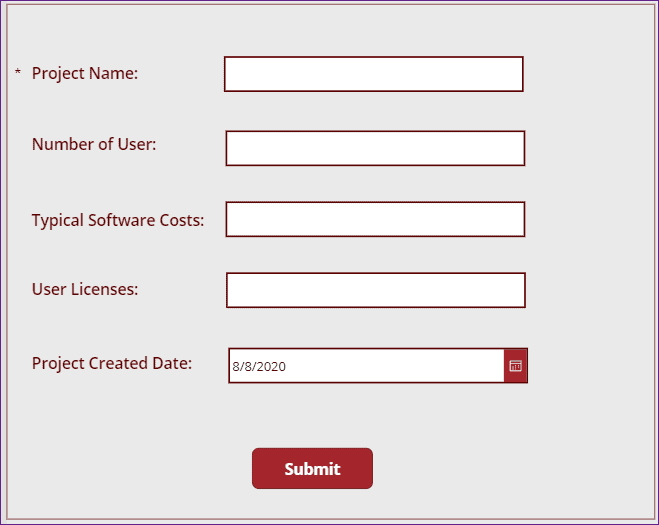
In the Power Apps edit form, the “User Licenses” field is view-only for non-group members—they can’t edit it, only see it. Group members, however, can edit all fields in the form.
Follow these steps below to do so:
1. Connect the Office 365 Groups connector on the Power Apps screen.

2. Write the formula below on the screen’s OnVisible property as:
OnVisible = ClearCollect(SharePointGroupMembers,Office365Groups.ListGroupMembers("d983f112-5fa4-4ce8-b95c-5e4d34afeea5").value)Where,
- ClearCollect = Helps to create the Power Apps collection
- SharePointGroupMembers = Collection Name
- Office365Groups.ListGroupMembers(“Group ID”) = Helps to get the information about all the users from the specific SharePoint Group
NOTE:
Not only you can add the above formula on Power Apps screen’s OnVisible property, but also you can add it on the App’s OnStart property.

To get the SharePoint Group ID, refer to the Power Apps article below on how to get users from a SharePoint Group in Power Apps.
3. Suppose I want to make the User Licenses field below in View mode for the Non-group members. For that, follow the instructions below:
- Select the User Licenses and apply the formula below to their DisplayMode property:
DisplayMode = If(
   User().Email in SharePointGroupMembers.mail,
   DisplayMode.Edit,
   DisplayMode.View
)
Where,
- User().Email = Helps to get the current user’s Email address.
- SharePointGroupMembers = Collection Name

The above Power Apps formula specifies that if the current user’s email equals the SharePoint group member’s email address, then the specific input field will be in Edit mode; otherwise, it will be in View mode.
4. Preview (F5) the Power Apps app. As I am a member of the SharePoint Group (PowerAppsMembers), in the below screenshot, you can see that the field (User Licenses) is editable for me as:
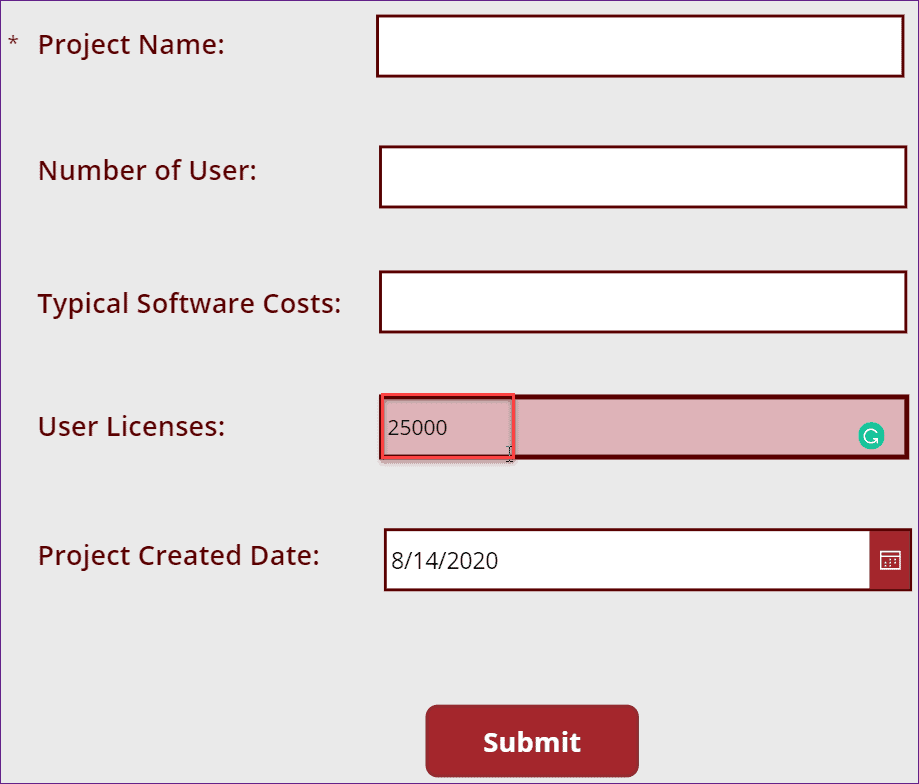
Non-group members can open the same Power Apps form, but can only view the “User Licenses” field—they cannot edit it.

Like the above field, you can edit or view multiple fields in the Power Apps form. In the same way, you will select the input field and apply the above Power Apps formula on its DisplayMode property.
You can also view all the SharePoint Group member information in the Power Apps Collections (View -> Collections -> Collection Name [SharePointGroupMembers]) as:

I hope this article helped you learn Role-Based Security in Power Apps, how to give specific permissions to Power Apps fields using a SharePoint list and SharePoint groups, with a few examples.
Additionally, you may like some more Power Apps articles:
- Power Apps Gallery OnSelect
- Power Apps Camera Control
- Create a Horizontal Scrollable Gallery in Power Apps
- Power Apps Button Animation
- Check If A User Exists In Organization Through Power Apps Office 365 Users
- Sort Power Apps Data Table Based On SharePoint Choice Column

Hey! I’m Bijay Kumar, founder of SPGuides.com and a Microsoft Business Applications MVP (Power Automate, Power Apps). I launched this site in 2020 because I truly enjoy working with SharePoint, Power Platform, and SharePoint Framework (SPFx), and wanted to share that passion through step-by-step tutorials, guides, and training videos. My mission is to help you learn these technologies so you can utilize SharePoint, enhance productivity, and potentially build business solutions along the way.


This was very helpful especially the user list for managing permissions, especially since I am not able to create the user groups.