
If you’ve ever joined a Teams meeting and found yourself muted without doing anything, you’re not alone. This is one of the most common things people get confused about in Microsoft Teams. And honestly, it makes sense — Teams has different muting behaviors depending on the situation, and some of those behaviors have changed in recent updates.
In this tutorial, I’ll walk you through why Teams auto-mutes you when you join, how to control it (to the extent you can), what meeting organizers can do, and how IT admins can configure it at scale.
Why Does Teams Mute Me Automatically?
Before jumping into fixes, it helps to understand why this happens. Teams doesn’t randomly decide to mute you — there’s a logic behind it.
Here are the main reasons you might join a meeting on mute:
- More than 5 people are already in the meeting. Teams automatically mutes you when you join a meeting with 5 or more participants. This is intentional — it protects ongoing conversations from sudden background noise when a new person joins.
- The meeting organizer has restricted mic access. The organizer may have turned off mic permissions for attendees before or during the meeting.
- Your IT admin has set a policy. If you’re in a company environment, your admin may have enforced a policy that mutes attendees by default.
- Teams remembered your last state. In newer versions of Teams, it tries to remember how you joined your last meeting — muted or unmuted — and applies that preference going forward.
So the first thing to figure out is: why are you being muted? The fix depends on the cause.
Microsoft Teams Auto Mute On Join
Let’s discuss 4 different methods!
Method 1: Control Your Mute State on the Pre-Join Screen in Teams
Every time you join a Teams meeting, you see a preview screen before entering — the one showing your camera feed and mic status. This is your best chance to control whether you join muted or unmuted.
Here’s what to do:
- Click the meeting link or join from your Teams calendar.
- On the pre-join screen, look at the microphone icon at the bottom.
- If it shows as muted (crossed-out mic), click it to toggle it on before you join.
- Click Join now.
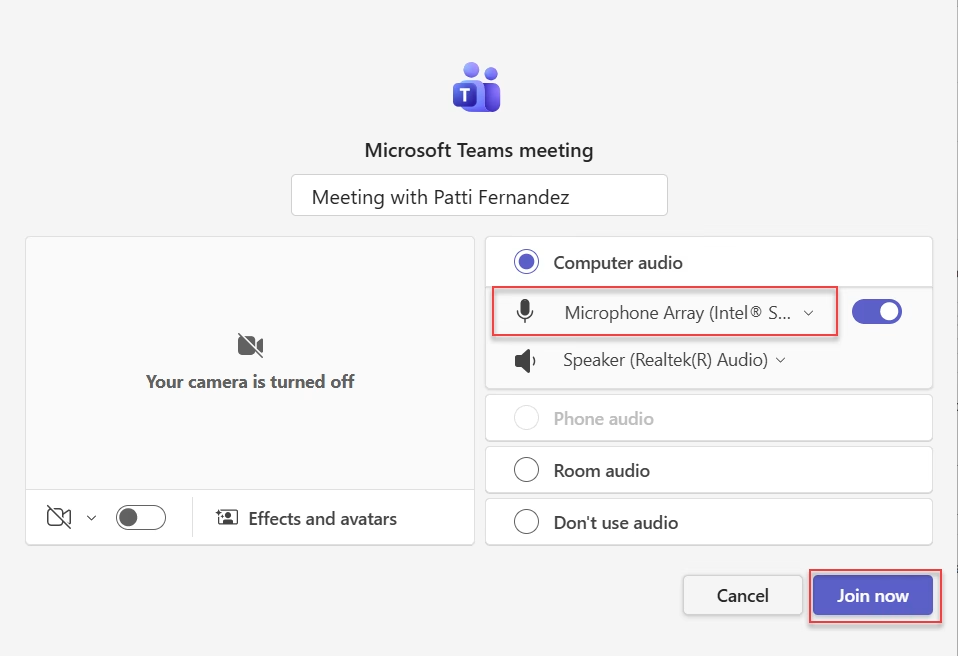
The important thing here is: Teams remembers this setting. So if you join a meeting with your mic on, the next meeting should default to having your mic on too. If you keep joining muted, Teams will assume that’s your preference.
Real example: Say you’ve been joining your daily standup on mute every morning. Teams has now “learned” that you prefer joining muted. To reset this, just unmute yourself on the pre-join screen the next time and join the meeting. Teams should remember that for future meetings.
Note: This only works if you’re the first 4 people in the meeting or close to it. If 5+ people are already in there, Teams will override your preference and mute you regardless — that’s the auto-mute rule kicking in.
Method 2: Check If Teams Is Set to “Don’t Use Audio”
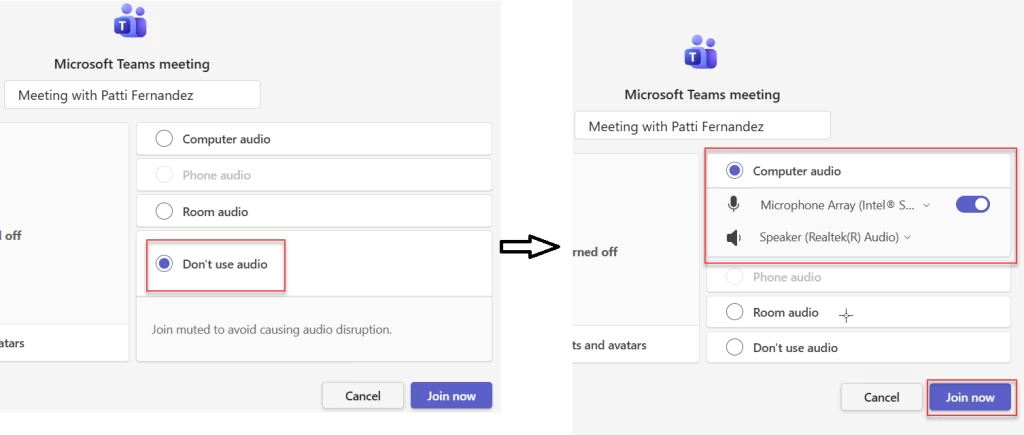
This one catches a lot of people off guard. If you’ve ever plugged in or unplugged a headset during a meeting, Teams may have silently switched your audio setting to “Don’t use audio,” so you join meetings without audio. You’ll hear nothing, and your mic won’t work.
Here’s how to fix it:
- Start a new test meeting (you can use Meet now and join by yourself).
- On the pre-join screen, look at the audio options — you might see it says “Don’t use audio” instead of “Computer audio.”
- Click that and switch it to Computer audio.
- Join the meeting and then leave.
Teams remembers this change, and your next real meeting should work properly.
Method 3: The Hard Truth About the “Always Join Muted” Toggle
If you’re looking for a setting somewhere in Teams preferences that says “Always join meetings muted” or “Always join meetings unmuted,” it doesn’t exist anymore.
Microsoft removed this user-configurable toggle in a recent Teams update. Previously, you could find it under Settings > Devices, but that option is no longer available in current versions of Teams. The reasoning from Microsoft is that Teams now dynamically handles muting based on meeting size and remembered preferences.
So if a colleague tells you “just go to Settings and toggle it,” they’re probably thinking of an older version of Teams. The current behavior relies on:
- The 5-participant threshold rule
- What you did on the pre-join screen last time
- Any policies your admin or meeting organizer has set
Method 4: For Meeting Organizers — Control How Attendees Join
If you’re running the meeting, you have much more control over this. You can decide whether attendees join muted, whether they can unmute themselves, or whether they’re completely mic-disabled.
Option A: Set It Before the Meeting
- Open Teams and go to your Calendar.
- Create or open your scheduled meeting.
- Click Meeting options (you’ll see this link in the meeting details).
- In the Meeting Options window:
- Set “Who can present?” to “Only me” or “Only organizers and co-organizers.” This gives everyone else the Attendee role.
- Set “Allow mic for attendees” to Off if you want everyone to join muted and stay muted until you let them speak.
Option B: Control Muting During the Meeting
Even if you didn’t set it up beforehand, you can manage mutes live:
- To mute one person: Go to the People panel, hover over their name, click the three dots, and select Mute participant.
- To mute everyone at once: In the People panel, click Mute all next to “In the meeting.”
- To disable mics entirely (so attendees can’t unmute themselves): Go to meeting controls > More options > Manage audio and video > toggle on Disable mic for attendees.
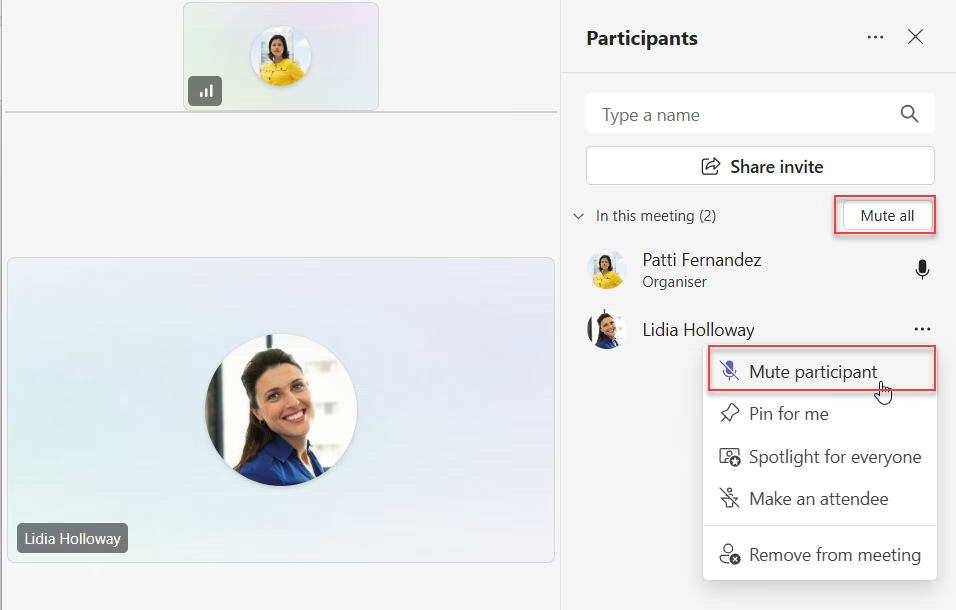
This last option is what Microsoft calls “hard mute” — it’s great for large webinars, training sessions, or town halls where you only want specific people speaking.
Real example: You’re hosting a company-wide all-hands with 200 attendees. Before the meeting, you set “Allow mic for attendees” to Off. Everyone joins muted and can’t unmute. If someone wants to ask a question, they use the Raise Hand feature, and you selectively let them speak.
Quick Tip: Use CTRL + Spacebar to Temporarily Unmute
Here’s a small but really useful thing that not many people know. If you’re in a meeting and you’re muted, you don’t always have to click the mic button to say something quickly.
Just hold CTRL + Spacebar (on Windows) while you’re talking. The moment you release it, you go back on mute. It’s like a push-to-talk button.
This is super handy when you’re in a large meeting where you’re mostly listening but need to say something briefly without having to toggle mute on and off repeatedly.
When Auto-Mute Is Actually a Good Thing in Teams
I know this whole tutorial started because auto-mute felt annoying. But honestly, auto-muting when you join a large meeting is one of the smarter things Teams does.
Think about it — if you join a meeting with 20 people and your mic is live, everyone hears your keyboard clicks, your dog barking, your chair squeaking. The 5-person threshold rule exists specifically to prevent that kind of disruption.
The real problem is when Teams mutes you during a small one-on-one call, or when you want to join unmuted but can’t figure out how to change it. That’s the legitimate frustration — and hopefully the methods above help you deal with it.
Summary of When Teams Auto-Mutes You
| Situation | What Happens | Can You Override It? |
|---|---|---|
| Joining a meeting with 5+ people already in it | Auto-muted | Only on pre-join screen |
| Meeting organizer disabled mic for attendees | Muted, can’t unmute | No — organizer controls this |
| IT admin policy enforced | Muted by policy | No — contact your admin |
| Your last meeting state was muted | Joined muted by default | Yes — unmute on pre-join screen |
| Audio set to “Don’t use audio” | No audio at all | Yes — switch to Computer audio |
Conclusion
I hope you found this article helpful. In this guide, I explained why Microsoft Teams mutes you when you join a meeting. I also shared different methods to control your mute settings. These steps are simple and easy to follow.
If you are facing the same issue, try the steps in this article. They can help you manage your audio better during meetings. This will make your meetings smoother and less stressful.
Also, you may like:
- Add a New Attendee to a Meeting Without Email Others Using Power Automate
- Download Attendance List From Microsoft Teams After a Meeting
- 3 Best Ways to Turn On Translate in Microsoft Teams Meeting
- Microsoft Teams vs Zoom

Hey! I’m Bijay Kumar, founder of SPGuides.com and a Microsoft Business Applications MVP (Power Automate, Power Apps). I launched this site in 2020 because I truly enjoy working with SharePoint, Power Platform, and SharePoint Framework (SPFx), and wanted to share that passion through step-by-step tutorials, guides, and training videos. My mission is to help you learn these technologies so you can utilize SharePoint, enhance productivity, and potentially build business solutions along the way.

