
When I first started working with solutions in the Power Platform, I mostly ignored the Preferred Solution setting. I created apps, flows, and tables directly in the default environment and didn’t think much about where those components were stored.
Later, when the project grew, and I started organizing components inside solutions, I realized something important: new components were not always being added to the solution I expected.
That’s when I discovered the Preferred Solution setting.
Once I started using it properly, managing apps, flows, and other components became much easier. Everything automatically went into the correct solution without extra manual steps.
In this tutorial, I’ll explain in simple terms:
- What a Preferred Solution is in Power Platform
- Why is it useful in Power Platform development
- How to set it up: Preferred Solution is in Power Platform
If you build Power Apps, Power Automate flows, Copilot Agent, or Dataverse components, understanding this setting can save you a lot of time.
What Is a Preferred Solution in Power Platform?
In Power Platform, a solution is basically a container where you store your components.
For example:
- Power Apps apps
- Power Automate flows
- Copilot Agents
- Dataverse tables
- Columns and relationships
- Environment variables
- Connection references
Instead of creating these components randomly in the environment, it’s best practice to create them inside a solution.
However, creating components inside a solution requires opening the solution first.
That’s where Preferred Solution comes in.
When you set a Preferred Solution, Power Platform will automatically add any new components you create into that solution.
So instead of manually adding them later, the platform does it for you.
Think of it like this:
Without Preferred Solution:
- You create a flow -> it goes to the default environment
- Later, you manually move it into a solution
With Preferred Solution:
- You create a flow -> it automatically goes into your selected solution
It removes extra steps and keeps your work organized.
Why the Preferred Solution Setting Is Important
When I started working on larger Power Platform projects, I realized that organization becomes very important.
Imagine this situation. You create:
- 10 Power Apps
- 20 flows
- 5 Agents
- several tables
- environment variables
- connection references
If these components are scattered across the environment, it becomes confusing very quickly. In this type of case, we can use a Preferred Solution to help avoid that.
Here are some benefits.
- Your work stays in the right place. You won’t accidentally create components in the default solution anymore. Everything lands where it belongs.
- Correct publisher prefix on every component. If your solution publisher prefix is “contoso_”, all your tables and columns will use that prefix automatically. No more “new_” prefix on things you forgot to build inside the solution.
- Easier exports and deployments. Since all your work is in one solution, exporting and deploying becomes much cleaner.
- Great for teams. Each maker on the team sets their own preferred solution, so their changes are automatically tracked in one place. You can see who built what.
- No need to navigate into the solution first. You can build from anywhere in the maker portal and trust that components will end up in the right solution.
Where You Can Find the Preferred Solution Setting
The Preferred Solution setting is available in the Power Apps Maker Portal. You can set it from your user settings.
The setting applies only to your account, not the entire environment. That means each developer can choose their own preferred solution. It does not affect other users.
How to Enable the Feature in Power Platform (Admin Step)
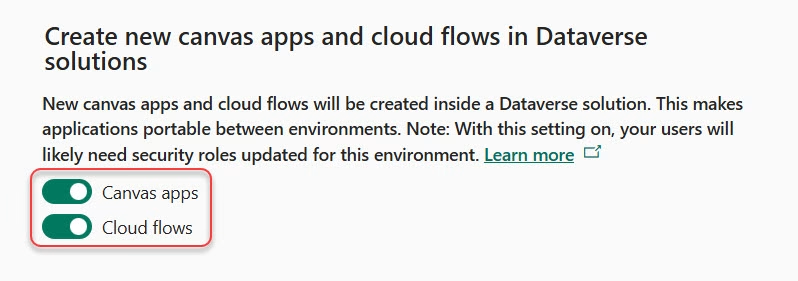
Now, Preferred Solution enables all the environments, but we need to enable “Create new canvas apps and cloud flows in Dataverse solutions”. This feature ensures that cloud flows and Power Apps are also stored in the preferred solution.
To do this, follow the steps below:
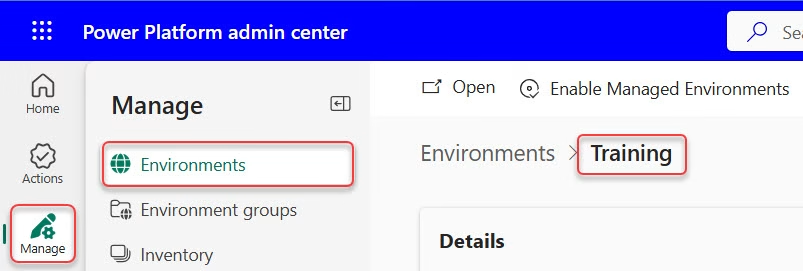
- Go to the Power Platform Admin Center, click Manage, then Environments, and finally select your Environment.
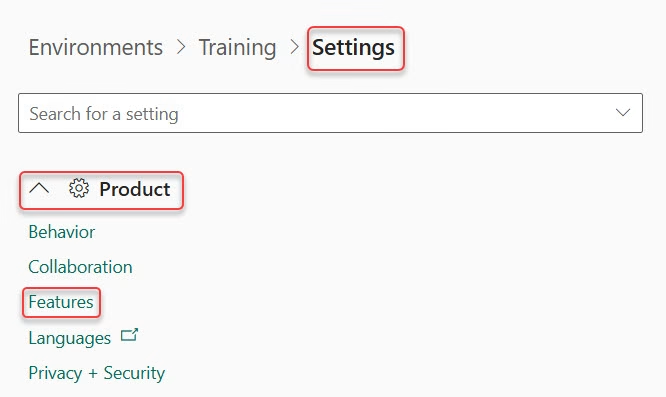
- Click on Settings, then expand Product and click Features.
- Then search “Create new canvas apps, and cloud flows in Dataverse solutions” and enable Canvas apps and Cloud flows.
- Click Save
How to Set Our Preferred Solution in Power Platform
Once the feature is enabled, here’s how each maker can set their own preferred solution:
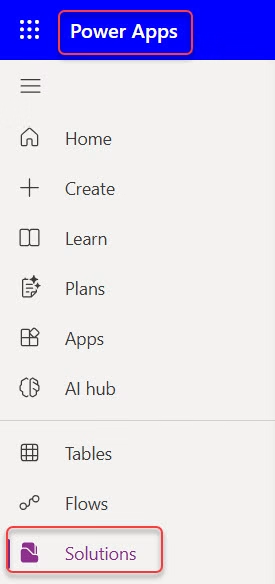
- Go to the Power Apps site. In the left-hand navigation, click Solutions.
- You’ll see a banner or button that shows “Set preferred solution”.
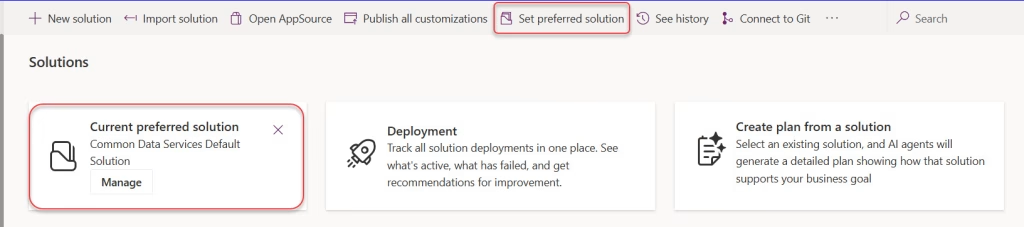
- Click any one of them. Then a dropdown will appear showing all the unmanaged solutions in your environment. In my case, I want the IT Help Desk solution to be the preferred solution. Then click on Apply.
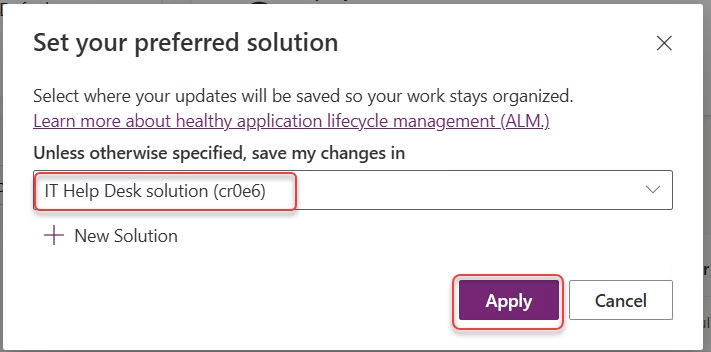
- You’ll now see a “Preferred solution” label next to that solution in the Solutions list. Check the screenshot below.

You can set a preferred solution where you already have an unmanaged solution. Also, you can set a preferred solution while creating the solution by checking the Set as your preferred solution check box.
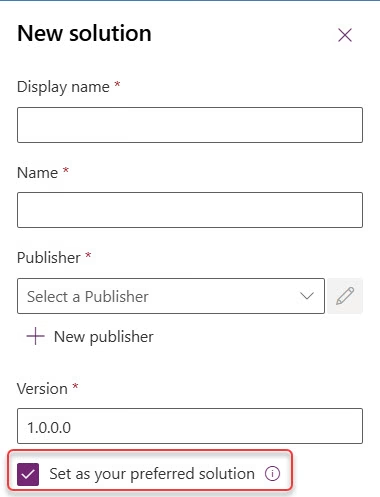
Now every new component you create will automatically go into that solution.
Once the Preferred Solution is set, many components you create will automatically be stored inside it.
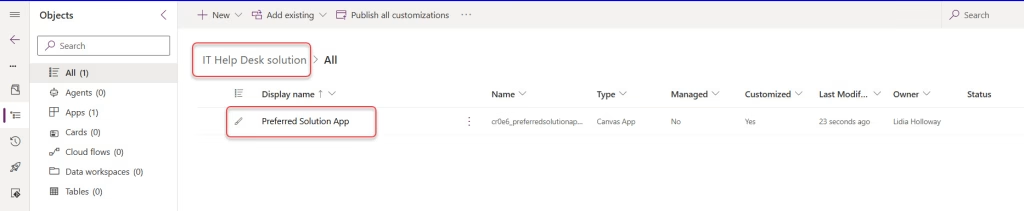
To test this, I created a Canvas app with one text label. Check the screenshot below.
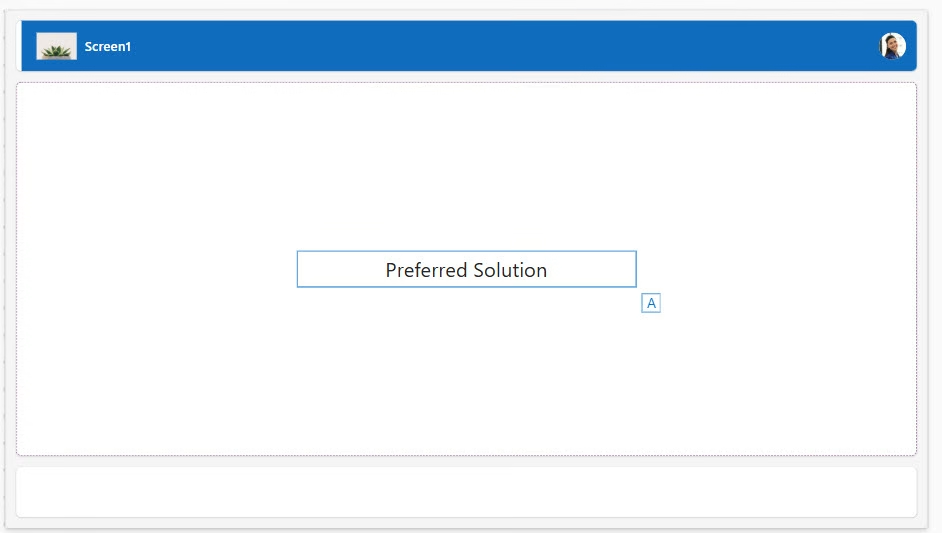
After saving this app, I select my IT Help Desk Solution there, and I can see my app.
Components Are Automatically Added to the Preferred Solution
Once the Preferred Solution is set, most components created in the maker portal are automatically added to that solution. We saw one example in the above section.
Some common components include:
- Canvas apps
- Model-driven apps
- Cloud flows
- Dataverse tables
- Columns and relationships
- Copilot agents
- Environment variables
- Connection references
- AI Builder components
This means you do not need to manually open the solution before creating these components. Power Platform automatically places them in the preferred solution for you.
Components That Are Not Always Added Automatically
While the Preferred Solution setting works for most components, there are some situations where it may not apply.
For example:
- Components created directly from the solution editor
- Items created using legacy interfaces
- Some third-party connectors or integrations
- Components created through API or automation scripts
In these cases, you may still need to manually add the component to the solution.
Conclusion
The Preferred Solution setting is a small feature in Power Platform, but it makes a big difference in real projects. It ensures that all your apps, flows, and components are automatically stored in the correct solution.
If you regularly build Power Apps, Power Automate flows, or Copilot agents, I strongly recommend setting a preferred solution before starting development. It keeps your environment organized and makes deployment much easier.
You may also like:
- Power Apps Camera Control
- Power Apps Remove Function
- Create a SharePoint List View Using REST API in Power Automate
- Role-Based Security in Power Apps (With SharePoint Groups)
- Create a Horizontal Scrollable Gallery in Power Apps
- Send a Mobile Notification Using Power Automate

Hey! I’m Bijay Kumar, founder of SPGuides.com and a Microsoft Business Applications MVP (Power Automate, Power Apps). I launched this site in 2020 because I truly enjoy working with SharePoint, Power Platform, and SharePoint Framework (SPFx), and wanted to share that passion through step-by-step tutorials, guides, and training videos. My mission is to help you learn these technologies so you can utilize SharePoint, enhance productivity, and potentially build business solutions along the way.

