
If you’ve ever built a form in Power Apps, you already know this problem. A user fills in some fields, submits the form, and then all that text just sits there. They have to manually delete everything before entering the next record. Not a great experience.
Clearing text input fields sounds simple, but there’s more than one way to do it — and each method fits a different situation. In this tutorial, I’ll walk you through practical ways to clear text input in Power Apps, with real examples you can copy straight into your app.
Let’s say you’re building a data entry app for your team. They log daily site visits — name, location, notes, status. After each submission, the form should be wiped clean so the next entry can start fresh. If you don’t handle this properly, users end up editing old values by accident, or worse, submitting duplicate data.
Getting this right makes your app feel polished and professional. It also saves your users a lot of frustration.
Clear a Text Input in Power Apps
Let’s discuss the four important methods to clear a Text input in Power Apps with real examples.
Method 1: Using Power Apps Reset() Function (Most Common)
This is the go-to method for clearing a single text input. The Power Apps Reset() function sends a control back to its Default property value. If that default is empty (""), the field clears completely.
How to set it up:
- Insert a Power Apps Text input control on your screen. Let’s say it’s named
txtName. - Set its Default property to
""(empty string). - Insert a Button control. Label it “Clear” or “Reset.”
- On the button’s OnSelect property, write:
Reset(txtName)
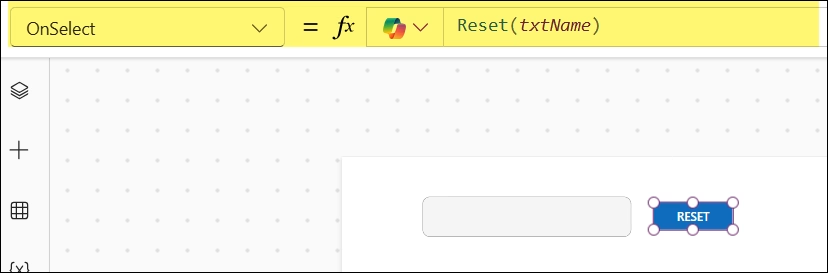
That’s it. When the user clicks the button, txtName goes back to blank.
Important thing to know: The Reset() function resets the field to whatever value is in its Default property — not just blank. So if someone typed “John” but the default was “Enter your name,” clicking Reset brings it back to “Enter your name,” not a blank field.
To make it clear on click, always set the Default property of the text input to "".
Resetting multiple fields at once:
You can chain Reset calls on a single button:
Reset(txtName);
Reset(txtEmail);
Reset(txtPhone)
Use a semicolon between each one. The button runs each Reset in sequence.
Method 2: Using Power Apps Variable as the Default (More Flexible)
The Power Apps Reset() function is great, but sometimes you need more control — like when you want to clear fields after a form submission or populate them with new data on the fly.
In this approach, you bind the Default property of the text input to a variable, then reset that variable.
How to set it up:
- Set the Default property of your Power Apps text input to a variable, say
varName. - Initialize it on the screen’s OnVisible property:
Set(varName, "")

- On your Clear button’s OnSelect, write:
Set(varName, "")
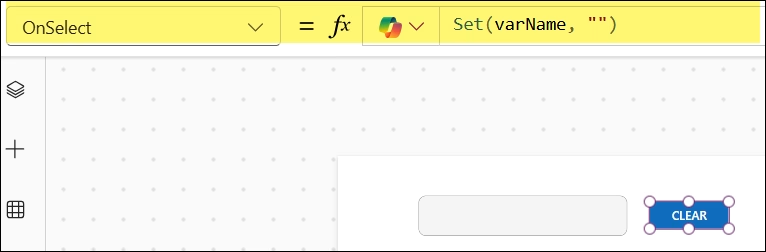
Now, when you hit the button, the variable goes blank, and since the Default is tied to it, the text input clears automatically.
Why use this instead of Reset()?
- It works better when you’re pre-populating fields with existing data (e.g., in an edit form).
- It gives you more flexibility — you can set the variable to a default value instead of always going blank.
- It plays nicer with certain custom-styled text inputs, which
Reset()can behave unexpectedly.
Real example:
Say you’re building an employee lookup tool. When someone searches for a record and then clicks “New Search,” you want to clear the search box and reset any loaded data. Using a variable approach:
// Clear button OnSelect
Set(varSearchName, "");
Set(varSearchResult, Blank())
Clean, easy to maintain, and readable.
Method 3: Using Power Apps UpdateContext() for Screen-Level Resets
If you have a Power Apps screen with multiple text inputs and you want to clear all of them together, UpdateContext() is a tidy option. It works the same way as Set(), but the variable only lives on the current screen — which is fine for most form scenarios.
How to set it up:
- Set the Default property of each text input to a context variable:
txtNameDefault →ctxNametxtEmailDefault →ctxEmailtxtNotesDefault →ctxNotes
- On your Power Apps screen’s OnVisible, initialize them:
UpdateContext({ctxName: "", ctxEmail: "", ctxNotes: ""})

- On your “Clear” button’s OnSelect:
UpdateContext({ctxName: "", ctxEmail: "", ctxNotes: ""})
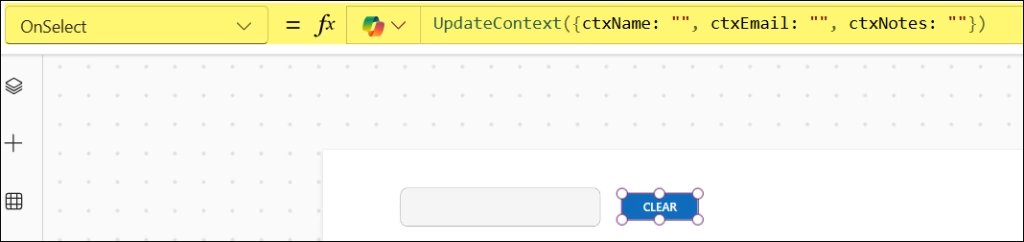
One line clears everything. The screen refreshes all bound text inputs at once.
When to use this:
- When you have 3 or more fields to clear on a single screen.
- When you don’t need those variables to be accessible from other screens.
- When you want to keep your formulas clean and centralized.
Method 4: Using Power Apps ResetForm() for Edit Forms
If you’re using a Power Apps Form control (not standalone text inputs), there’s an even simpler option — ResetForm(). This clears every field inside the form in one shot.
How to set it up:
- Add a Form control to your screen. Let’s say it’s named
Form1. - Add a Button. Set its OnSelect to:
ResetForm(Form1)
Click the button — every data card inside the form resets to its default value.
Note: ResetForm() only works on Form controls. It won’t work on standalone Text Input controls sitting outside a form. For those, use Reset() or the variable methods above.
Also, you can’t reset controls inside a Gallery or Form from outside those containers. If you need to reset something within a Gallery, the formula must live within the Gallery itself.
Using Power Apps Built-In “Clear” Icon on Text Inputs
There’s also a quick, no-code way for users to clear a text input themselves — the built-in clear icon.
- Select your Power Apps Text Input control.
- In the right-hand Properties panel, look for the Clear toggle (or search for it in the Advanced panel).
- Turn it on.
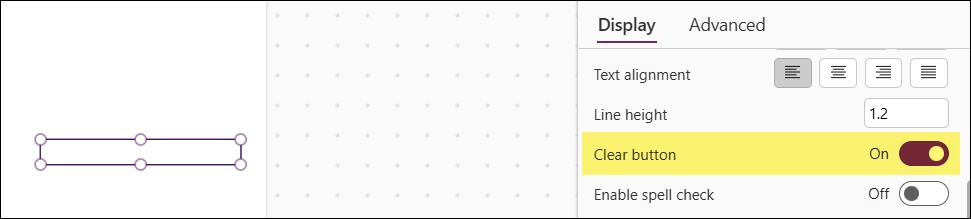
Now, a small X icon appears inside the text box when the user is typing. Clicking it clears the field instantly — no button, no formula needed.

This is great for search bars and filter fields where users need a quick way to start over. The downside? It only clears one field at a time, and the user controls it — not your app logic.
Common Issues and How to Fix Them
Here are a few problems I’ve seen people run into with clearing text inputs:
Reset() doesn’t seem to work:
- Check the Default property of the text input. If Default has a hard-coded value or a formula, Reset will restore it to that value —not to blank. Make sure Default is
""or a variable set to"".
Text input clears but immediately refills:
- This usually means the Default property has a formula that keeps evaluating to a value. When you reset, the formula runs again and re-populates the field. Use a variable in Default and control that variable manually.
Resetting inside a Gallery doesn’t work from outside:
- This is a known limitation. You can’t use
Reset(TextInput1)from a button outside the Gallery to reset a control inside it. The Reset call has to come from within the Gallery context.
Reset() on custom/percentage fields behaves oddly:
- This is a reported quirk. The safest fallback is using context variables for the Default property and clearing those variables instead.
Which Method Should You Use to Clear a Text Input in Power Apps?
Here’s a quick decision guide:
- Single text input, simple clear button → Use
Reset(ControlName) - Multiple fields, screen-level form → Use
UpdateContext()or multipleReset()calls chained together - Edit form with connected data source → Use
ResetForm(FormName) - User-triggered field clearing → Enable the built-in Clear icon on the text input
- Pre-populated fields or complex state → Use
Set()with a global variable as the Default property
Clear a Text Input in Power Apps — A Practical Example
Let’s say you’ve built a Power Apps visitor log entry form with these fields:
txtVisitorNametxtPurposetxtCompany- A Power Apps Submit button and a Clear button
Here’s what the Clear button’s OnSelect formula would look like:
Reset(txtVisitorName);
Reset(txtPurpose);
Reset(txtCompany)
And if you also want to clear the fields automatically after submission:
// Submit button OnSelect
Patch(VisitorLog, Defaults(VisitorLog), {
    VisitorName: txtVisitorName.Text,
    Purpose: txtPurpose.Text,
    Company: txtCompany.Text
});
Reset(txtVisitorName);
Reset(txtPurpose);
Reset(txtCompany)
After the record is saved, all three fields are wiped clean, and the user is ready for the next entry. Simple, clean, practical.
Clearing text inputs in Power Apps isn’t complicated once you know which tool fits the job. The Reset() function handles most day-to-day cases, variables give you more control when things get complex, and ResetForm() keep things clean when you’re working with form controls. Start with the simplest approach for your scenario, and layer in complexity only when you actually need it.
Also, you may like some more Power Apps tutorials:
- Set a Power Apps Dropdown Default Value from a SharePoint List
- Set Default Value in Power Apps Modern Radio Button
- Set Combo Box Value On Button Click in Power Apps
- Confirm() Function in Power Apps
- Power Apps Dropdown Show Multiple Columns

Hey! I’m Bijay Kumar, founder of SPGuides.com and a Microsoft Business Applications MVP (Power Automate, Power Apps). I launched this site in 2020 because I truly enjoy working with SharePoint, Power Platform, and SharePoint Framework (SPFx), and wanted to share that passion through step-by-step tutorials, guides, and training videos. My mission is to help you learn these technologies so you can utilize SharePoint, enhance productivity, and potentially build business solutions along the way.

