
When I build Power Apps solutions for clients, SharePoint lists are almost always part of the setup. And most of the time, these lists require many fields. Sometimes 30. Sometimes 40+. Manually creating them was a big waste of time.
So I started using PnP PowerShell to automate this.
One script -> Run it once -> SharePoint lists created -> all fields added -> Huge time saver.
But there was a problem. All field details, such as internal name, display name, and data type, were hard-coded in the PowerShell script. If a client wanted to add a new field, update an existing one, or delete something, they had to touch the script. And let’s be honest, most clients don’t want to edit PowerShell code. That quickly became a bottleneck.
To fix this, I changed the approach.
Instead of hardcoding field details in PowerShell, I moved everything to Excel. Each row represents a field. Name, type, settings, everything lives in a simple Excel file. Now the PowerShell script just reads the Excel file and creates the fields one by one in the SharePoint list.
This way, clients only update Excel.
No PowerShell changes. No risk. Much simpler.
In this tutorial, I’ll show you how to add fields to a SharePoint list from Excel using PnP PowerShell, step by step. If you work with Power Apps, SharePoint, or automation, this approach will save you a lot of time.
Create a SharePoint List & Add Fields From Excel [PnP PowerShell]
Before we discuss the PnP PowerShell script, first, we need to make an Excel sheet that contains the SharePoint list fields data, such as:
- Display Name
- Internal Name
- Data Type
- Is Mandatory
- Choices
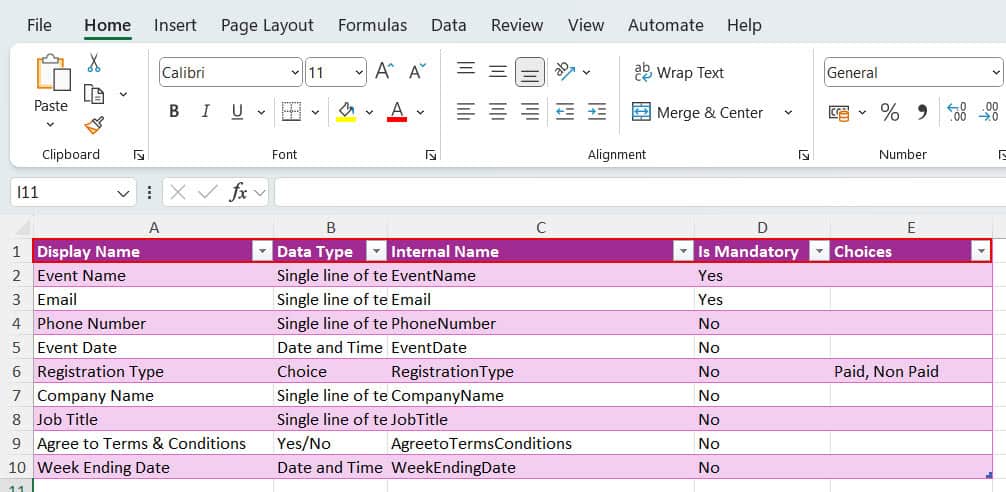
Now, the Excel is ready; let’s understand the PowerShell script:
Understand the PnP PowerShell Script
The script will first create a list with the provided name. Then, it fetches each field from Excel and adds it to the SharePoint list based on the data type. It will also update the Required property and add choice values for the choice fields.

$siteUrl = "https://<tenant name>.sharepoint.com/sites/HumanResourcesDepartment"
$excelFilePath = "D:\ListColumns\Event Registrations.xlsx"
$listName = "EventRegistrationsList"
$ListDisplayName = "Event Registrations List"
$ClientID = "Proivde your client id"
function Get-ColumnsFromExcel {
    param (
        [string]$excelFilePath
    )

    $excelData = Import-Excel -Path $excelFilePath

    # SharePoint Field Type Mapping
    $FieldTypeMapping = @{
        "Single line of text"     = "Text"
        "Multiple lines of text"  = "Note"
        "Number"                  = "Number"
        "Currency"                = "Currency"
        "Yes/No"                  = "Boolean"
        "Choice"                  = "Choice"
        "Multi Choice"            = "MultiChoice"
        "Date and Time"           = "DateTime"
        "Hyperlink or Picture"    = "URL"
        "Person or Group"         = "User"
        "Lookup"                  = "Lookup"
    }

    $columns = @()

    foreach ($row in $excelData) {
        if (![string]::IsNullOrEmpty($row.'Display Name') -and (![string]::IsNullOrEmpty($row.'Internal Name'))) {

            $mappedType = $FieldTypeMapping[$row.'Data Type']

            if (-not $mappedType) {
                Write-Host "Invalid Data Type found in Excel: $($row.'Data Type')" -ForegroundColor Red
                continue
            }

            $column = @{
                DisplayName = $row.'Display Name'
                InternalName = $row.'Internal Name'
                Type = $mappedType
                Choices = if ($mappedType -eq "Choice" -or $mappedType -eq "MultiChoice") { [string[]]($row.Choices -split '\s*,\s*') } else { @() }
                Required = if ($row.'Is Mandatory' -eq "TRUE" -or $row.'Is Mandatory' -eq "Yes") { $true } else { $false }
            }

            $columns += New-Object -TypeName PSObject -Property $column
        }
        else {
            Write-Host "Skipping Empty Column in Excel..." -ForegroundColor Yellow
        }
    }

    return $columns
}

# Function to Create List and Columns from Excel Data
function Create-ListFromExcel {
    param (
        [string]$listName,
        [string]$excelFilePath,
        [string]$ListDisplayName
    )

    $columns = Get-ColumnsFromExcel -excelFilePath $excelFilePath
    $list = Get-PnPList | Where-Object { $_.Title -eq $ListDisplayName }

    # Create List if not exists
    if (-not $list) {
        New-PnPList -Title $ListDisplayName -Template GenericList -OnQuickLaunch
        Write-Host "List '$ListDisplayName' created!" -ForegroundColor Green


    # Create Columns
    foreach ($column in $columns) {
        Write-Host "Creating Field: $($column.DisplayName) of Type $($column.Type)" -ForegroundColor Cyan

        if (($column.Type -eq "Choice" -or $column.Type -eq "MultiChoice") -and $column.Choices.Count -gt 0) {
            Add-PnPField -List $ListDisplayName -DisplayName $column.DisplayName -InternalName $column.InternalName -Type $column.Type -AddToDefaultView -ErrorAction SilentlyContinue
            Set-PnPField -List $ListDisplayName -Identity $column.InternalName -Values @{Choices = [string[]]$column.Choices}
        }

        else {
            Add-PnPField -List $ListDisplayName -DisplayName $column.DisplayName -InternalName $column.InternalName -Type $column.Type -AddToDefaultView -ErrorAction SilentlyContinue
        }

        if ($column.Required -eq $true) {
            Set-PnPField -List $ListDisplayName -Identity $column.InternalName -Values @{Required = $true}
        }
    }

    Write-Host "All columns added successfully!" -ForegroundColor Green
    }
    else {
        Write-Host "List '$ListDisplayName' already exists!" -ForegroundColor Yellow
    }

}

# Connect to SharePoint
Connect-PnPOnline -Url $siteUrl -ClientId $ClientID -Interactive

Create-ListFromExcel -listName $listName -excelFilePath $excelFilePath -ListDisplayName $ListDisplayName
1. Update the parameters below in the script:
- $siteUrl = Provide the SharePoint site URL where you need to create the list.
- $excelFilePath = Provide the Excel file path.
- $listName = Provide the list internal name.
- $ListDisplayName = Provide list display name.
- $ClientID = Provide your Microsoft Entra ID registered application ID.
2. The Get-ColumnsFromExcel function takes Excel as input and then performs the following actions:
- $excelData = In this variable, we’re storing the Excel file data.
- $columns = @() Created an empty array to store each field’s data in an array of objects format.
- $FieldTypeMapping = This hashtable maps the data types mentioned in Excel with the actual data types present in PnP PowerShell.
    # Mapping SharePoint Field Type
    $FieldTypeMapping = @{
        "Single line of text"        = "Text"
        "Multiple lines of text"   = "Note"
        "Number"                     = "Number"
        "Currency"                    = "Currency"
        "Yes/No"                       = "Boolean"
        "Choice"                       = "Choice"
        "Multi Choice"               = "MultiChoice"
        "Date and Time"            = "DateTime"
        "Hyperlink or Picture"     = "URL"
        "Person or Group"          = "User"
        "Lookup"                       = "Lookup"
}- $mappedType = Storing the converted data type while iterating over each field in the Excel.
- $column = Converting each row in Excel into an Object with properties like
- DisplayName
- InternalName
- Type
- Choices
- Required
- $columns = Array storing each object $column.
3. The Create-ListFromExcel function will create the SharePoint list if it does not already exist and then add the columns one by one.
4. This Connect-PnPOnline command is used to connect with the SharePoint site.
5. After connecting to the SharePoint site, we call the Create-ListFromExcel function to create a SharePoint list, along with columns taken from Excel.
Create-ListFromExcel -listName $listName -excelFilePath $excelFilePath -ListDisplayName $ListDisplayNameBelow is the output image showing the PnP PowerShell creating the SharePoint list and adding the fields mentioned in the Excel file. It also updated the required property for the fields I mentioned in Excel.

I hope you found this article helpful!
In this article, you saw how to create a SharePoint list using PnP PowerShell and then add fields to it directly from an Excel file. Instead of hardcoding column details in the script, everything now lives in Excel names, types, and settings.
This makes updates easier, reduces errors, and saves a lot of time, especially when working with large lists or frequent changes. Just update the Excel file, run the script, and you’re done.
Simple, flexible, and much easier to maintain.
Also, you may like:
- Rename Folders to Uppercase or Lowercase Using PowerShell
- Enable Sensitivity Labels For Microsoft 365 Groups
- Rename Multiple Files Using PowerShell
- Check if a File Exists and Rename it Using PowerShell
- PowerShell Global Variables
- Create a Folder If Not Exists in PowerShell
- 10 Useful Tips for Customizing SharePoint List Fields

Hey! I’m Bijay Kumar, founder of SPGuides.com and a Microsoft Business Applications MVP (Power Automate, Power Apps). I launched this site in 2020 because I truly enjoy working with SharePoint, Power Platform, and SharePoint Framework (SPFx), and wanted to share that passion through step-by-step tutorials, guides, and training videos. My mission is to help you learn these technologies so you can utilize SharePoint, enhance productivity, and potentially build business solutions along the way.

